
Quickstart
Sign in, ask your first question, choose a model and attach a file. Ten minutes to your first useful result.
This guide takes you through your first ten minutes with Custodos. All you need is a browser, on a computer or a smartphone. There is no password.
Your first steps
Open the invitation and sign in
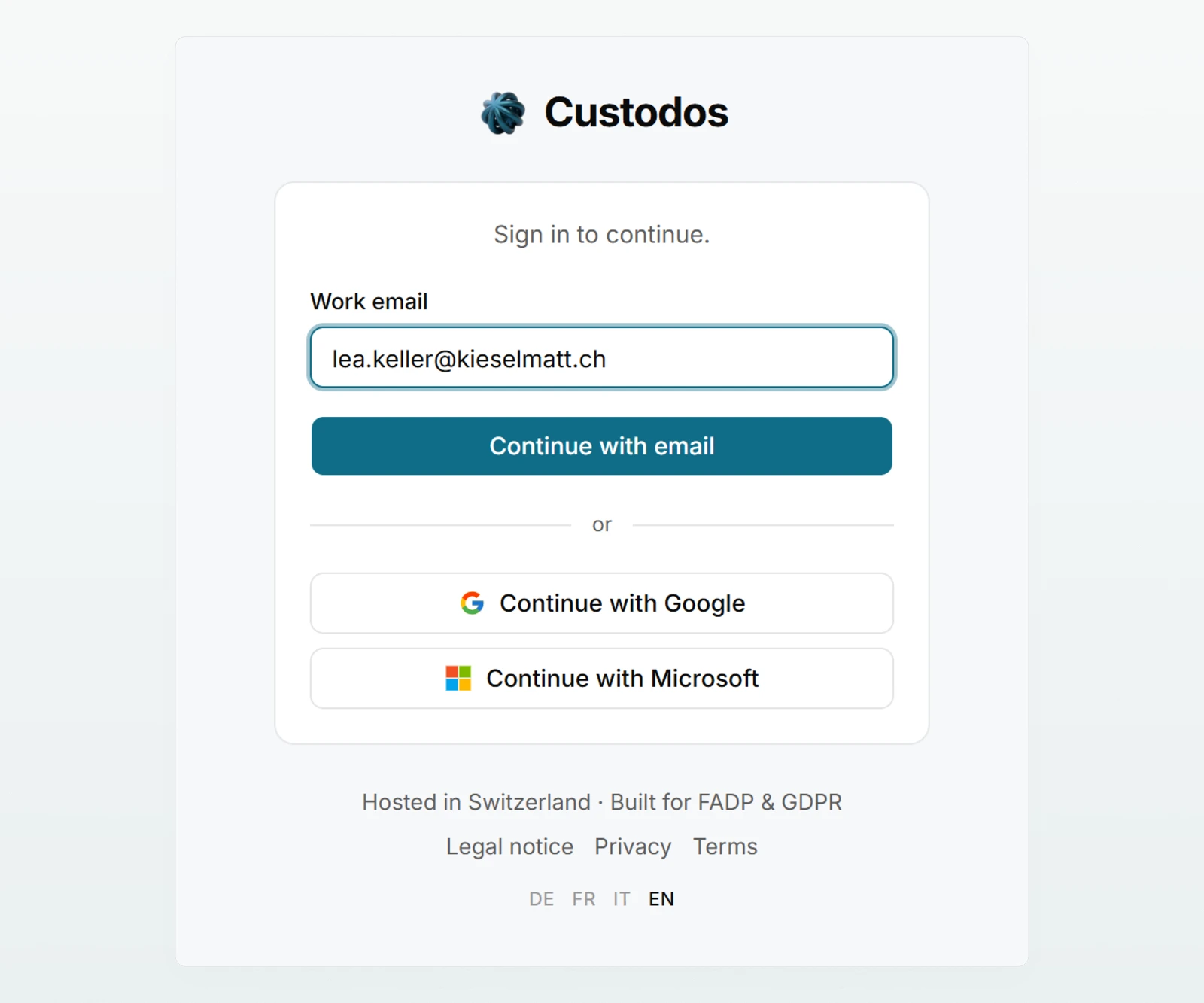
In the invitation email, click Accept invitation. Invitation and sign-in emails are currently in English, whatever language you use in Custodos. Custodos first asks you to sign in. There are three ways:
- Enter your address under Work email and click Continue with email. You receive an email with the subject "Sign in to Custodos". The link in it is valid for 24 hours and works once.
- Click Continue with Google and sign in with your Google account.
- Click Continue with Microsoft and sign in with your Microsoft account.
Use the address your invitation was sent to. Later, sign in directly at app.custodos.com.
Join the workspace
After signing in you see Join workspace with the address you are signed in with. Click Accept invitation. An invitation is valid for 7 days.
If Custodos asks for your name under First, your account, enter it in Your name and click Continue. Your colleagues see this name. You can change it later in your account settings.
Ask your first question
Custodos opens with an empty chat. Type your question into the Message Custodos… field and press Enter. Shift + Enter starts a new line. An example:
Write three short subject lines for our client newsletter about the 2026 year-end closing.
If the answer is not quite right, say in the same chat what should change, for example "Please make them a little more formal".
Choose a model or stay on Auto
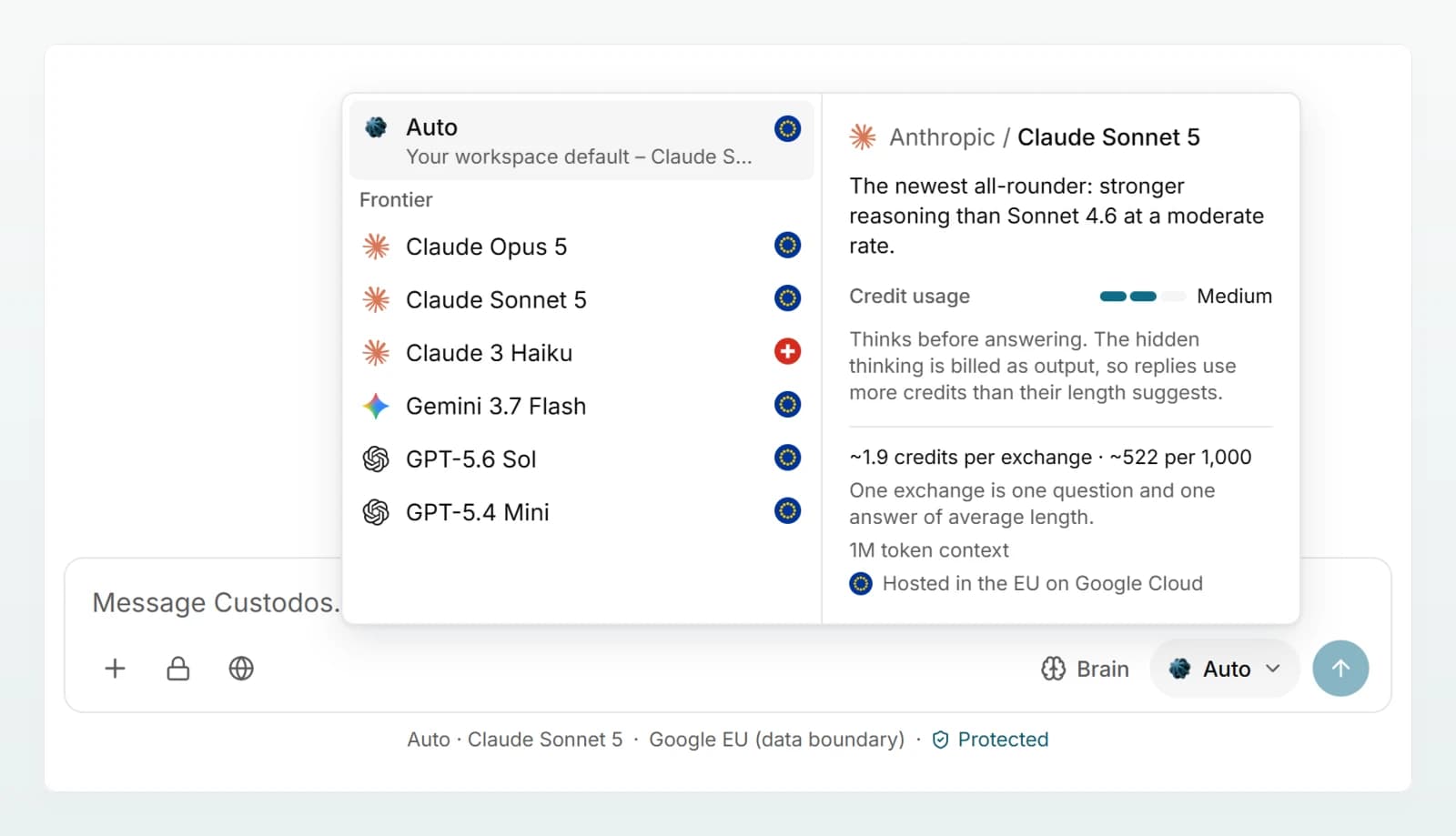
On the right of the composer you see Auto. Auto uses the default model your admin set for the workspace. To begin with, that is the right choice.
Click Auto to see every model your workspace has enabled. On a computer, hover over a model to see a card with its Credit usage (Low, Medium or High), the approximate credits per reply and where the model is hosted. More in Choosing a model.
Attach a file
Click the plus button Add on the left of the composer, then Attach file. You can also drag files into the chat window or paste a copied image with Ctrl + V (on a Mac Cmd + V).
PDF, Word, Excel, PowerPoint, text, data and code files and images all work, up to 20 MB per file. Then ask your question about the file, for example about the "Expense Policy 2026": "Up to what amount can I claim a business meal with a client?"
Read the line under the composer
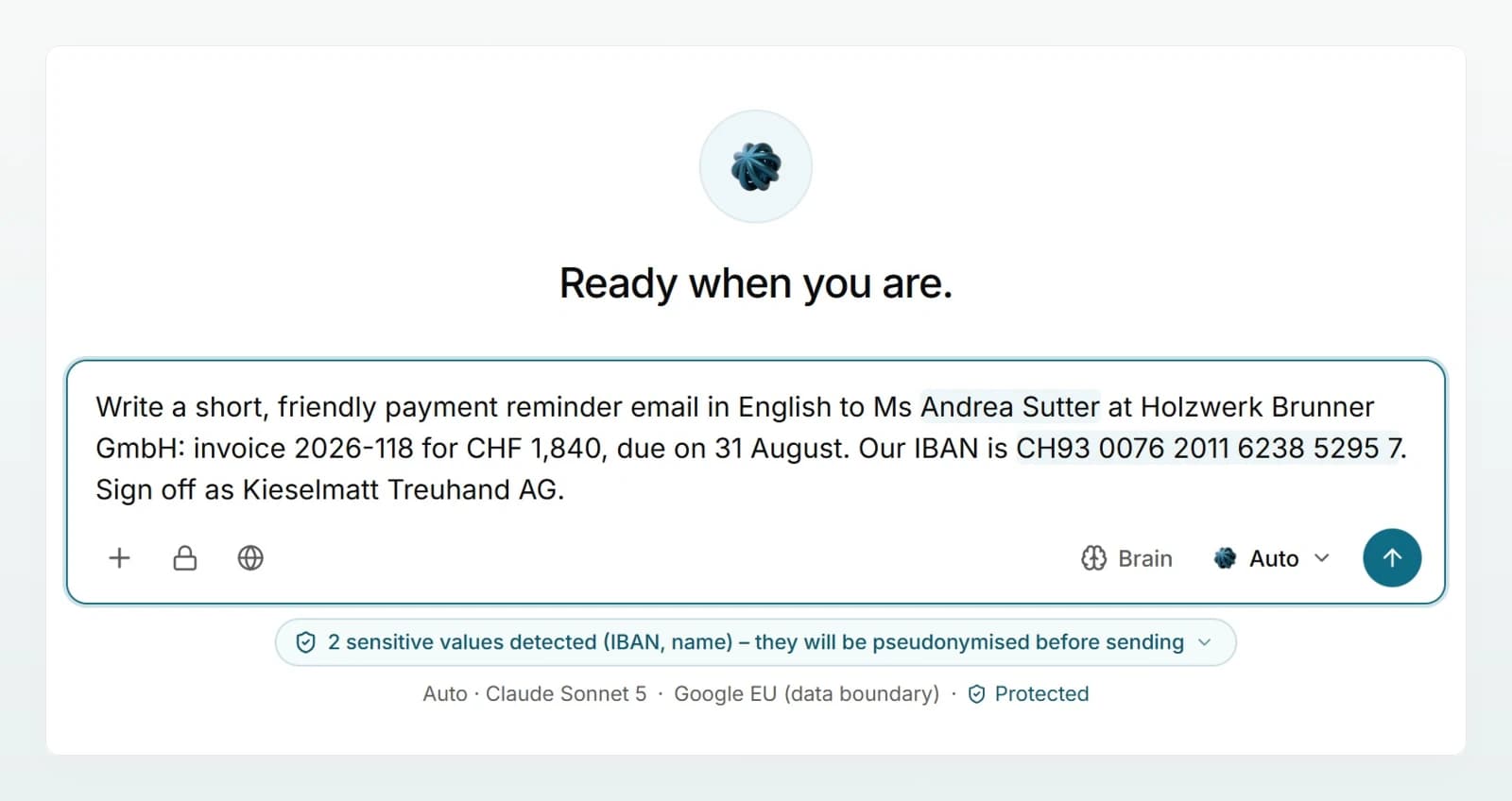
Under the composer, a line shows the model, where it is processed and, if your workspace protects data, Protected. If Custodos detects sensitive details such as a name or an IBAN while you type, it highlights them in the text and shows a notice above, such as "1 sensitive value detected (IBAN)".
Depending on your workspace's setting, these values are either replaced with placeholders before sending and restored in the reply, or the message is blocked. More in Protecting personal data in chat.
Where your chats are
All your chats are in the sidebar, grouped into Today, Yesterday, Previous 7 days and Older.
- Search: Search chats finds chats by their title. It does not search the content of messages.
- Organise: Projects groups chats on one topic, for example one client engagement.
- Shared: Shared with me lists chats that colleagues have shared with you.
Nobody else sees your chats, not even an admin, unless you share them. How sharing works: Sharing and finding chats.
Best practices
- Give context. Say what you need the answer for and in what form: "as an email", "as a table", "in five points".
- Keep one topic to one chat. The model then knows the history. For a new topic, start again with New chat.
- Attach documents instead of pasting text. The file stays available for every further question in the chat.
- Check figures, deadlines and names. AI models can be wrong. Do not rely on an unchecked answer for important decisions.
More tips in Writing good prompts.
Frequently asked questions
Check your spam folder and search for the subject "Sign in to Custodos". Make sure your address was spelt correctly, then request a new link. More causes and fixes in Troubleshooting.
Only if your company does not use Custodos yet. If you see Create workspace, your account does not belong to a workspace yet. Usually you are signed in with a different address from the one your invitation went to. Sign out and back in with the invited address, or ask your admin for a new invitation.
Yes, in the browser on your smartphone or tablet. There is no app to install. Open the sidebar with the menu icon at the top left.
Yes. Click your name at the bottom of the sidebar and choose Deutsch, Français, Italiano or English under Language. The choice applies on every device you sign in from.
Next steps
Welcome to Custodos
Custodos is the AI workspace for your company. Chat, work with company knowledge and hand tasks to agents, with data protection before anything is sent.
Set up your workspace
The checklist for admins. Eight steps get Custodos ready for your team, from the first invitation to the message that tells everyone.