
Set up your workspace
The checklist for admins. Eight steps get Custodos ready for your team, from the first invitation to the message that tells everyone.
Whoever creates a workspace is its first admin. This checklist takes you through the setup in a sensible order. Much is already preset: the protection mode is Pseudonymise, the processing region is EU + Switzerland, web search is allowed, and models such as Claude, GPT and Gemini are enabled.
The admin pages are at the bottom of the sidebar, in the Workspace section.
The checklist
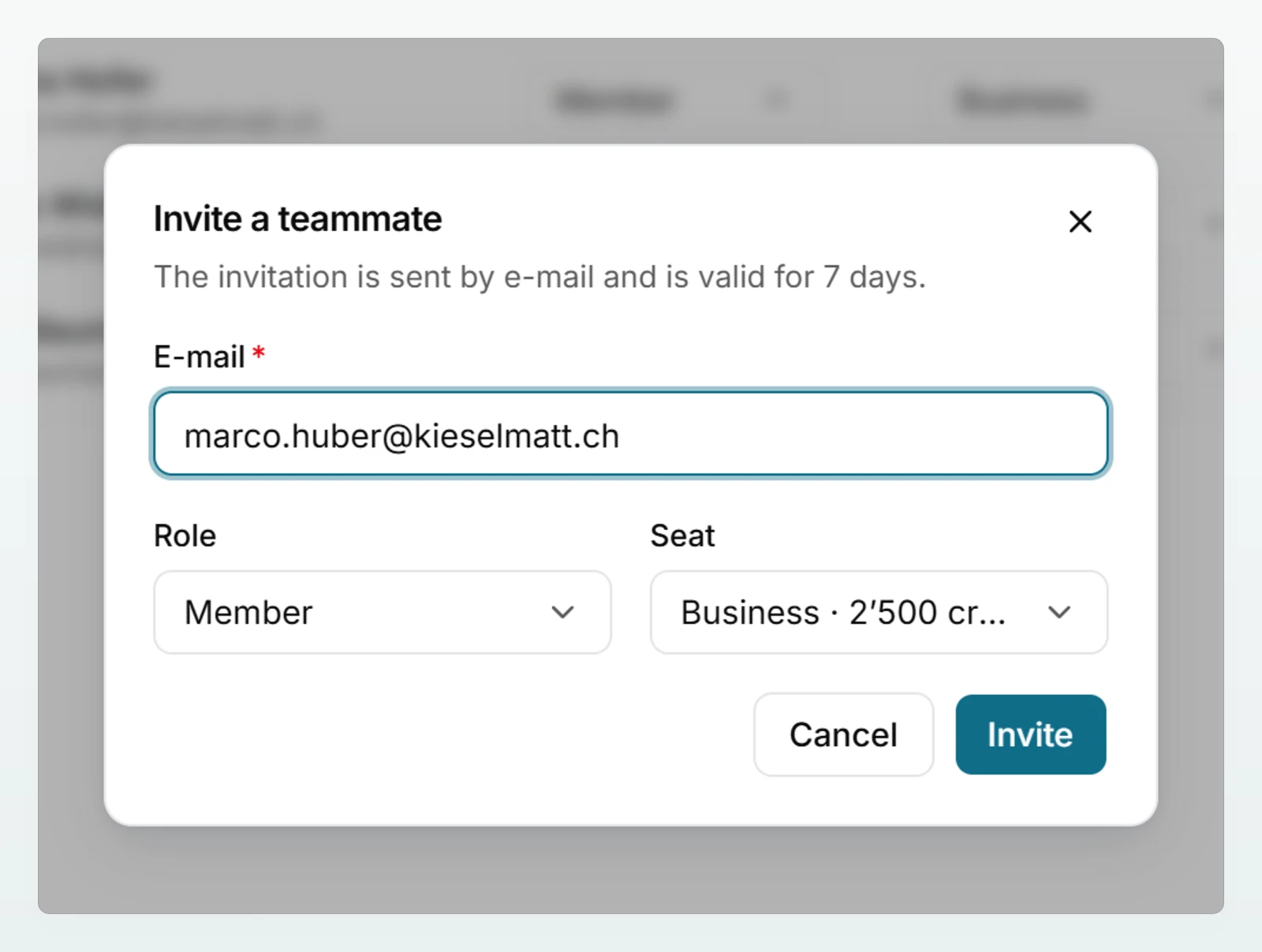
Open Members and click Invite. Enter the E-mail, choose the Role (Member or Admin) and the Seat, and send with Invite. The invitation is valid for 7 days. You can resend or withdraw open invitations.
Make at least one other person an admin, so that administration does not depend on you alone.
More in Members and roles.
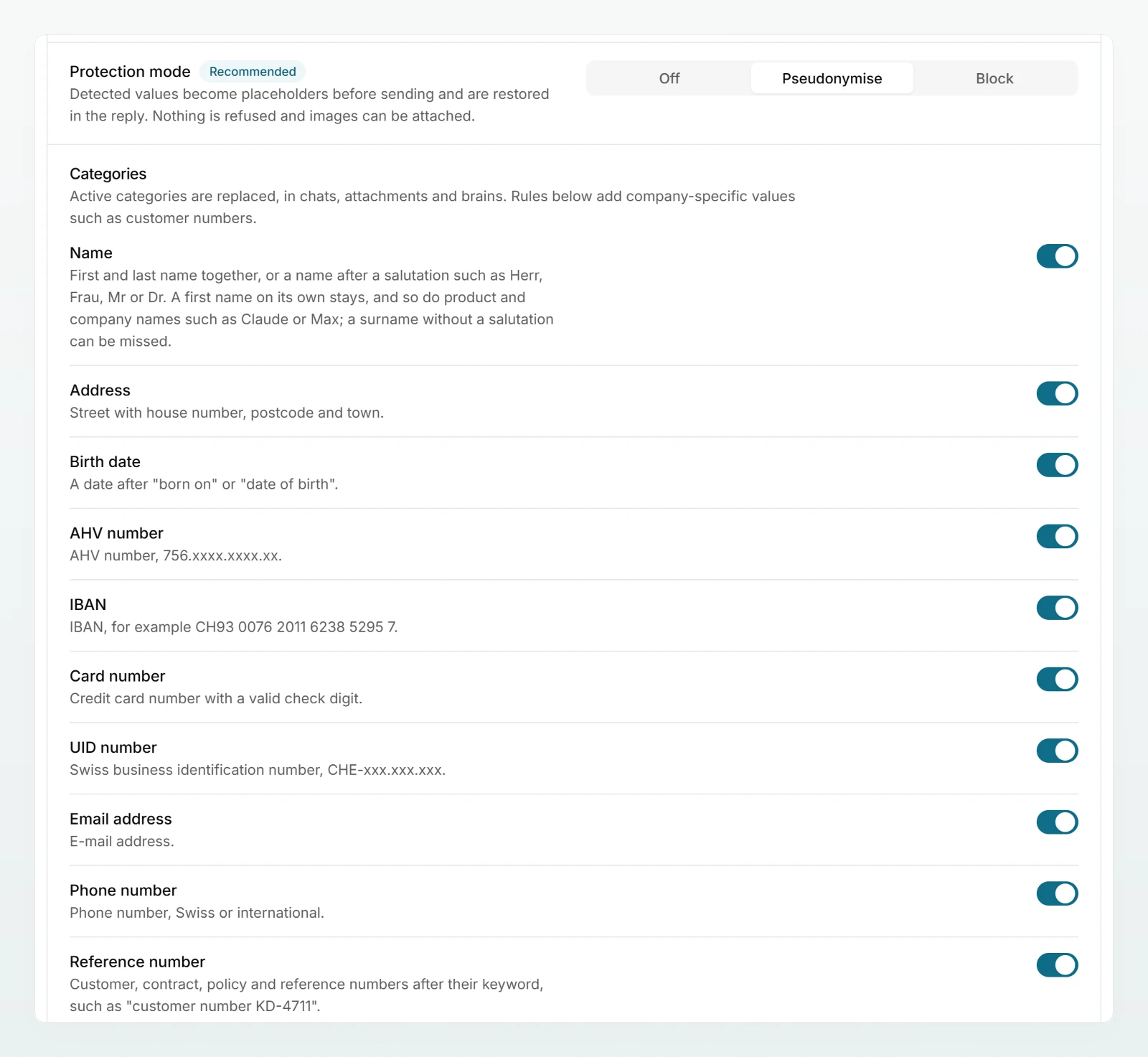
Set the Protection mode under Settings › Data protection. Pseudonymise is recommended: detected names, addresses, IBANs, AHV numbers and other details are replaced with placeholders before sending and restored in the reply. Block refuses messages with hard identifiers such as an AHV number or an IBAN, and does not accept images. Off sends everything as typed.
Try it shows, on a sample text, what a model would actually receive. For particularly sensitive client matters you can also offer Security mode.
More in Configuring data protection and Setting up security mode.
Under Models, choose the Processing region: Switzerland, European Union, EU + Switzerland (recommended) or Global. Models outside the region are not offered to your team at all. The Switzerland region currently has only one older, simpler model, and no web search.
Below that, allow or block individual models. Under Defaults, New chats sets the model your team gets without choosing one. The same model sits behind the Auto entry.
More in Models and regions.
Under Settings › Web search, Allow web search is switched on. Models then search the web themselves when a question needs current information, and cite their sources. Only the query the model writes is sent, never the conversation. Security mode never searches.
Every search uses extra credits. How many is shown in the chat, in the web search menu next to Automatic. If you switch search off, models answer from their training knowledge alone.
More in Managing web search.
Open Company Brain and click Create brain. Enter a name, for example "Firm handbook", and under Who can use it? choose Everyone in the workspace or Selected people only. Then add documents with Add sources, for example the "Fee Schedule 2026" and the "Expense Policy 2026".
Start with a few current documents that answer many everyday questions.
More in Creating a brain and Building a good brain.
Open Agents and click New agent. In the Create tab, describe in your own words what the agent should do. The fields under Configure fill in as you go. Test the agent in the Preview and save it with Create.
A good first agent takes on a task that comes back every week: writing quotes, or answering client enquiries by the "Client Communication Guide".
More in Creating an agent and Building good agents.
Each person connects Google Drive, Microsoft 365 and Outlook for themselves, in the account menu under Account settings › Connected accounts. A connection belongs to the personal account: colleagues do not see it and cannot import through it.
If your Microsoft 365 organisation requires an administrator's approval, members see a notice with the Approval link for administrators when they connect. Pass it on to your IT. Connect your own account first, so you know the flow.
More in Integrations overview and Microsoft 365.
Tell your team what Custodos is for, what belongs in it and what does not. Share the link to the Quickstart and name two or three tasks everyone can start with, for example email drafts or questions about the expense policy.
After a week or two, Usage shows who is using Custodos and with which models.
A plan for the first 30 days and ready-made messages for your team are in Rolling out AI in your team.
Frequently asked questions
Yes, every one of them. Custodos records changes to members, settings and brains in the activity log under Settings. Chat content never appears there.
No. Admins see usage and cost per person, never message content. You can only read a chat if someone shares it with you. What admins see and what they do not is in Administration overview.
Your workspace is in its trial. The page says "Company Brain comes with your first plan", and the agents page says "Agents come with your first plan". For a plan, write to [email protected].
At least two. The last remaining admin can neither demote themselves nor be removed. If that person is away, nobody can invite members or change settings.
Next steps
Every admin page, and what admins deliberately do not see.
Rolling out AI in your teamA 30-day plan with a kickoff and message templates.
Configuring data protectionProtection mode, categories and custom rules in detail.
Credits and usageHow the pool works and what uses more credits.
For your team, the Quickstart is the best first page.