
A tour of the interface
Where to find things in Custodos. The sidebar, the chat screen and the composer with its buttons at a glance.
Custodos has three areas: the sidebar on the left with your chats and tools, the chat beside it, and the composer at the bottom of the chat. This page shows what is where. How to do each thing is on the linked pages.
The sidebar
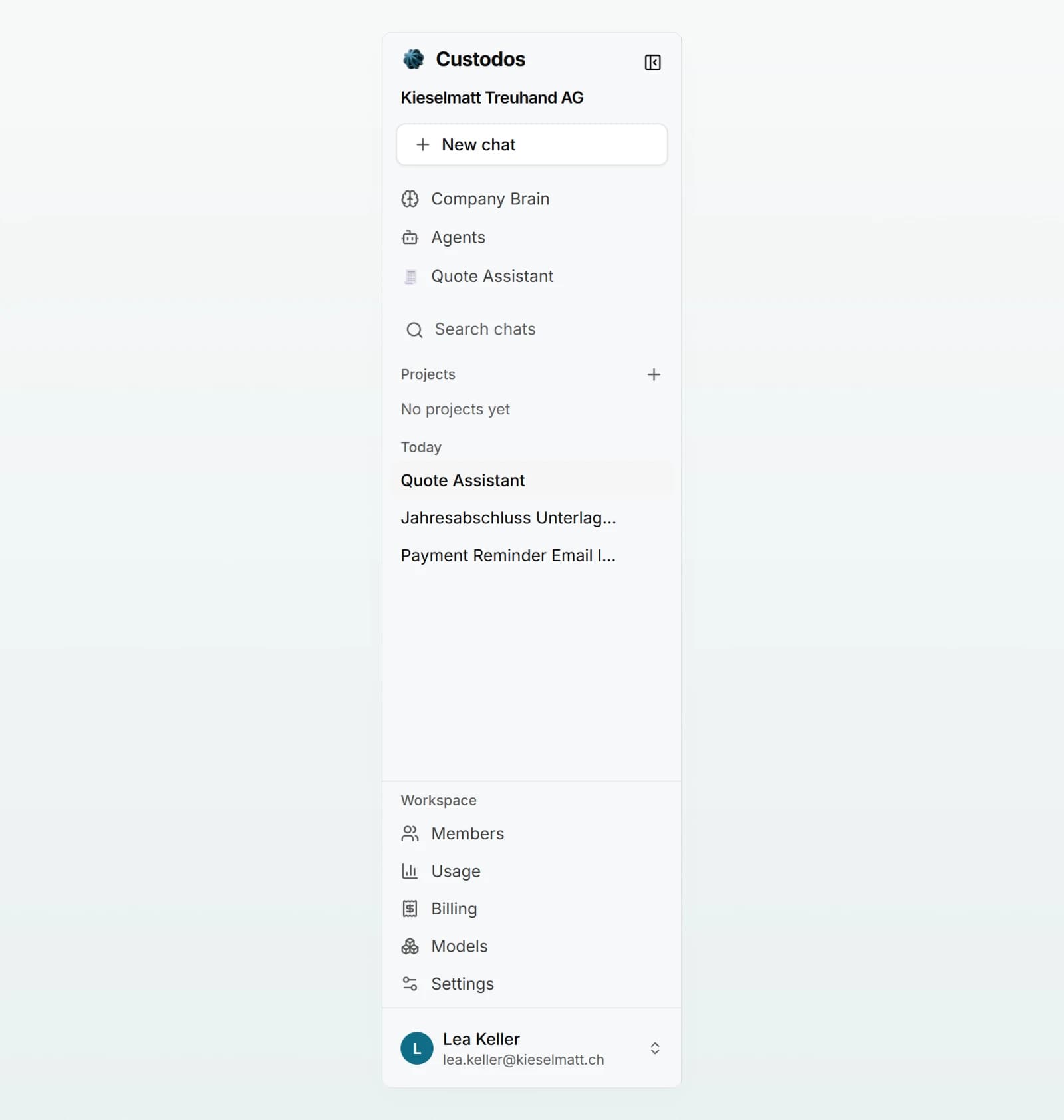
From top to bottom:
| Item | What it is for |
|---|---|
| New chat | Opens an empty chat. |
| Company Brain | Your company's knowledge bases. |
| Agents | Every agent you may use. Below it, up to three you chatted with most recently. One click starts a chat with that agent. |
| Search chats | Searches the titles of your chats. |
| Projects | Your projects with the chats in them. The plus button creates a New project. |
| Shared with me | Chats others have shared with you. Only appears when there are some. |
| Chat history | Your other chats, grouped into Today, Yesterday, Previous 7 days and Older. |
| Workspace | Admins only: Members, Usage, Billing, Models and Settings. |
| Your name | The account menu with Account settings, Language and Sign out. |
Organising chats
Hover over a chat in the history and the Chat options menu appears on the right, with Rename, Add to project and Delete. If you have a lot of chats, load older ones with Show older chats.
Switching workspace
If you belong to several workspaces, open Account settings from the account menu. Workspaces lists every workspace your account belongs to, with your role in each. Click a name to switch to it. Your browser remembers which workspace you opened last.
Hiding the sidebar
The icon at the top right of the sidebar (Hide sidebar) gives the chat more room. Bring it back at the top left with Show sidebar. Your choice is kept in the browser.
The chat screen
![An answer on the mileage allowance with the reference [1] and the expanded list of Company Brain sources naming the Expense Policy 2026.](/_next/image?url=%2Fmedia%2Fen%2Fbrain-chat-answer.webp&w=3840&q=75)
- Header: The title sits in the middle. Click it to change it. On the right, once the chat holds a message, are Share, the printer icon Export as PDF (print dialog) and the bin Delete chat. If you started the chat with an agent, a label on the left names it.
- History: Above each reply is the model that answered. Hover over your last message to see Edit and resend and Copy. Under the last reply are Copy and regenerate with the selected model.
- Sources: If the model searched the web or answered from Company Brain, a collapsible list of sources sits under the reply.
- Files: If the model creates a Word, Excel, PowerPoint or PDF file, it appears in the reply, ready to download.
An empty chat shows a greeting and the composer in the middle. In a chat with an agent, the agent's name, description and conversation starters appear there instead. More in Chatting with Custodos.
The composer
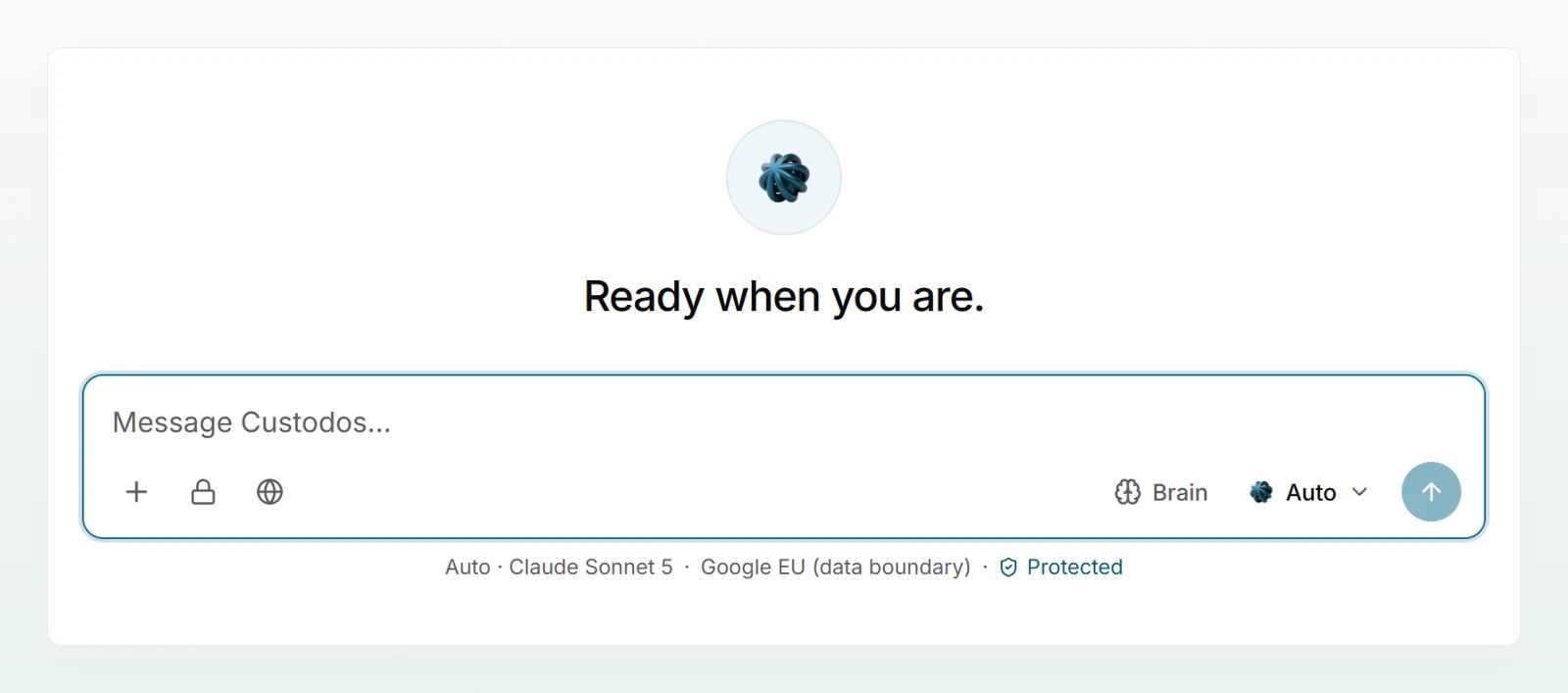
You type your message at the top. Below it is a row of buttons:
| Button | What it is for | More |
|---|---|---|
| Plus button Add | Attach file, files from connected accounts, Web search and Create image | Attaching files and images |
| Lock | Security mode for this chat. Only visible if your admin offers it. When on, it reads Secure. | Security mode |
| Globe Web search | Automatic, Always search, Deep Search or Off | Web search |
| Brain | Add brains to this chat | Using a brain in chat |
| Project | Move the chat into a project | Projects |
| Auto or a model name | Choose the model | Choosing a model |
| Arrow Send | Send the message, like Enter |
Not every button is always there: Brain appears once you may use at least one brain, Project once you have a project, and the globe only if your workspace allows web search.
The line under the composer
A line below the composer names the model that will answer and where it is processed. If your workspace protects personal data, Protected follows. Hover over an entry for a tooltip with more detail. Notices that matter right now appear in the same place: detected sensitive values, used-up credits, an active security mode, or a chat that is getting too long for the model.
On a smartphone
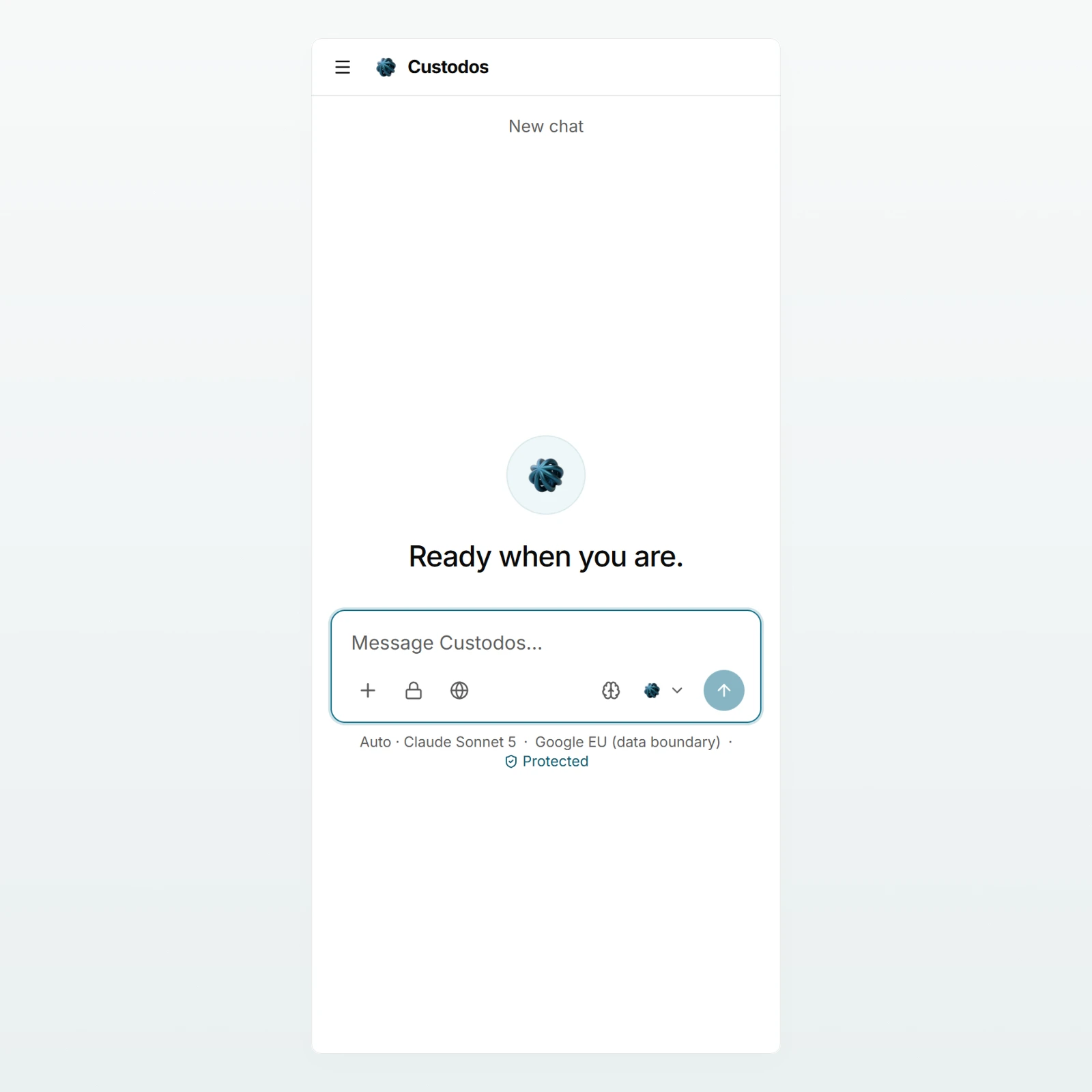
Custodos runs in your smartphone's browser, with no app to install. The sidebar is collapsed there: tap the menu icon at the top left to open it. The review of sensitive values opens as a panel from the bottom.
Frequently asked questions
Only admins see this section. Your role is shown in Account settings under Workspaces. If you need something from an admin page, ask an admin of your workspace.
The lock only appears if an admin offers security mode. The globe is missing when web search is switched off, when the workspace processes in Switzerland only, or when the chat is in security mode.
No, Search chats searches titles only. Give important chats a meaningful title, for example "Quote Holzwerk Brunner GmbH", or put them in a project.
Next steps
Set up your workspace
The checklist for admins. Eight steps get Custodos ready for your team, from the first invitation to the message that tells everyone.
Key concepts
The most important terms in Custodos explained in a few sentences, from workspace and credits to pseudonymisation, security mode and sharing.