
Using a brain in chat
Switch one or more brains on in a chat, choose how they are searched, and check answers against the sources they name.
In a chat, a brain only works once it is switched on. Custodos then looks for the relevant passages in the documents for your messages, and the model refers to its sources in the answer.
Switch a brain on and ask
Choose brains
In the message box, click Brain (the brain icon). Under Brains for this chat, tick every brain the chat should use. Brains tagged Default are already active in new chats; you can untick them here.
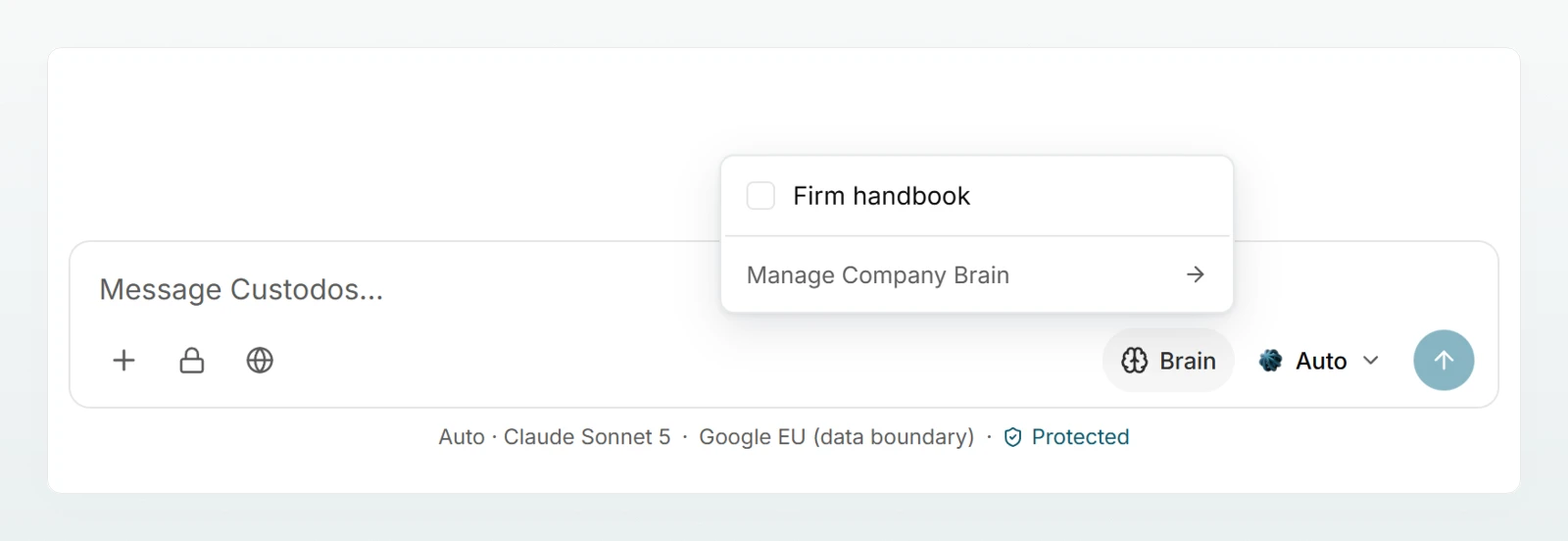
Choose retrieval
Under Retrieval, choose between Automatic and Always search. The choice applies to this chat and is saved.
Ask your question
Ask as usual, for example: "Which expenses may I claim for a client visit at Bäckerei Mehlwerk GmbH?" If the model searches the brain itself, you briefly see Searching Company Brain….
Check the sources
The answer refers to the passages it used with [1], [2]. Below the answer, click the line that counts the sources from the Company Brain (for example "2 sources from the Company Brain"), then a document. The document preview opens on the brain page.
Automatic or Always search
| Automatic | Always search | |
|---|---|---|
| What is sent | Only passages that match the message. Nothing for "thanks" or "make it shorter". | The best passages with every message. |
| Further searches | The model can run its own targeted search, up to 3 times per answer. | the same |
| Credits | economical | more, because every message carries text from the brain |
| Suited for | most chats | chats that are all about the documents, or when Automatic misses a passage |
In both cases the brain's instructions and an excerpt of its overview are sent with every message.
Sources and citations
- The numbers in the text match the numbered entries in the source list. Entries without a number were found by the model's own search.
- The preview shows the summary, the extracted text and, for imported documents, the link Open source.
- The source list stays below the answer as a record. If your access to the brain has been removed since, the click shows Page not found. If only the document was deleted, the brain page opens without a preview.
- Documents marked Replaced are no longer used for new answers.
Several brains, projects and agents
- Several brains in one chat are searched together. The sources name the document each passage comes from.
- Projects can have a brain. All chats in the project then answer from it (Projects).
- Agents can bring brains along. Each person only gets answers from brains they may read themselves (Configuring an agent).
Which models work with a brain
To search a brain, a model needs tools. While a brain is active, models without tools are greyed out in the model picker; their info card says "No web or brain search, and it creates no files." If such a model was selected, the chat uses Auto. See Choosing a model.
Testing a brain
Every brain's page has a search field above the document list, with the placeholder "Search this Brain". Enter a question or keywords, for example "hourly rate bookkeeping", and click Search. You see up to 6 matches, the way the chat would retrieve the passages. Ask in chat opens a new chat.
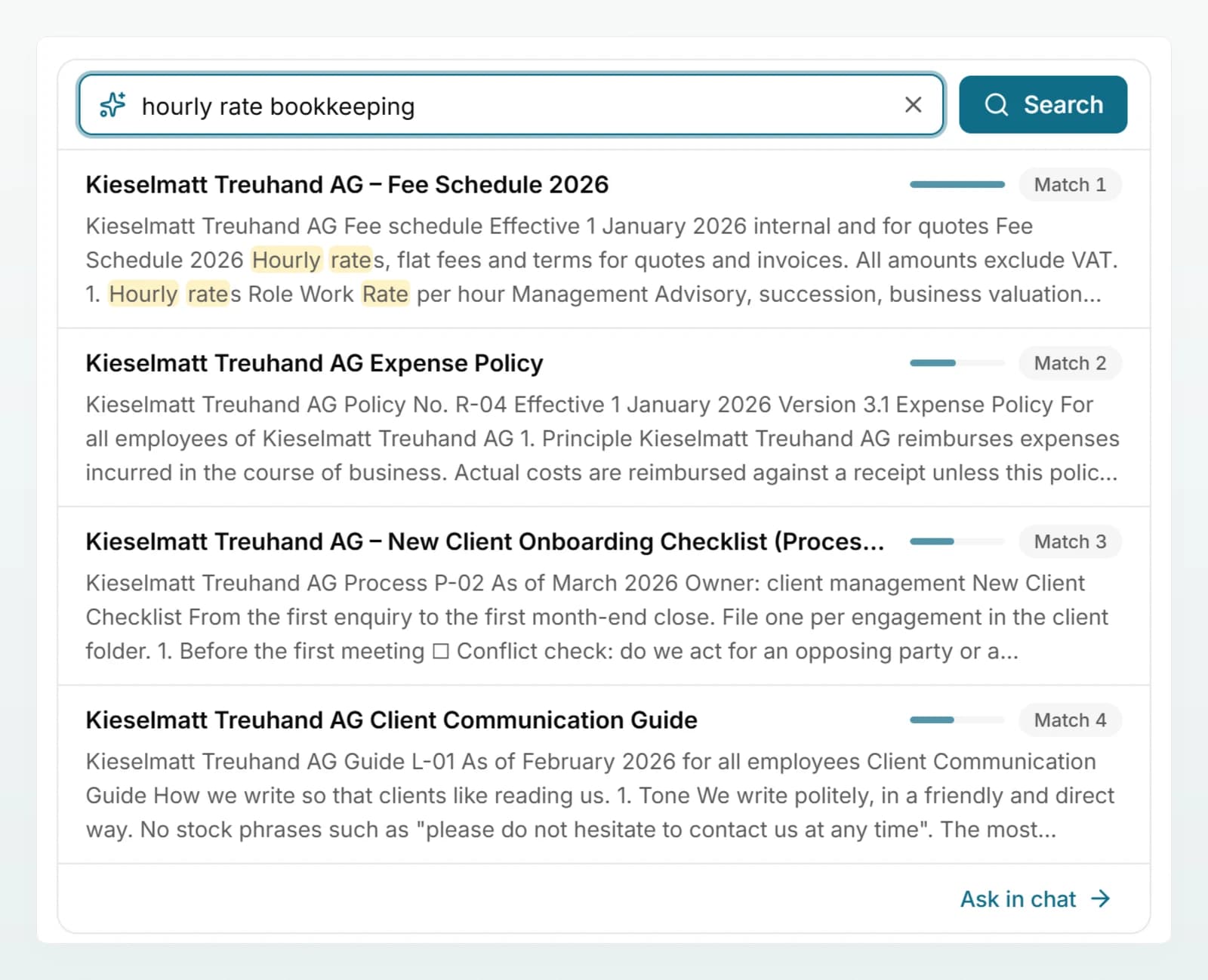
The field appears as soon as at least one document is Ready, and it is available to everyone with access to the brain.
Data protection, security mode and credits
- Whether passages from a brain reach the model pseudonymised is decided by the brain's data protection level, together with the workspace's protection mode (Data protection in a brain).
- In a chat in security mode, passages from all brains are pseudonymised, open ones included.
- When credits are used up, the model no longer searches the brain on its own. Passages found in advance are still sent.
Best practices
- Ask with the words used in the documents. Technical terms, document names and exact identifiers such as a contract number are found reliably.
- Name the document if you know it: "What does the Expense Policy 2026 say about first-class train travel?"
- Check figures against the source before they go into a quote or a reply to a client.
- If Automatic misses something, test the question in the brain page's search field or switch this chat to Always search.
Frequently asked questions
The model cannot use tools and therefore cannot search the brain. Choose another model or Auto. If you detach the brain, the model is available again.
On the brain page, check that the document is Ready and not marked Replaced. Enter the question in the brain page's search field. If that finds nothing either, rephrase using the document's own terms. In very long files only the first part is searchable; a warning icon next to the title shows this.
There is no personal default. The person who created a brain and admins with access can, however, make it the default in new chats for everyone. For recurring work, a project with a brain also works well.
Yes, a little. The search for each message costs a fraction of a credit. What counts more is the text sent to the model: with Automatic only what matches, with Always search more with every message.