
Sharing and finding chats
Find chats in your history, share a chat read-only with selected people or the whole workspace, and carry on in a copy of your own.
All your chats are in the history in the sidebar. If you want to share an answer with colleagues, make the whole chat available to read instead of copying text into an email. Sharing only works inside your workspace; there are no public links.
Find chats
The history in the sidebar
Your chats follow Projects and, if there are any, Shared with me, sorted by their latest activity:
| Group | Contains |
|---|---|
| Today | Chats with activity in the last 24 hours |
| Yesterday | Activity 24 to 48 hours ago |
| Previous 7 days | Activity in the last seven days |
| Older | Everything before that |
Chats in a project sit under the project, not in these groups. The sidebar first loads your 200 newest chats. Show older chats at the end of the list loads more.
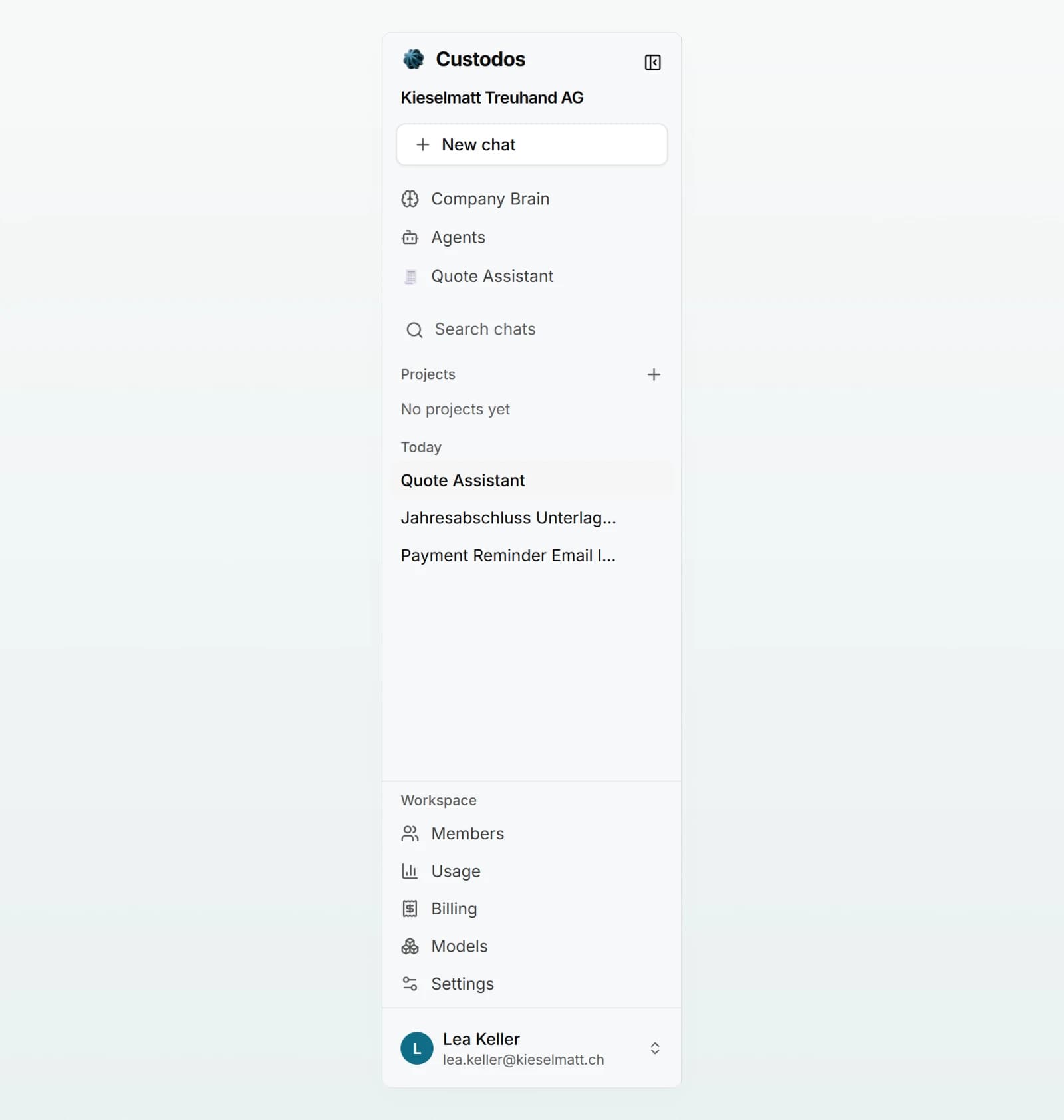
Search chats
Type into the Search chats field above the history. From two characters, the search also finds older chats that are not loaded yet. Shared chats can also be found by the name of the person who shared them.
Share a chat
Open sharing
Click the Share icon at the top of the chat. Share chat opens.
Decide who may read
Choose Only me, Selected people or Everyone in the workspace. For Selected people, click Add people and search by name or email.
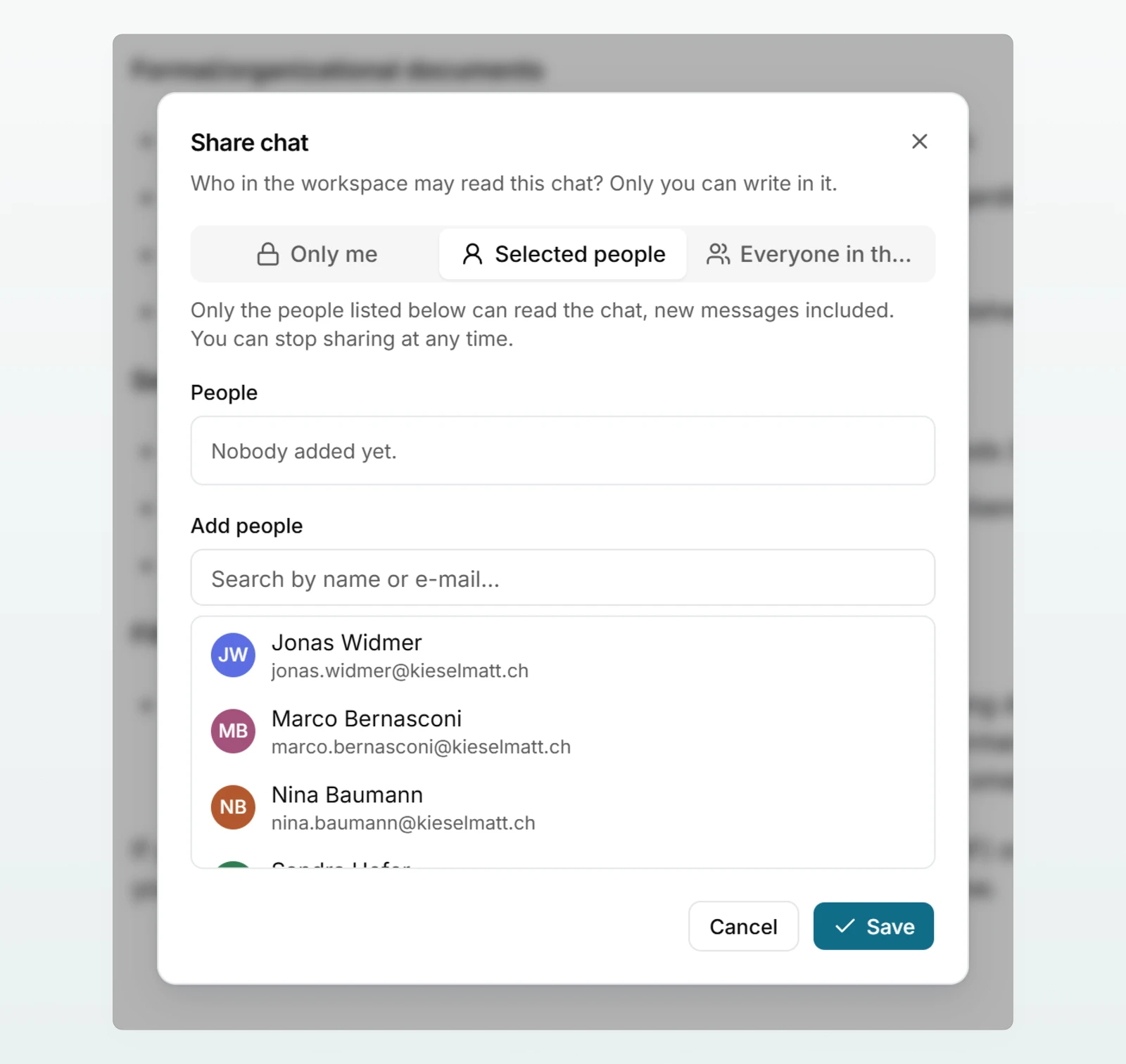
Save
Click Save. The top of the chat now shows Shared. Hover over it to see how many people the chat is shared with, or that it is shared with everyone in the workspace.
Pass on the link (optional)
Open sharing again and click Copy link. The link only works for signed-in people who are allowed to read the chat.
What sharing means
- Read only. Only you can write, edit and regenerate.
- Live. People who may read the chat also see your later messages.
- Your files stay with you. Others only see the names of attached files, not their content. Files and images the model generated are visible.
- Can be withdrawn at any time. Open sharing, choose Only me and save. Access ends immediately.
That a chat was shared is recorded in your workspace's activity log, without its title or content. See Activity log.
Read a shared chat
Chats that others share with you appear in the sidebar under Shared with me, with the person's name below. The list shows the 30 most recently active.
In the open chat you see Read only, who shared it, and the whole conversation: messages, generated images and documents you can download, the source lists and the names of attached files. Use the printer icon to print the chat.
Carry on in a copy of your own
Click Copy and continue. A new, private chat that belongs to you opens:
- It contains the conversation up to this moment and the generated files.
- It does not contain the other person's attached documents. If you need a document, attach it yourself.
- It only carries over brains you are allowed to read. The model and security mode stay the same.
- It is not in any project. Later messages in the original do not appear in your copy.
Who can do what
| Action | Owner | People it is shared with | Everyone else, admins included |
|---|---|---|---|
| Read the chat, new messages included | Yes | Yes | No |
| Send, edit and regenerate messages | Yes | No | No |
| Rename, move into a project, delete | Yes | No | No |
| Change sharing | Yes | No | No |
| Open attached files | Yes | No, only see the names | No |
| Download generated files and images | Yes | Yes | No |
| Yes | Yes | No | |
| Make a copy of their own | Not needed | Yes | No |
With Everyone in the workspace, every member counts as a person the chat is shared with. Admins have no extra rights over chats. If an answer cites a document in a brain, it only opens for people who are allowed to read that brain.
When sharing is switched off
An admin can switch off Allow sharing chats. The Share icon then disappears, and existing shares stop working at once: nobody except the owner can open a shared chat. The shares stay stored and apply again as soon as sharing is allowed again. When someone leaves the workspace, they lose every share. The setting is described in Sharing and brain access.
Best practices
- Share the chat instead of copying an answer into an email. Colleagues then see the context and the sources.
- For client matters, choose Selected people rather than Everyone in the workspace.
- Check what the chat contains before sharing. Readers see your messages as you typed them, with real names. Pseudonymisation protects what is sent to the model, not what colleagues read.
- Withdraw shares once a topic is closed.
Frequently asked questions
The search only checks titles. Search for a word from the title, or give chats you want to find again a fitting title straight away.
Either the chat is still empty, or your admin has switched off chat sharing. Send a message first or ask your admin.
The link only opens the chat for people it is shared with. Check in Share chat whether your colleague is on the list or Everyone in the workspace is selected. Otherwise they see "Page not found".
A copy deliberately leaves out the other person's attached documents. Ask for the file and attach it in your copy yourself.