
Creating presentations
Create PowerPoint presentations with action titles, source lines and speaker notes, take on a reference deck's style and edit your own slides.
The model creates 16:9 PowerPoint presentations that you keep editing in PowerPoint. It changes your own presentation so that masters, layouts, charts and images stay untouched.
Create a presentation
Start the request
In an empty chat, click Presentation and complete the sentence, for example: "Create a presentation about our new service offer with eight slides: background, services, process, next steps. Base it on the attached concept."
Wait a moment
While the presentation is being made, you see Creating presentation….
Check the slides and download
Under the file card you expand the list of slide titles, and the Slide previews show up to 12 slides as pictures. Click a slide to enlarge it, and click the card to download the file.
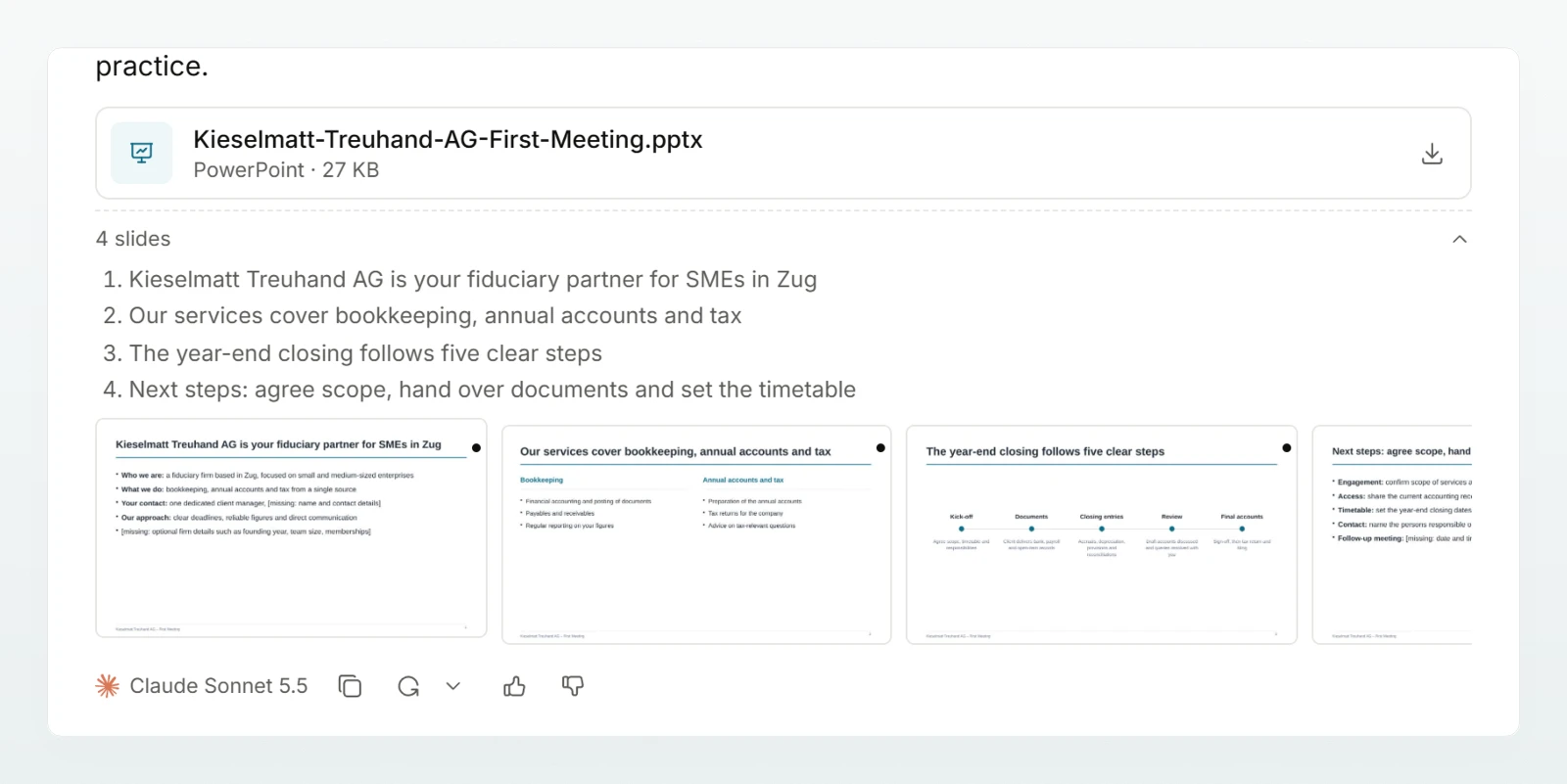
The slide previews are missing when they cannot be made at the moment. The file is not affected.
How a new presentation is built
- Exact count: if you name a number of slides, you get exactly that many. The title slide counts.
- Action titles and sources: each slide's title is its message in one sentence. A source appears only where you or a file named one.
- No invented figures: anything you did not supply appears as a visible placeholder or marked as an example, and the answer names those slides.
- Charts and images: values sit right on bars and lines. A chart can take the values of an Excel analysis from the same chat, and an image created in the chat can go on the title slide or a slide.
- Speaker notes: what you add when speaking goes into the notes.
Company layout and reference style
If your admin has set a company template as the default for new presentations, the model works with that template, and a presentation built from scratch also wears its colours and fonts. See Using company templates.
Attach an existing presentation and ask for "the style of this file", and the new one takes its colours and fonts, but no masters, layouts or logos. The answer says what was applied.
Have your own PowerPoint file edited
Attach the presentation (.pptx or .pptm up to 4 MB) directly and describe the change, for example "Change the title on slide 4 to Results 2026 and delete slide 7". You see Editing PowerPoint file… and get a new file.
The model replaces text, deletes slides, writes speaker notes, duplicates a slide in your presentation's design and recolours it through the theme colours. It cannot move slides, restyle existing text or change text in charts or SmartArt.
Best practices
- Provide content and figures, as an attachment, from a brain or in the text. Then nothing is left as a placeholder.
- Name the audience, occasion and number of slides: "for the board meeting, eight slides".
- Check every slide marked as an example before you present.