
My shares
Every chat, agent and prompt you have shared in one list, and how to stop sharing one.
Under My shares in your profile is everything you share with others in the current workspace. There you stop a share without having to find the chat, agent or prompt first.
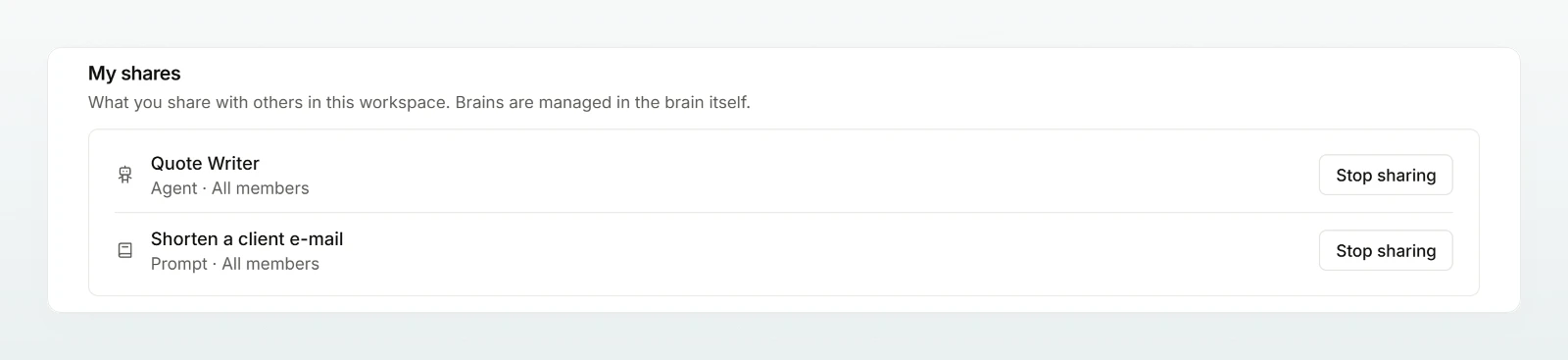
What the list shows
| Kind | What appears | Audience |
|---|---|---|
| Chat | your chats that at least one other person can read | All members or the number of people |
| Agent | your agents that are not private | All members, or people and groups plus admins |
| Prompt | your prompts the whole workspace sees | All members |
Click a title to open the item. Brains do not appear here: who may use a brain is set in the brain (Access and sharing).
Stopping a share
Pick the row
Click Stop sharing in the row.
Confirm
The dialog says what happens next. Click Stop sharing again.
| Kind | Afterwards |
|---|---|
| Chat | becomes private; whoever could read it loses access, copies already made stay |
| Agent | becomes private; others can no longer start it, their earlier chats with it stay |
| Prompt | becomes private and only appears in your own library |
You share again where you shared: Sharing and finding chats, Sharing and using agents, Saving and sharing prompts.
If an admin has switched chat sharing off, your shared chats stay in the list with a notice: nobody can read them right now. If sharing is switched back on, the shares apply again unless you end them here.
Frequently asked questions
An agent you share with particular people or groups is always visible to, and editable by, your workspace's admins as well.
No. The list shows each person only their own shares.