
Adding sources
Upload files or import web pages, notes and documents from Google Drive, Microsoft 365 and Outlook. Processing runs in the background.
Sources are the documents a brain answers from. Every source is converted to text, given a title and a short summary, and prepared for search. Only then does it show Ready and feed into answers.
Upload files
Open the menu
Open the brain under Company Brain and click Add sources.
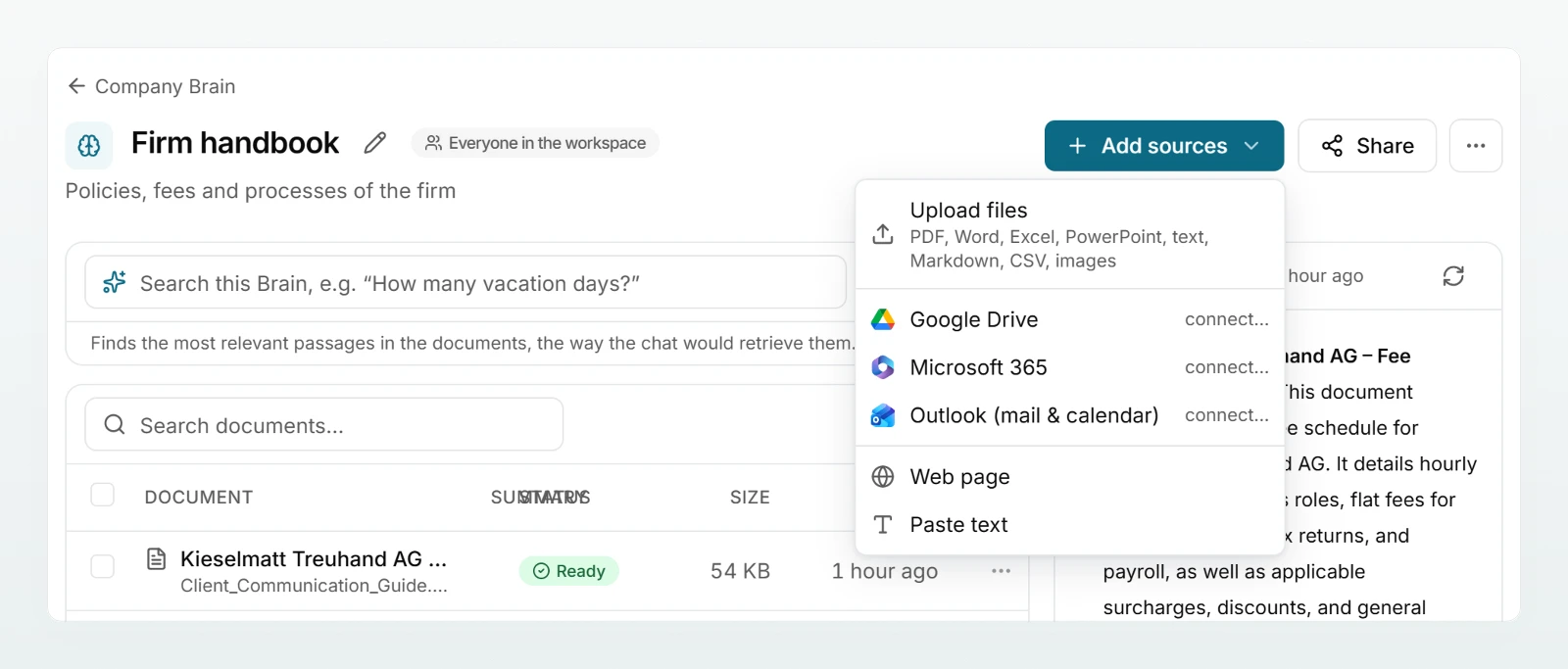
Choose files or drag them in
Click Upload files, or drag files straight onto the document list. You can drop many files at once; they are uploaded in batches of 10.
Wait for processing
A bar above the list shows how many documents are processed. Once nothing shows Uploading… any more, you can leave the page. Processing continues in the background.
Which files work
| Kind | Formats |
|---|---|
| Documents | PDF, Word (.docx), PowerPoint (.pptx) |
| Spreadsheets | Excel (.xlsx, .xlsm, .xls), OpenDocument spreadsheets (.ods), CSV |
| Text | Text, Markdown, HTML, JSON, XML and many other text and code formats |
| Images | PNG, JPEG, WebP, GIF (only in brains with Open data protection) |
Files that cannot be read include old Office formats (.doc, .ppt), OpenDocument text and presentations (.odt, .odp), RTF, Pages, Numbers and HEIC photos. Save such files as .docx, .pdf or .png.
Other sources
Web page
Click Web page, enter the URL under Address and click Import. The page is fetched, converted to text and processed. You can import publicly reachable web pages as well as text and PDF files at a public address. Pages that need a login or JavaScript deliver no text.
Paste text
For notes, email excerpts or policies, click Paste text, enter a Title (optional) and the Text, and click Add. The text is stored as a document of its own and can be edited later.
Google Drive, Microsoft 365 and Outlook
Choose Google Drive. If your account is not connected yet, connect… appears next to it, and a click starts the connection. Google's file dialog then opens. Custodos only sees the files you pick there. Details under Google Drive.
For all three, the connection is personal: nobody else imports through your account. Only the text goes into the brain; the original file stays with the provider. PDF, Word, Excel, PowerPoint and text files up to 20 MB can be imported. Documents from Google Drive and Microsoft 365 can later be refreshed from the source (Keeping a brain up to date).
Images and scanned PDFs
A photo of a whiteboard, a screenshot of a price table or a scanned contract holds no text that can be extracted. Such images and PDF pages are read by an AI model with image recognition: it transcribes the text, tables as tables, and describes what else is visible. The brain keeps the text, not the image itself.
The following applies:
- Only in brains with Open data protection. Image content cannot be pseudonymised.
- An admin must have allowed a model that can read images (Models and regions).
- Only for direct uploads. Imports from Google Drive, Microsoft 365 or Outlook do not read images or scanned pages.
- It costs credits, because a model reads every image and every run of scanned pages.
- In PDFs only pages with no text at all are read. A chart on a page that also contains text is not captured.
Status and costs
| Status | Meaning |
|---|---|
| Processing | Text, title and summary are being created. The column shows Summary coming … |
| Ready | The document is searchable and used in chat. |
| Error | Processing failed. Hover over the status to see the reason. |
| Replaced | A newer version exists. The document stays readable but is no longer used for answers. |
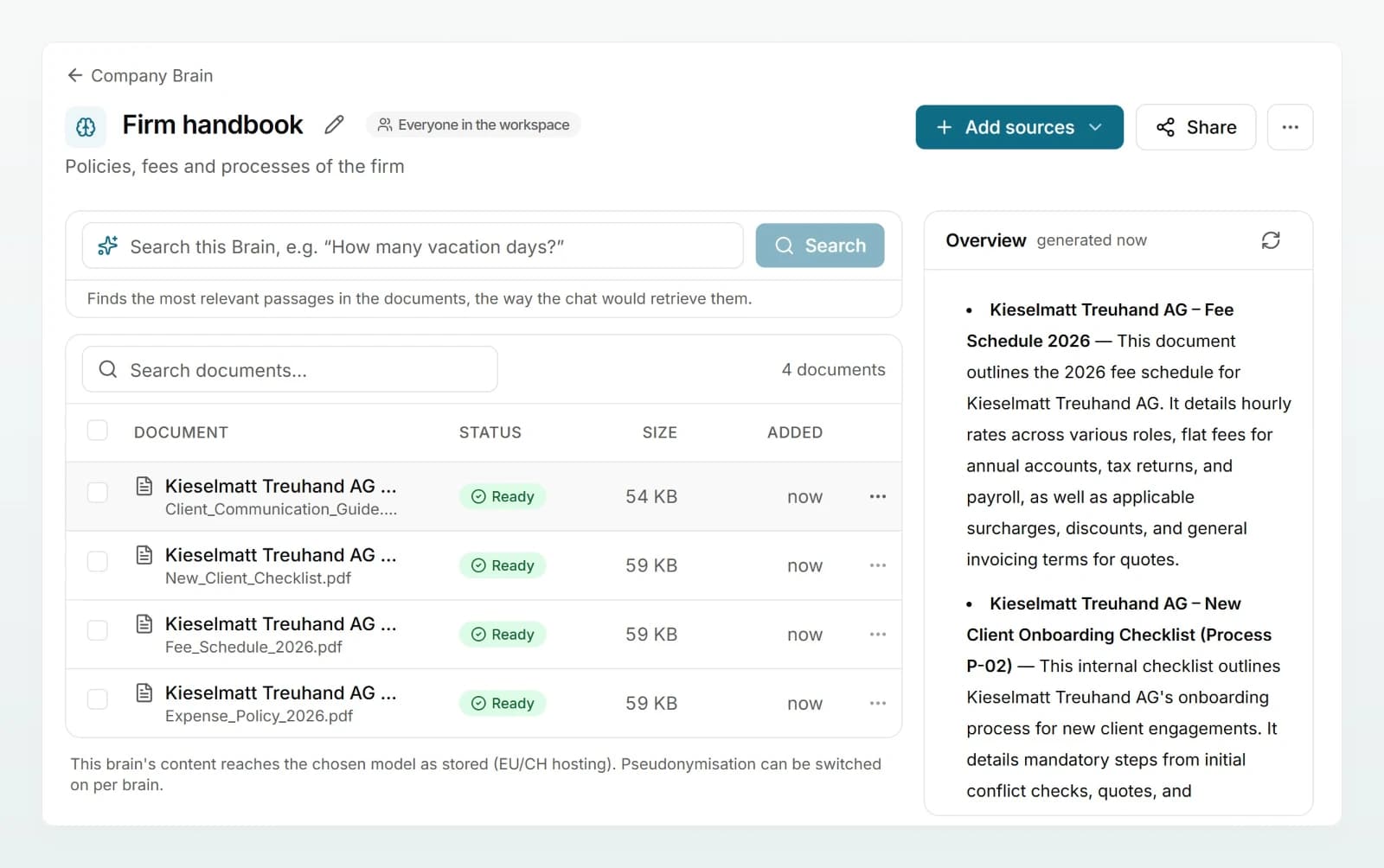
- Costs: "Processing counts towards usage: ≈ 0.5 credits per 20 pages." It is booked to the person who adds the document.
- No credits left: documents still become Ready, but without a summary. Images and scanned pages cannot be read then.
- Duplicate files: the same content is stored only once in the same brain. A file with the same name and new content replaces the older version automatically.
- Temporary errors: Custodos retries them before a document settles on Error.
Messages and what you can do
| Message | What you can do |
|---|---|
| File too large (max. 20 MB). | Split or shrink the file. |
| File type is not supported. | Save it as .docx, .pdf or .png. |
| The file could not be read. | Check whether the file is damaged or password protected. |
| The file contains no readable text. | For a scan over 12 MB: shrink or split the file. |
| Refused by the “Block” data protection mode (protected value detected). | The brain is set to Strict. Remove the value or choose another brain. |
| Images only go into brains with “Open” data protection, … | Put the image in an open brain. |
| Scanned PDFs only go into brains with “Open” data protection, … | Put the scan in an open brain. |
| No allowed model can read images. … | Ask an admin to allow a model with image recognition, then Process again. |
| The credit balance is used up. … | Check with an admin when credits are available again, then Process again. |
| Your personal monthly budget is used up. An admin can raise it. | Ask an admin for a higher budget. |
| The AI provider did not respond. Please process again later. | Choose Process again later. |
| Too many uploads in a short time. Please wait a moment. | Wait a moment and drag the refused files in again. |
Process again is in the Actions menu of the document row.
Frequently asked questions
Usually the page is not publicly reachable, requires a login, builds its content with JavaScript, or serves a format that cannot be imported (an image, for example). In that case, save the page as a PDF and upload the file.
As a rule, the brain stores only the text. The exception: Word files (.docx) and Excel files (.xlsx) up to 4 MB that you upload directly keep their original. That enables Download original and Edit in chat. Images and scans are deleted after they are read. For cloud imports the original stays with the provider.
Large imports are processed one document at a time, and long PDFs or scans take longer. The page updates by itself. If a document stays stuck for an unusually long time, Custodos retries it automatically.