
The document beside the chat
Open a document beside the chat, edit it yourself or with AI, restore earlier versions and export it as Word, PDF or Markdown.
For a draft you keep working on, a document opens on the right of the chat. You write in it yourself, the model revises passages when asked, and every change is a version you can bring back.
Write and edit a document
Ask for a draft
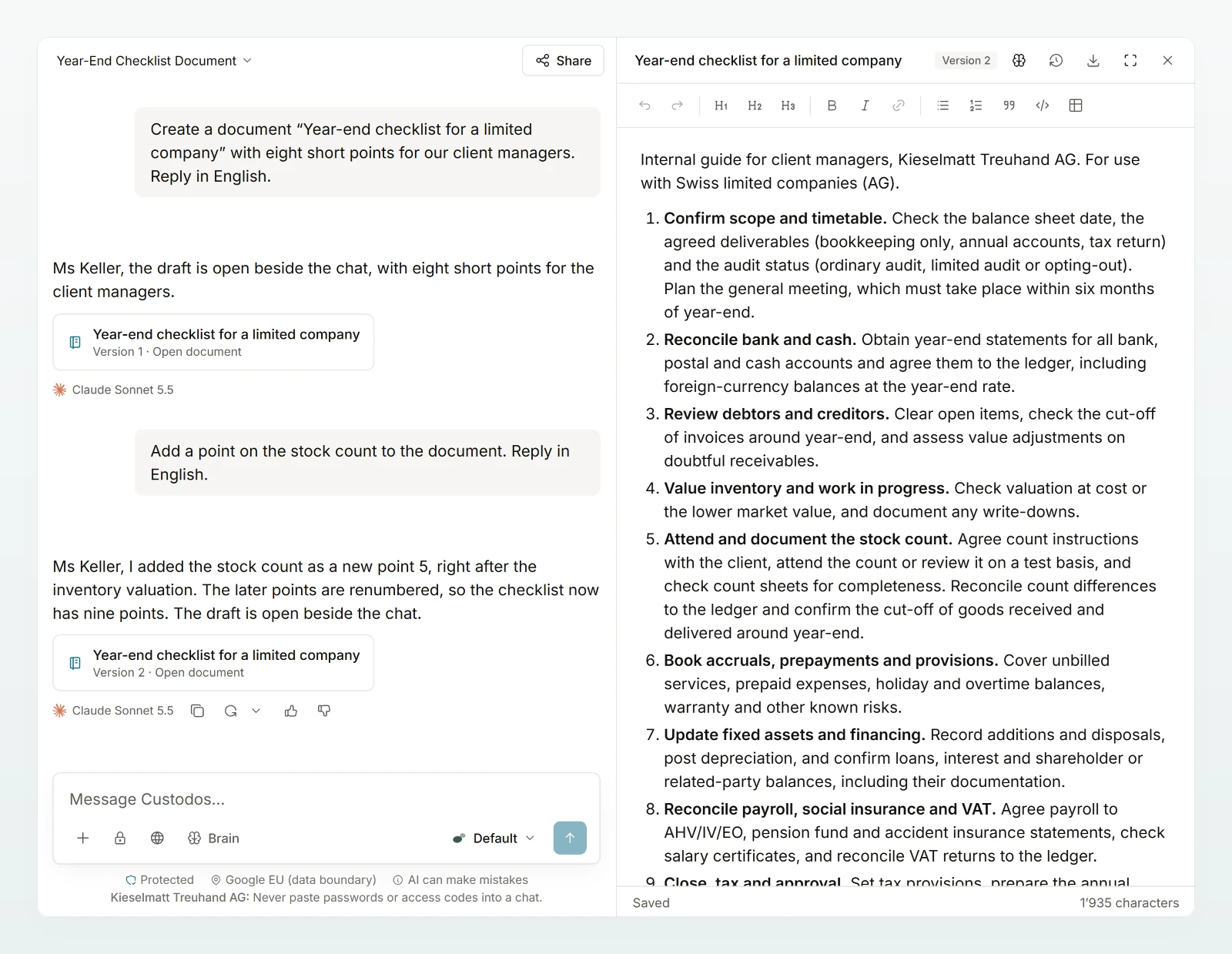
Ask for a draft, for example "Write a concept for introducing digital receipt filing, with goals, process and responsibilities". You see Writing the document…, then the document appears on the right.
Edit it yourself
Click into the text and write. The toolbar offers headings, Bold, Italic, lists, Table and Insert link. Custodos saves shortly after your last keystroke.
Edit with AI
Select a passage, click Edit with AI and write what should change, for example "Shorter and more factual". For larger changes, a message without a selection is enough.
Download
Click Download and choose Word (.docx), PDF or Markdown (.md).
A card in the answer reopens the document, even after you closed it. A chat can hold several documents, and you switch between them with Documents in this chat.
Restore a version
Open Versions, pick a version and check Preview or Changes. Restore creates a new version, and the history stays intact. If the document has changed in the meantime, open the versions again and restore from there.
Your text on screen wins
The model always works on the state you see. If it writes a new version while you are typing, your text stays and the model's version is under Versions. If the document changed elsewhere, for example in a second window, a review shows the differences: red is only in the saved version, green only in your draft. You choose between Save draft as a new version, Discard draft and use saved version and Keep editing.
While a conflict, a blocked value or a version preview is open in the document, your message is not sent and stays in the composer. If you stop the model with Stop, its draft so far is not saved: copy it if you want to keep it.
Save to Brain
For the team to read the text, open Save to Brain, choose the Destination Brain and click Save a copy. Everyone who can read that brain sees the copy. Later changes do not reach the brain by themselves. A text you opened from a brain for editing goes back through the Changes for the Brain card instead, see Keeping a brain up to date.
Who can do what
| Action | You | People you share the chat with | Everyone else, admins included |
|---|---|---|---|
| Read and download | Yes | Yes | No |
| Edit and restore | Yes | No | No |
| Save to Brain | Yes, with edit rights in the brain | No | No |
A private copy of the chat holds only the newest version. See Sharing and finding chats.
Best practices
- Have the outline written first, check it, then ask for the full text.
- For polishing, select single paragraphs rather than having the whole document rewritten.
- Change names, figures and dates yourself in the text. It is quicker and costs no credits.