
Access and sharing
Decide who sees a brain, who uses it in chat and who changes its content. Access is checked again with every message.
Every brain has its own access. The whole team may use a handbook, while the files of one client engagement are for the people who handle it. You control this with Share on the brain's page.
Share a brain
Open sharing
Open the brain under Company Brain and click Share.
Choose the scope
Choose Everyone in the workspace or Selected people only. The text below the choice says what it means.
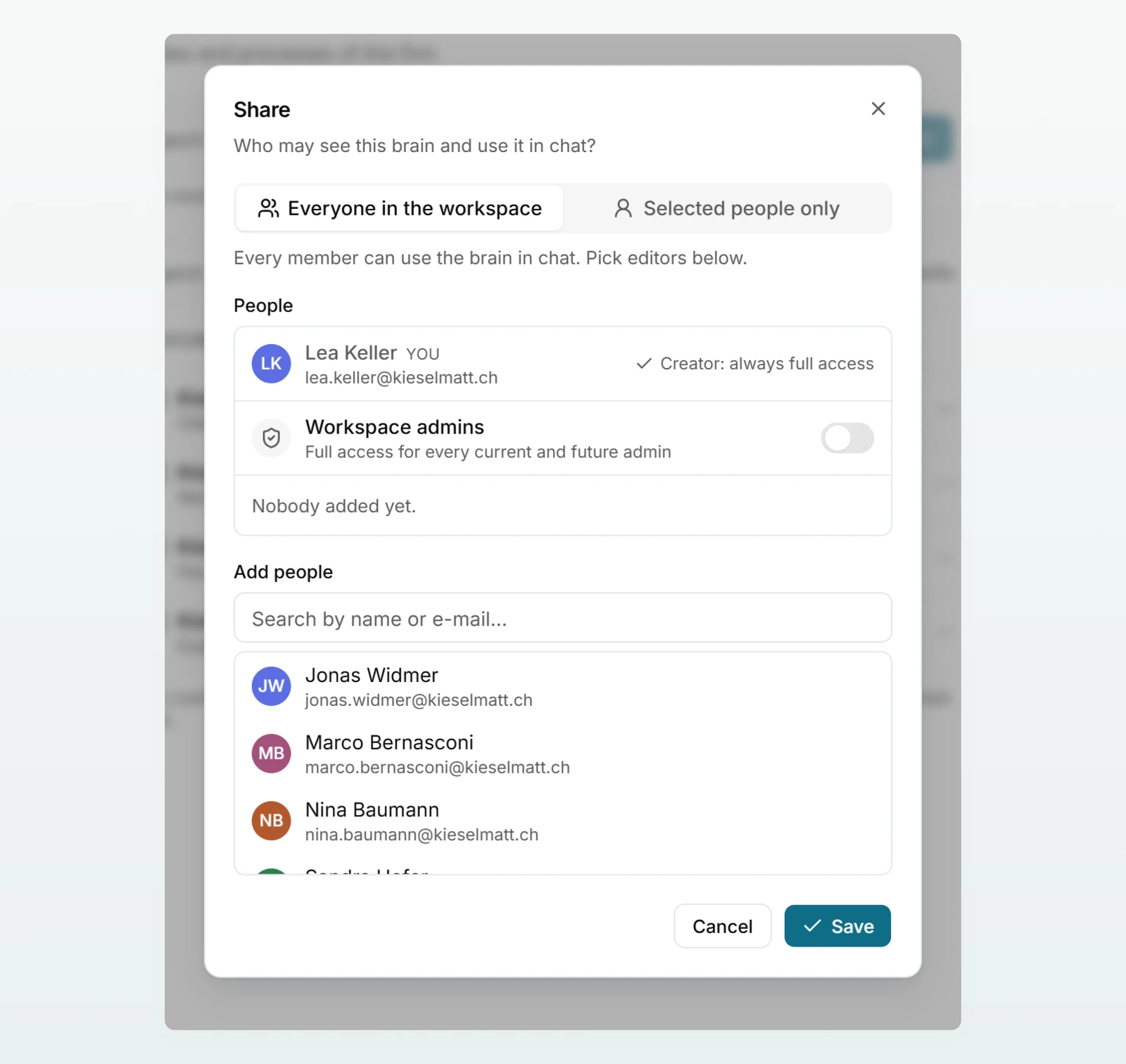
Add people
Under Add people, search by name or email and click the person. New people get Can use. Switch to Can edit where needed. Remove (the cross) takes someone out again.
Save
Click Save.
The two scopes
| Scope | Who sees the brain | What the people list is for |
|---|---|---|
| Everyone in the workspace | All members, at least with Can use | Who also gets Can edit |
| Selected people only | Only the people listed, the person who created it and admins with access | Who may use or edit it |
A restricted brain is invisible to everyone else, name included: it appears neither in the list under Company Brain nor in the choices in chat, in projects or for agents.
What each role may do
| Action | Can use | Can edit | Creator or admin with access |
|---|---|---|---|
| Use the brain in chat, projects and agents | yes | yes | yes |
| View documents, preview and overview, search the brain | yes | yes | yes |
| Add sources, edit, replace and delete documents | no | yes | yes |
| Change name, description and instructions | no | yes | yes |
| Rebuild the overview, refresh from the source | no | yes | yes |
| Share: scope, people and roles | no | no | yes |
| Switch Default in new chats | no | no | yes |
| Change the data protection level | no | no | yes |
| Delete the brain | no | no | yes |
The person who created a brain always keeps full access. In the sharing sheet they are listed at the top with Creator: always full access.
Admins and brains
An admin decides whether workspace admins get access to every brain automatically, under Settings in the Sharing section, with Admins have access to every brain (Sharing and brain access).
| Setting | What applies to admins |
|---|---|
| On | Every admin has full access to every brain, restricted ones included. The sharing sheet shows Admin: always full access. |
| Off | Admins are ordinary members. Whoever creates a brain decides, with the switch Workspace admins in the sharing sheet (or Include workspace admins when creating it), whether all current and future admins get full access. |
New workspaces start with "Off". While the setting is off, an admin only sees a restricted brain if the admins are included or they were added by name. Switching the setting is recorded in the activity log.
Access in chats, projects and agents
- Checked again with every message. If you take someone out of a brain, that person gets no passages from it from the next message on, in existing chats as well.
- Agents never widen access. If an agent has a brain a person may not read, it stays silent for them (Sharing and using agents).
- Source lists stay. Earlier answers still show their sources. Without access, however, a click no longer leads to the document.
When someone leaves the workspace
- All of the person's shares are removed. If they are invited again later, the earlier shares no longer apply.
- Brains they created and documents they added are kept.
- If Admins have access to every brain is off and nobody else has Can edit on one of their brains, that brain passes to the admins as a group. The activity log records "Brain passed to the admins".
Shares, new brains and deletions appear in the activity log, for example as "Brain sharing changed".
Best practices
- General knowledge for everyone, sensitive material restricted. The "Firm handbook" for the whole workspace; client engagements, HR and salaries in their own brains with Selected people only.
- Few editors. One or two people with Can edit per brain keep it tidy. Everyone else uses it.
- A second person with edit rights. That way a brain stays maintained when someone is away or leaves the company.
- Review shares when responsibilities change. When someone hands over a client engagement, take them out of the brain.
Frequently asked questions
The brain is probably set to Selected people only, and they are not on the list. The person who created the brain or an admin with access can add them.
No, access always applies to the whole brain. Put documents only a small group should see into a brain of their own.
Admins have access to every brain has probably been switched off. Since then, admins only see restricted brains if the person who created them includes the admins or adds you by name.
No. Shares only apply to members of the same workspace. There are no public links.