
Saving and sharing prompts
Save good prompts with placeholders, reuse them in any chat and share them with the whole workspace.
A prompt is an instruction you need again and again, such as "Shorten a client email". You save it once and insert it in any chat with two clicks. All prompts are in the sidebar under Prompts.
Save a message as a prompt
Choose the message
In the chat, hover over one of your messages and click Save as prompt.
Adjust title and text
Give it a Title your team will recognise. In the Prompt field, replace everything that changes each time with a placeholder such as {{Client}}.
Choose visibility and save
Under Visible to, choose Only me or Whole workspace and click Save.
To write a prompt from scratch, use New prompt on the Prompts page.
Insert a prompt
Click + in the message box and choose Prompt library, or type @ and choose the prompt under Prompts. If it has placeholders, click Fill in and enter the values; a placeholder you leave empty stays visible in the text. The text lands in the message box, and you send it yourself.
On the Prompts page, Use starts a new chat with the prompt.
The Prompts page
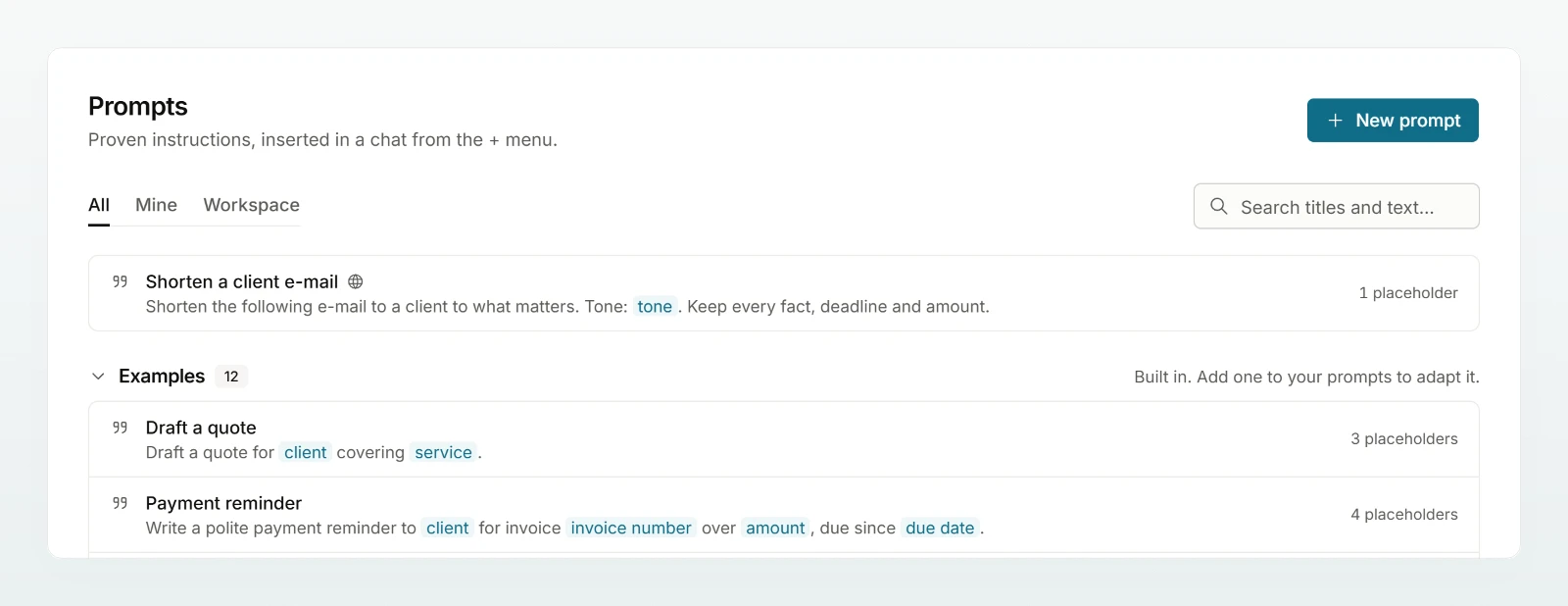
The tabs All, Mine and Workspace filter the list. All also shows 12 built-in Examples for office work: Use inserts an example straight away, Add to my prompts saves it as your own prompt after you adjust it. To adapt a colleague's prompt, use Copy to my prompts.
Who can see and change what
| Only me | Whole workspace | |
|---|---|---|
| See and use | only you, not admins | everyone in the workspace |
| Edit and delete | you | you and all admins |
- Your shared prompts are also listed under My shares, where you can make them private again.
- When someone leaves the workspace, their private prompts are deleted; workspace prompts stay.
- If you sent the message with a company template, the prompt remembers the template and attaches it again when inserted. If an admin deletes the template, the prompt shows Template deleted: no file is attached any more.
Best practices
- Choose short, telling titles: people find "Shorten a client email", not "Prompt 3".
- Replace names, amounts and dates with placeholders before saving, so no personal data ends up in a shared prompt.
- Try a prompt privately a few times before you share it.
Frequently asked questions
The prompt comes from a chat in security mode. It stays private, also when edited and when copied. Write a general version without confidential details from scratch with New prompt.
No. A prompt is a message you send yourself. For a recurring task with fixed instructions, create an agent.