
Choosing a model
Use Auto or pick a specific model, see credit usage and where it runs at a glance, and learn why a model may be missing.
Custodos offers several AI models. An admin decides which of them are available in your workspace. You choose per chat, and you can switch at any time.
Choose a model
Open the picker
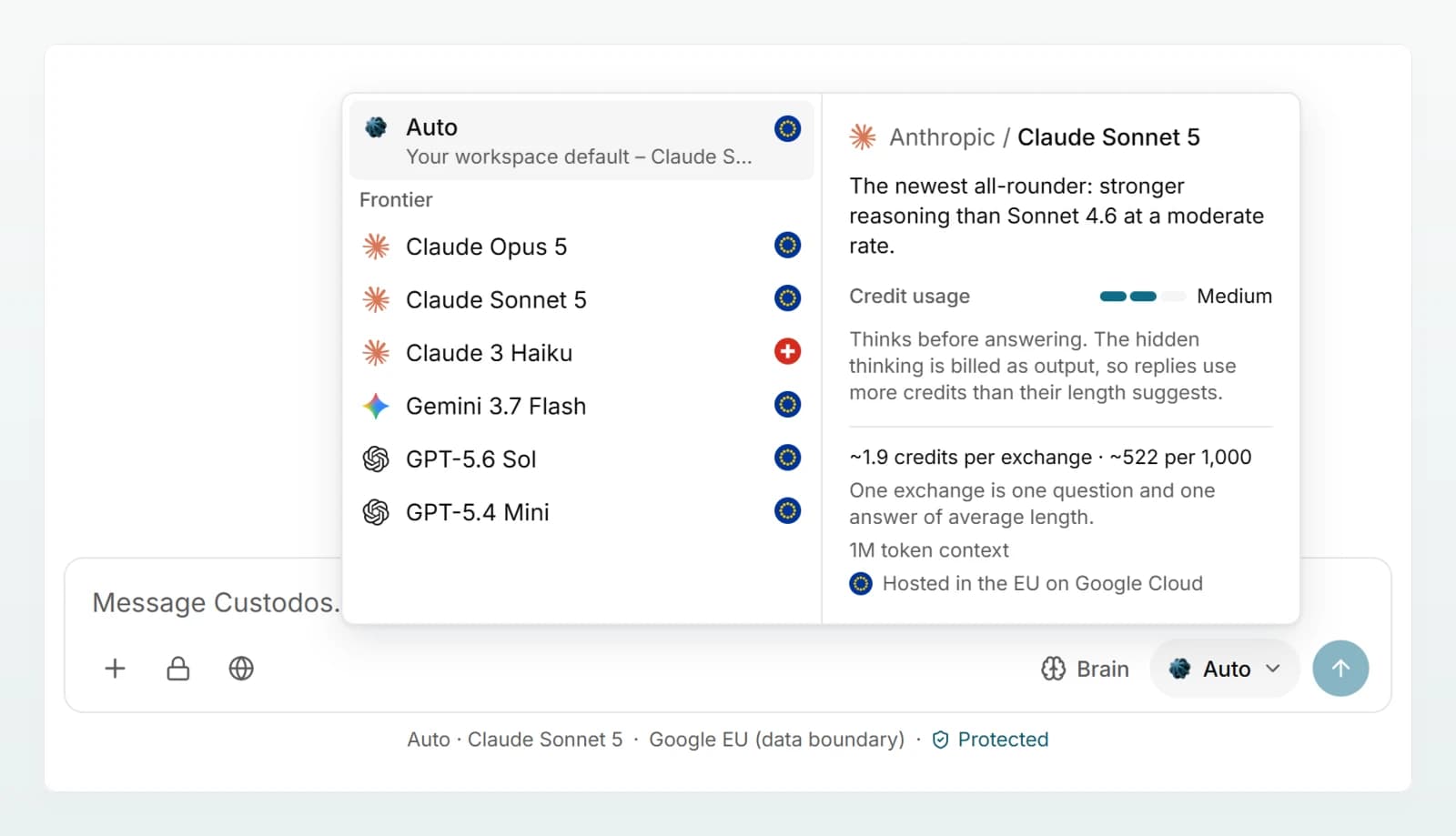
Click the model button at the bottom right of the message box. It shows Auto or the name of the chosen model.
Compare models
Hover over a model. On larger screens an info card appears beside the list with the provider, a description, Credit usage, the context size and where the model runs.
Use the model
Click the model. It applies from your next message. Above every answer you can see which model wrote it.
You can switch models in the middle of a chat. The new model receives the whole conversation so far and the attached files the next time you send.
Auto
Auto sits at the top of the list and uses the default model your admin chose for the workspace. The line below it names the model currently behind it. If the admin has not set a default, Auto uses a model preset by Custodos.
A new chat always starts on Auto. When you reopen an existing chat later, the model that answered last is preselected, as long as it is still enabled. The line under the message box shows which model Auto resolves to and where it runs. Hover over the location to see the provider and the region.
What the model info tells you
| Detail | What it means |
|---|---|
| Credit usage | Low, Medium or High: how many credits an answer needs compared with other models. |
| Credits per exchange | The approximate credits for one question and one answer of average length, plus how many such exchanges 1,000 credits buy. |
| Token context | How much text the model processes at once: the conversation, attached files and your new message together. |
| Hosted in … | Where the model runs: in Switzerland, in Germany, in the EU, globally with no residency commitment, or on your company's own endpoint. |
| Thinks before answering | The model reasons before it answers. This hidden thinking is billed too, so answers cost more than their length suggests. |
| No web or brain search, and it creates no files. | The model cannot use tools: no web search, no brain search, no Word, Excel, PowerPoint or PDF files. |
The list is grouped. Frontier are leading models from US providers, served from data centres in the EU or Switzerland. Open models have open weights and run on European infrastructure. Private runs on your company's own server. Global runs in the provider's own cloud with no residency commitment and only appears if your workspace allows the Global region. The small mark next to each model shows where it is processed, and its tooltip explains it. More in Where your data lives.
Why a model is missing or greyed out
- Not enabled: your admin has not allowed the model in the workspace. If no model is enabled at all, the list shows "No model enabled yet".
- Outside the region: models that run outside your workspace's processing region do not appear anywhere.
- Greyed out because a brain is attached: models without tools cannot search a brain. While a brain is selected in the chat, they are greyed out. If you had picked such a model before, Auto answers in this chat until you remove the brain again.
- Temporarily unreachable: you then see "This model is not available right now. Pick another model, or try again later."
An admin decides which models are allowed under Models and regions.
When the model picker is locked
Credits are used up
When your workspace has used its credits for the month, everyone keeps working on one economical model until the credits reset. The model button shows a lock, and a note under the message box names the model. No extra bill is created.
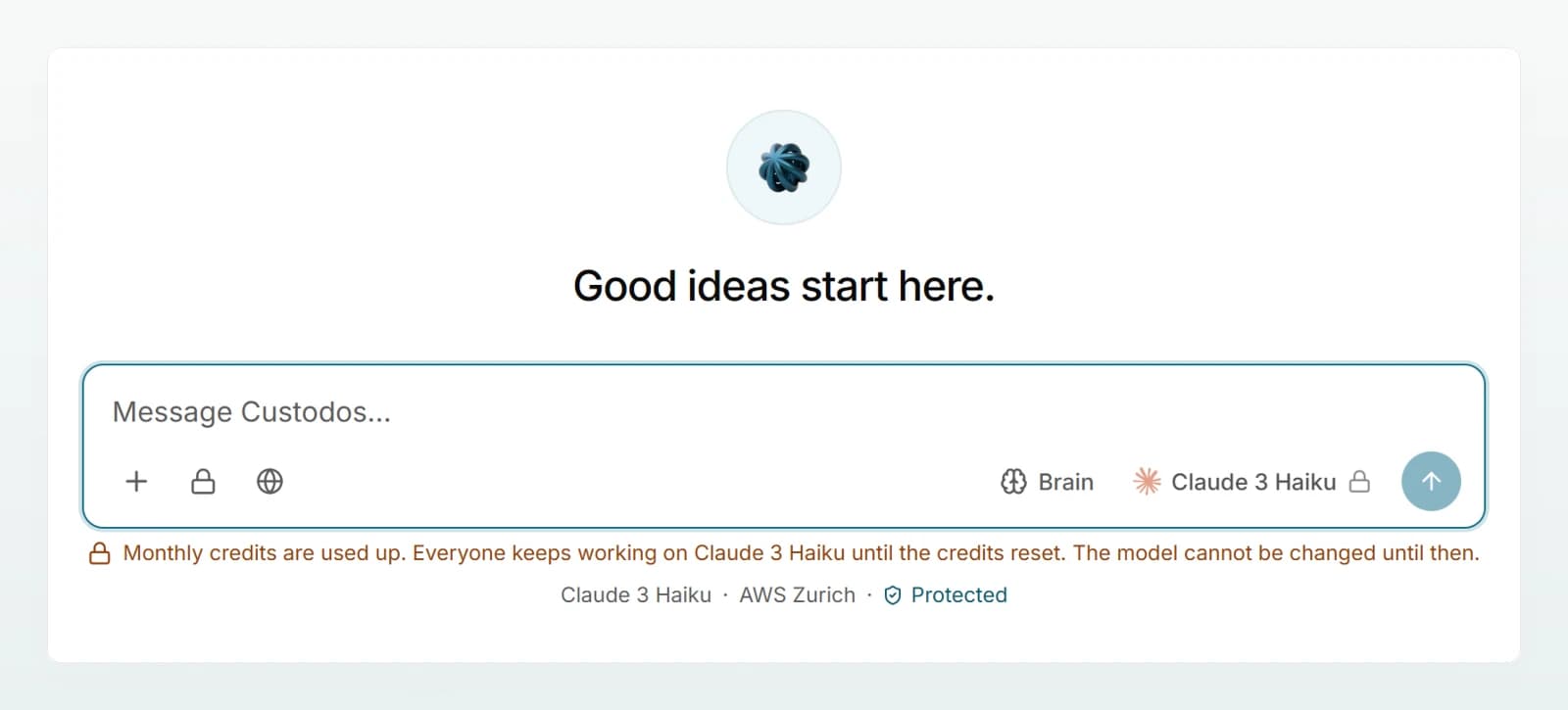
Until the reset, the following also applies:
- Web search pauses, and so does the model's own searching in brains, cloud files and Outlook. Matching passages from a selected brain still feed into the answer.
- No images are generated: "Image generation is paused until the monthly credits reset. Chat keeps working."
When the credits reset and what an admin can do is explained in Credits and usage.
The chat runs in security mode
In security mode, the model your admin chose for it always answers. The model button shows a lock with the note "Fixed by security mode". If credits are used up, the economical model answers here too. More in Security mode.
Best practices
- Start with Auto. Your admin chose the default on purpose.
- Use a stronger model for demanding analysis, such as a long contract or a tricky tax question, and an economical one for short rewrites.
- For long documents, check the context size in the model info before attaching several large files.
- Compare models by regenerating: switch the model, then click the circular arrow under the last answer.
- More guidance in Choosing the right model.
Frequently asked questions
The chat already uses more than 80 percent of what the model can process at once. Once the limit is exceeded you can no longer send, and the note states the approximate number of tokens. Remove an attached file, start a new chat or switch to a model with a larger context.
An admin can set a monthly budget for individual people. When yours is used up you see "Your personal monthly budget is used up. Ask a workspace admin to raise it." Unlike used-up workspace credits, you can only continue once an admin raises the budget or the credits reset.
The economical model has a ceiling too. Once it is reached, chat stops for the whole workspace until an admin adds credits or the credits reset. Contact your admin.