
Models and regions
Decide where your team's prompts may be processed, which models are allowed and what new chats start with.
On the Models page you decide three things for the whole workspace: the processing region, the allowed models, and the defaults for new chats and images. Members then choose in the chat only from what you allow here.
Choose the processing region
The region is the outer boundary. A model outside it disappears everywhere: in the model picker, as a default, and also as the fallback model when credits run out.
Open Models
Click Models in the sidebar. At the top is Processing region with four cards. Each card shows how many chat models are available in that region.
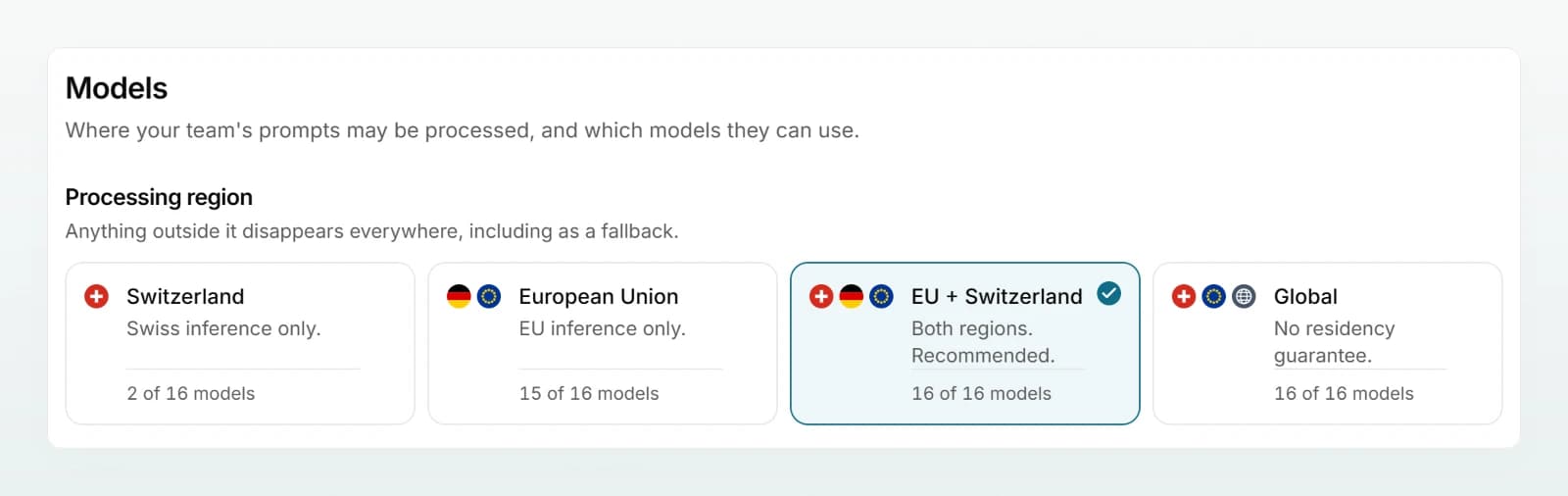
Click a region
Click the card that fits. The choice is saved at once; there is no save button.
Check the model list
Scroll to Chat models. Models that no longer fit the region now sit at the bottom under "Outside ..." and carry the note Out of region. They are hidden from your team.
| Card | Hint on the card | Allows models processed |
|---|---|---|
| Switzerland | Swiss inference only. | in Switzerland |
| European Union | EU inference only. | in Germany or in the EU |
| EU + Switzerland | Both regions. Recommended. | in Switzerland, Germany or the EU |
| Global | No residency guarantee. | anywhere, including the provider's worldwide infrastructure |
A new workspace starts on EU + Switzerland. Members see the chosen region in their account under "How your data is handled here".
Where a model runs
Every model card carries a region mark. Hover over the Details icon at the top right of the card to see where the model is hosted and a "Residency" line with one of three values:
| Residency | Meaning |
|---|---|
| Enforced | The provider's endpoint itself accepts no processing outside the boundary. |
| Verified | The endpoint is bound to one region, so its location can be checked independently. |
| Contractual | The region is set on every request and committed to by the provider, but cannot be measured independently. |
The "EU" mark means processing inside the EU with no fixed country: the provider may serve from any of its EU regions. More under Where your data lives.
Allow and block models
Under Chat models every model is a card with a short description, the approximate credits per exchange and a switch. On means allowed, off means blocked. A blocked model disappears from every member's model picker at once.
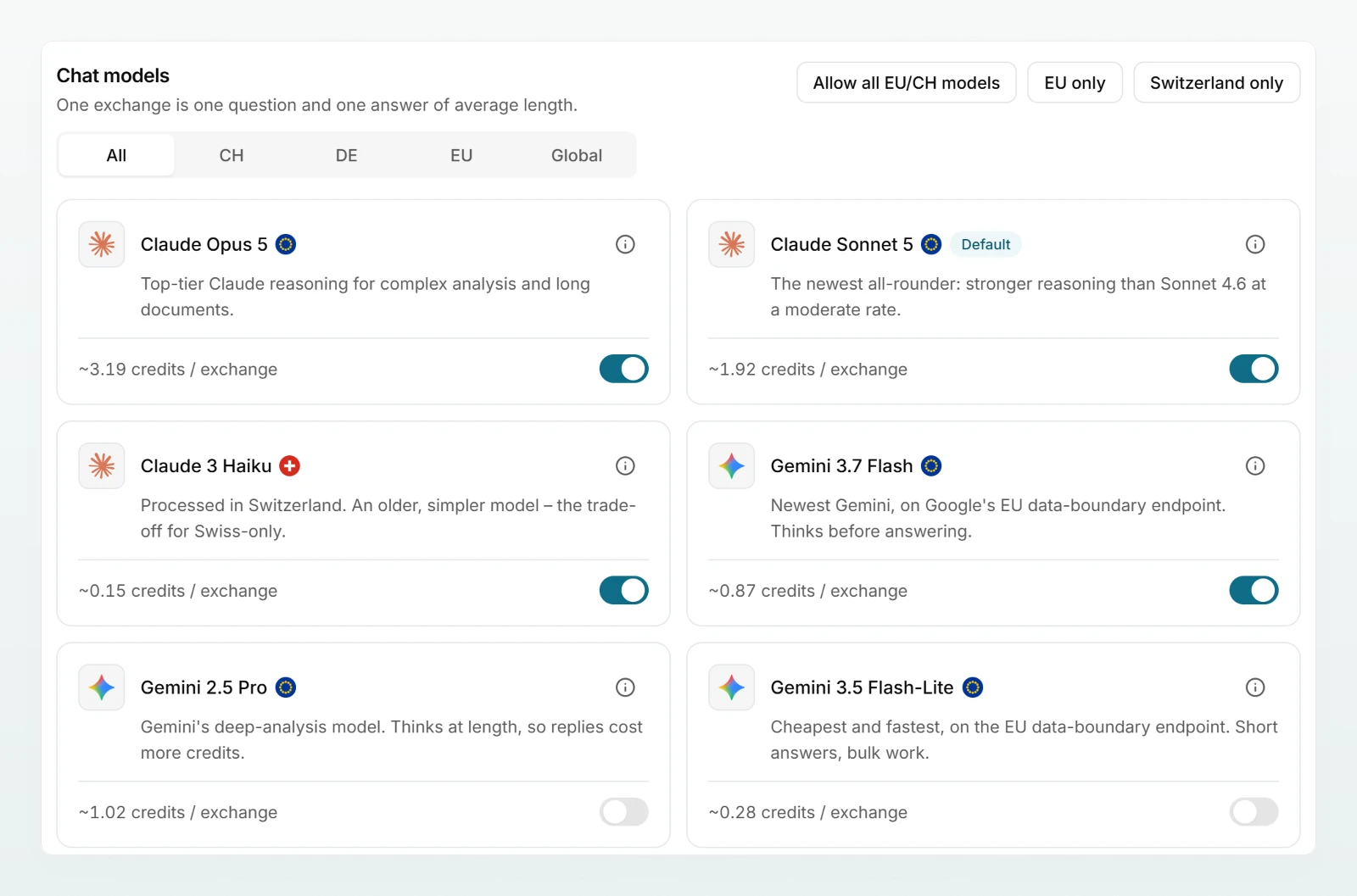
- The filters All, CH, DE, EU and Global only change the view, not what is allowed.
- not configured: no access is set up for this provider. The model cannot be switched on.
- Awaiting deployment: the model cannot answer requests yet.
- Image models are allowed further down under Image generation. If everything there is blocked, the image button is unavailable for everyone.
Presets
The three buttons above the list reset the chat model selection in one step. They stay inside the processing region, never switch on a model from the "Global" group and leave image models unchanged. Allow all EU/CH models switches on every chat model in the region. EU only and Switzerland only pick a smaller selection. Check the switches after every click: what counts is what is switched on in the list.
A new workspace starts with the models of the "Frontier" and "Open models" groups in its region. A model's group is shown under Details.
Estimate the cost
The "credits / exchange" figure on each card is a guide for one question and one answer of average length. Details also shows the cost band (Economy, Standard or Premium) and roughly how many exchanges 1,000 credits buy. Models that think before answering use more than the length of the reply suggests. How credits work is explained under Credits and usage.
Defaults for new chats and images
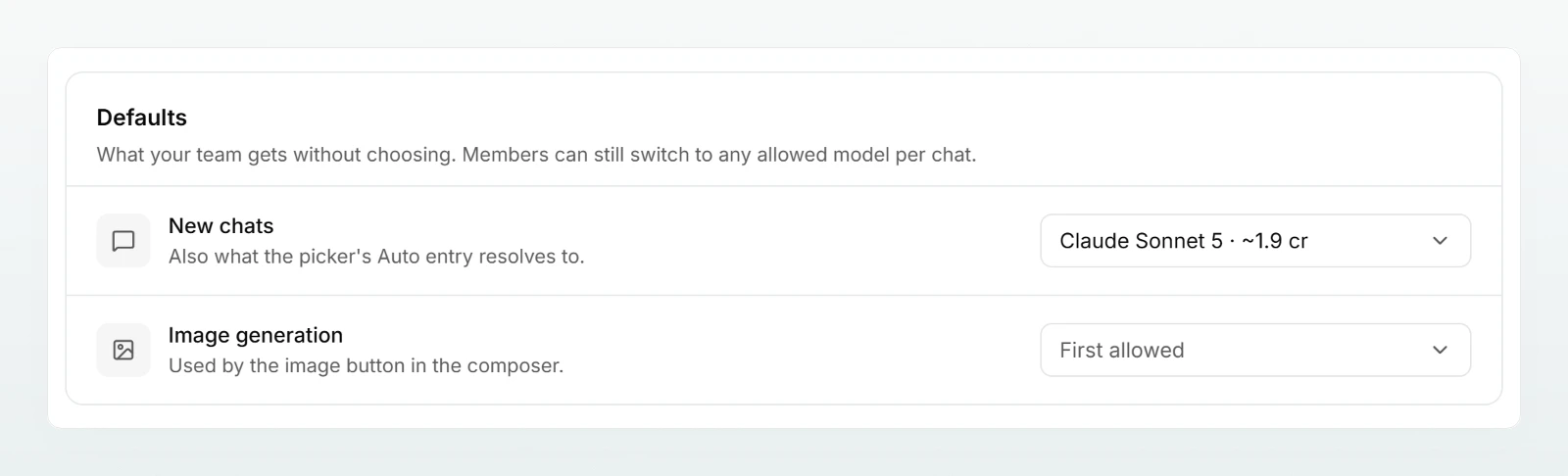
The Defaults card sets what your team gets without choosing.
- New chats: the model for new chats, and also what the Auto entry in the model picker resolves to. As long as you choose nothing, the field shows "Automatic:" with the model the platform picks.
- Image generation: the model behind the image button in the composer. Without a choice, First allowed applies.
Only allowed models inside the region are offered, each with its approximate credits. The choice is saved at once. Members can still switch to any allowed model per chat.
What members see
- The model picker lists only allowed models inside the region, with the Auto entry and your default at the top.
- If no model is allowed, members are asked to contact an admin.
- When credits run out, everyone continues on the cheapest allowed model and the picker stays locked until the reset.
Best practices
- Stay on EU + Switzerland unless an obligation requires a narrower region. The count on each card shows how much choice a narrower region costs.
- Allow a few clearly different models: a low-cost one for everyday tasks, a strong one for analysis, one for long documents.
- Choose the default model deliberately. It answers most messages, so it shapes both quality and usage.
- Before blocking a model or narrowing the region, check which model security mode uses.
- Tell the team before you remove a model colleagues work with every day.
Frequently asked questions
Check on the Models page that the model is allowed and inside the region. If both are true, the provider is probably briefly unreachable. The member can pick another model in the meantime.
No. Models outside the region are only hidden. If you widen the region again later, previously allowed models become available again. Defaults that were reset and a security mode that was switched off do not come back by themselves.
Its model was blocked, falls outside the new region or was not part of the preset you applied. In those cases security mode is switched off. Choose a new model under Setting up security mode.
It is outside the processing region. Instead of a switch it shows Out of region. To make it selectable, change the region at the top.
Next steps
Pin one model for the most sensitive conversations.
Credits and usageUnderstand what models, web search and images cost.
Where your data livesStorage and processing in detail.
Choosing a modelHow your members see the model picker.
Share the Choosing a model page with your team.
Credits and usage
All seats fill one shared credit pool that renews on the billing date. When it runs out, everyone carries on with a cheaper model, at no extra cost.
Configuring data protection
Choose whether personal data is pseudonymised, blocked or sent as typed before it reaches a model, and add rules of your own.