Directory sync (on request)
Take groups from your directory: the names and members of groups, never new accounts or seats.
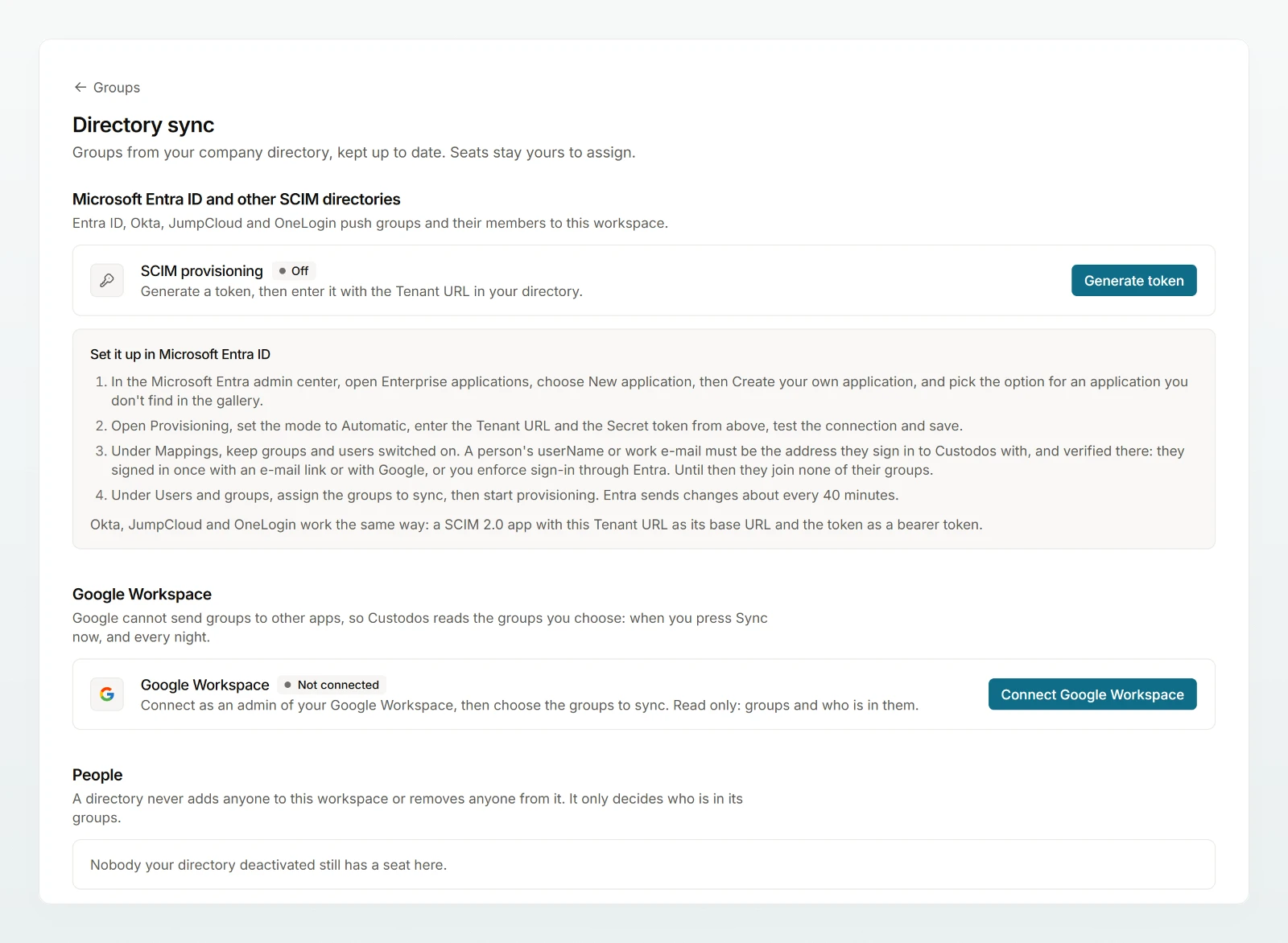
With directory sync, your company directory maintains the names and members of your groups: Microsoft Entra ID, Okta, JumpCloud and OneLogin through SCIM 2.0, Google Workspace through a connection that Custodos reads itself. You still set access, limits and protection in Custodos.
What a directory may do
- No accounts, no seats: a directory adds no one to the workspace and removes no one. Inviting and assigning seats stays under Members.
- Only by verified address: a person joins their directory groups only once their address is verified at Custodos, that is after they have signed in once with an email link or with Google, or you enforce sign-in through Entra. Until then their groups' limits and protection do not apply; the page names such members. Once an address is verified, the person joins at the next sync, or at once with Sync now.
- Name and members belong to the directory: such groups carry Managed by directory or Managed by Google. Access, protection, default model, sharing and the description stay yours.
- No deleting: if the directory deletes a group, Custodos releases it, and it stays as an ordinary group.
- Names up to 60 characters: Custodos refuses longer names over SCIM; from Google it takes the first 60 characters.
Entra ID and other SCIM directories
Generate a token
Under SCIM provisioning, click Generate token and copy the Tenant URL and Secret token. The token is shown only this once.
Create the app in Entra ID
In the Microsoft Entra admin center, under “Enterprise applications”, create your own application that is not in the gallery. Under “Provisioning”, set the mode to “Automatic”, enter the URL and token and test the connection.
Assign groups
Leave groups and users switched on under “Mappings”, assign the groups you want and start provisioning. Entra sends changes about every 40 minutes.
Okta, JumpCloud and OneLogin work the same way: a SCIM 2.0 app with the tenant URL as base URL and the token as bearer token. Everywhere, the username or work email must be the address the person signs in to Custodos with.
Google Workspace
Connect
Click Connect Google Workspace and sign in with an admin account. Custodos gets read-only access to groups and members.
Choose groups
Click Choose groups, tick the groups and click Save and sync.
Custodos reads the groups every night and with Sync now. Disconnect ends the sync and revokes access at Google. If it shows Needs attention, reconnect, for example because the account is no longer a Google admin.
People who leave
If your directory deactivates a person who is still a member at Custodos, they keep their groups, with protection and limits, until you remove them. The page lists these people; remove them with Open Members. Every change by the directory is recorded in the activity log.
Frequently asked questions
They are not yet a member, their address in the directory differs from their sign-in address, or the address is not yet verified at Custodos. The page names members without a verified address.
Not its name, which comes from the directory. You change the description with Edit description.