
Setting up training
Set up training and the AI usage policy for your team, set deadlines and keep evidence of participation.
Under Settings › Training you give your team an AI usage policy, content from the library or your own content, and in the end export the evidence of your measures. The programme is empty until you switch something on.
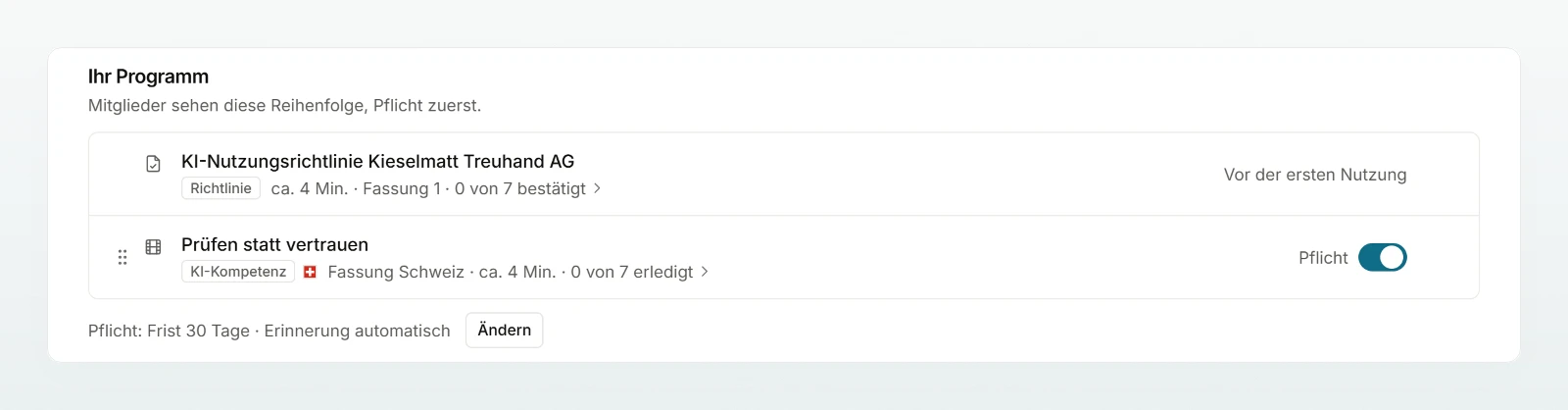
| Section | What it is for |
|---|---|
| Your programme | everything your members see, in this order, mandatory first |
| "Custodos library" | the policy template, videos, texts and quizzes; Recommended marks good starting points |
| Create your own content | Upload a PDF, Write a text or Create a quiz |
| Export evidence | PDF report or CSV table |
Introduce the AI usage policy
Set up the policy
Switch on the AI usage policy in the library. Set up the policy opens.
Fill in the fields
Fill in, for example, Questions and reports to, Deputy when absent, Sensitive data and the Sector. The text is generated from the fields; if you edit it by hand, the fields apply again only after Generate the text again.
Introduce it
Once all placeholders are filled, click Introduce. The Introduce the usage policy? dialog says who receives an email and by when; confirm with Introduce.
People already in the workspace receive an email and confirm within 7 days. People who join later, a new admin included, confirm before first use; until then the AI features are locked (My training). The policy always applies to everyone.
For a new version, open the policy with Edit, change the text and choose Everyone confirms the new version (14-day deadline) or Only people who join later. Under What is new you write one sentence for members.
Add trainings to the programme
Content you switch on first sits in the programme as voluntary, with no email. View shows it as your members see it. The library shows the version for the country of your billing address; versions for other countries are folded away below.
- Mandatory: switch on Mandatory for an item and confirm with Make mandatory. Make voluntary removes deadline and reminders again.
- Deadline: one setting for all mandatory trainings. Choose Change on the mandatory line and 14, 30 or 60 days under Deadline, counted from assignment or joining.
- Who for: under Assignment, choose for For All members, Selected people or, with groups (on request), Groups and people.
Track participation
Under an item's Participants you see every person with status, deadline and completion date.
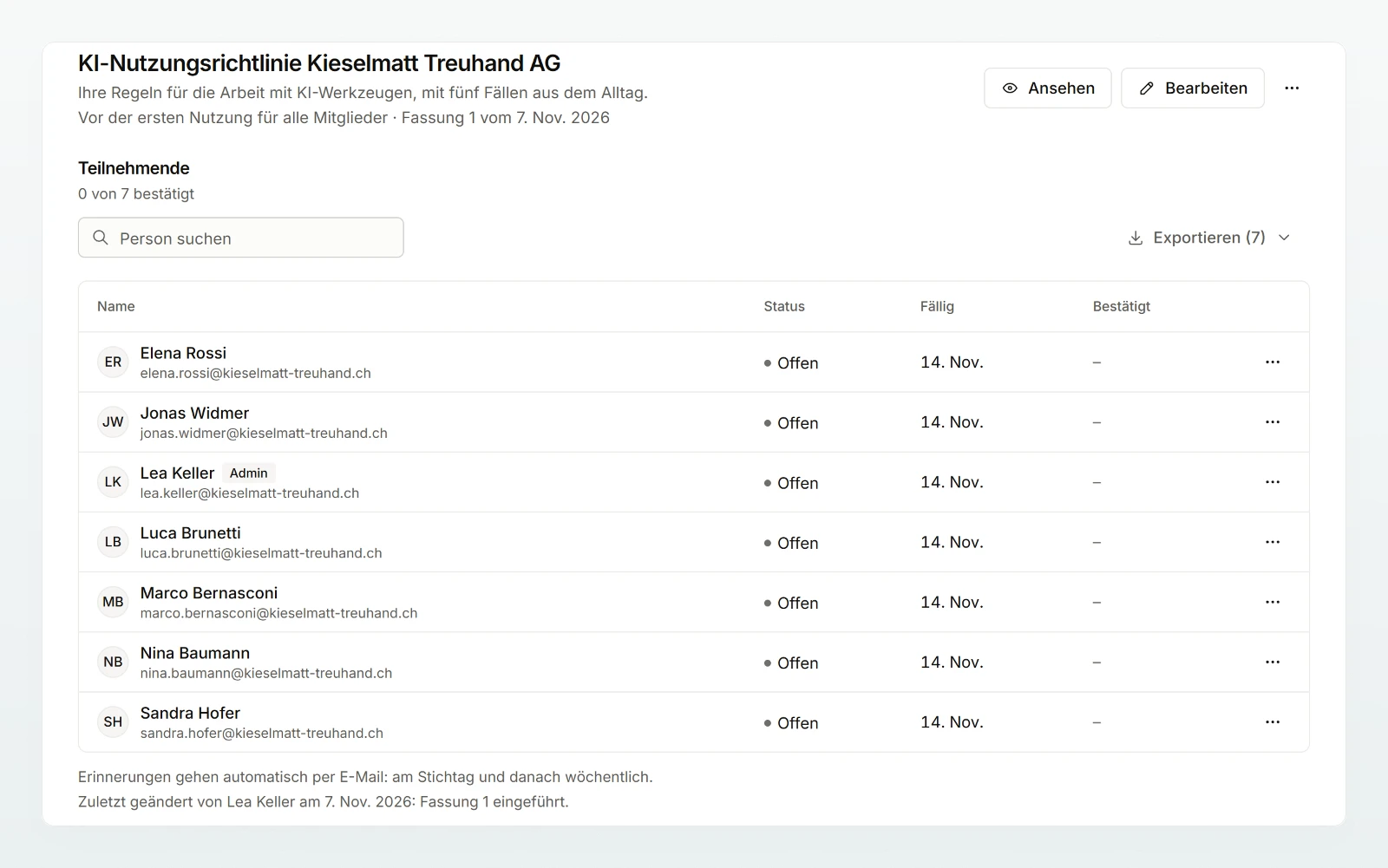
| Action | What happens |
|---|---|
| Remind | an email right away, at most once a day |
| Extend deadline… | 7, 14 or 30 days, from today or from the current deadline if it is still ahead; the person receives an email |
| Exempt… | with a Reason that appears in the evidence; for the policy, the chat is unlocked too |
| Reset… | a new attempt; the earlier completion stays in the evidence |
Reminders go out automatically: 7 days before the deadline, on the day and weekly after that. With a 7-day deadline, which is the first confirmation of the policy, the first one is dropped; people confirming a new version still get it. The line above the list says what applies to the item. Remind open ones reminds everyone still open at once.
Export the evidence
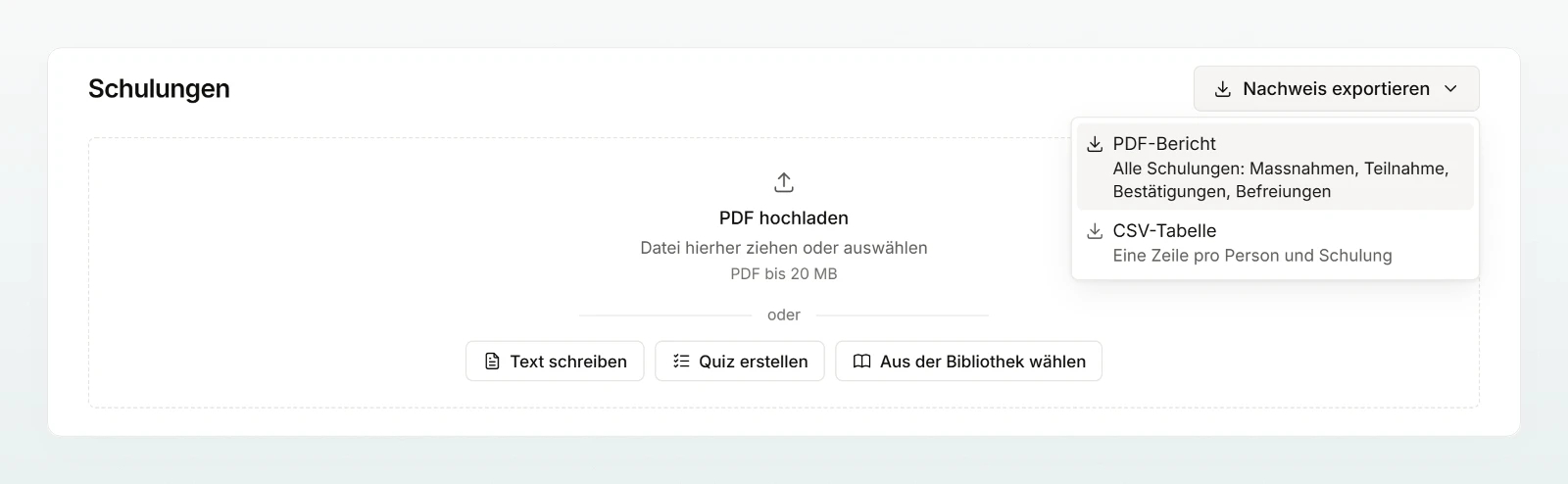
Click Export evidence and choose PDF report ("Evidence of your measures") or CSV table (one row per person and training). On an item's page you export only that item. Exports and programme changes are recorded in the activity log.
Per person you see assignment, deadline, status, completion, the confirmed version and exemptions, never answers, scores, attempts or time spent. Records stay after someone leaves until the end of the third year after that. Take out of the programme… hides an item and keeps its records; a deleted item of your own keeps its completions in the evidence.
Best practices
- Start with the policy, then two or three recommended items.
- Little that is mandatory. Only what everyone really needs.
- File the evidence regularly, say once a quarter.
Frequently asked questions
No. They receive an email and confirm within 7 days. Only people who join after the introduction are locked out.
New admins also confirm the policy before first use. They can confirm it through Read the policy or exempt themselves under Training.
Next steps
What your members see and do.
Rolling out AI in your teamTraining as part of your rollout.
ActivityTrace changes and exports.
Share the My training page with your team before you introduce the policy.