
Chatting with Custodos
Start a chat, ask your question and keep working with the answer, from copying it to regenerating it with a different model.
In a chat you work directly with an AI model: clarify questions, draft texts, analyse files. Every chat belongs to you. Nobody else in the workspace sees it, not even an admin, until you share it.
Start a chat
Open a new chat
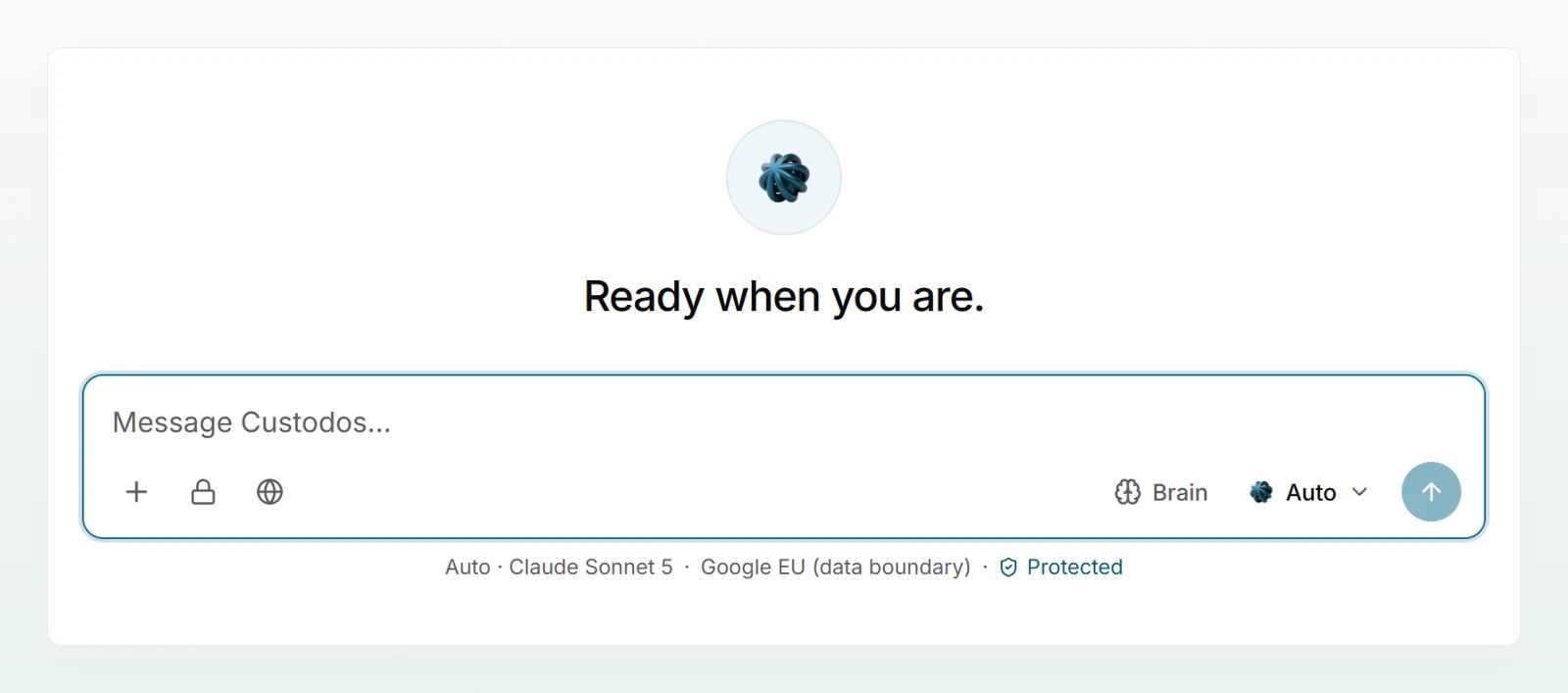
Click New chat at the top of the sidebar. The message box appears in the middle of the page.
Write and send your message
Type your question into the message box. Enter sends it, Shift + Enter starts a new line. You can also click the Send arrow.
Read the answer
Above every answer you see the name of the model that wrote it. While the model is using a tool, a short line says so, for example Searching the web… or Creating document…. Models that think before answering show Thinking….
An empty chat only appears in the history while it is open. Clicking New chat several times takes you back to the same empty chat instead of collecting a row of empty entries.
The bar under the message box
Everything that adds to a message or sets up the chat sits in the bar directly below the text.
| Control | What for | More |
|---|---|---|
| Add (the plus sign) | Attach files, files from connected accounts, web search, create an image | Attaching files and images, Generating images |
| Lock Turn security mode on | Security mode for this chat, only if your admin offers it | Security mode |
| Globe Web search | How thoroughly the web is searched | Web search |
| Brain | Choose Company Brains for this chat | Using a brain in chat |
| Project | Move the chat into a project (visible once you have a project) | Projects |
| Auto or a model name | Choose the model | Choosing a model |
Below the bar, a line names the model and where it runs. If data protection is on, Protected follows. What that does to your details is explained in Protecting personal data in chat.
A good first message
The model only knows what is in the chat. So briefly give the context, the task and the form you want:
I work at Kieselmatt Treuhand AG. Summarise the attached Expense Policy 2026 for new employees in five points, in plain English and without jargon.
If the answer is not quite right, stay in the same chat and say what should change. More examples are in Writing good prompts.
Keep working with the answer
Actions appear under your last question and under the last answer when you hover over them. On a phone they are always visible.
| Action | Where | What happens |
|---|---|---|
| Copy | Last question and last answer | The text goes to your clipboard, with formatting as Markdown. |
| Edit and resend | Last question | You change the question and send it again. Question and answer are replaced. |
| Regenerate (circular arrow) | Last answer | The model answers again. The previous answer is replaced. |
Regenerate with a different model
First choose a different model at the bottom right. Then hover over the last answer and click the circular arrow: its tooltip names the model that will answer. This is a quick way to check whether a stronger model handles the task better.
Take tables and code with you
When an answer contains a table, two icons sit above it: Copy table (as CSV, Markdown or TSV) and Download table (as CSV or Markdown). Copied as TSV, a table pastes straight into Excel with the values in columns. Code blocks have Copy code and Download file.
When no answer arrives
If an answer breaks off, your question shows "This message did not get an answer." Click Send again. Your question is not stored twice.
Rename, print and delete
The top of the chat shows the title and, once the chat has a message, the icons for sharing, printing and deleting.
- Rename: click the title at the top of the chat and type a new name (up to 120 characters). Or open the Chat options menu (three dots) in the sidebar and choose Rename.
- Print or save as PDF: click the printer icon Export as PDF (print dialog). A print-friendly page opens with the title, workspace and date. Click Print / Save as PDF and choose "Save as PDF" in the print dialog. The page contains the text of the messages, no images and no generated files.
- Delete: click the bin icon Delete chat and confirm with Delete. From the sidebar, use Chat options and Delete.
Your workspace can also delete chats automatically after a set number of days. An admin sets this up, see Retention and context cache.
Frequently asked questions
Editing and regenerating only work at the end of the chat, so that the conversation stays consistent. To start again from an earlier point, copy that question and start a new chat with it.
No. The new answer replaces the previous one. If you need both, copy the old answer first.
Two situations fix the model: the workspace has used up its credits for this month, or the chat runs in security mode. In both cases the model picker is locked and a note under the message box explains why. Details in Choosing a model.
No. A chat is private until you share it yourself. That applies to admins too. How sharing works is explained in Sharing and finding chats.
Next steps
Auto, model details and what happens when credits run out.
Attaching files and imagesWork with PDFs, Excel sheets and screenshots right in the chat.
Writing good promptsBetter answers, with examples from everyday work.
Sharing and finding chatsSearch your chats and share them with colleagues.