
Translating
Translate text and files with your workspace glossary, and Word, PowerPoint and Excel files right inside the file.
With Translate in the sidebar you translate a text or a file into one of nine languages. Word, PowerPoint and Excel files are translated inside the file, the layout stays, and technical terms follow your workspace's glossary.
Translate a text or a file
Choose the target language
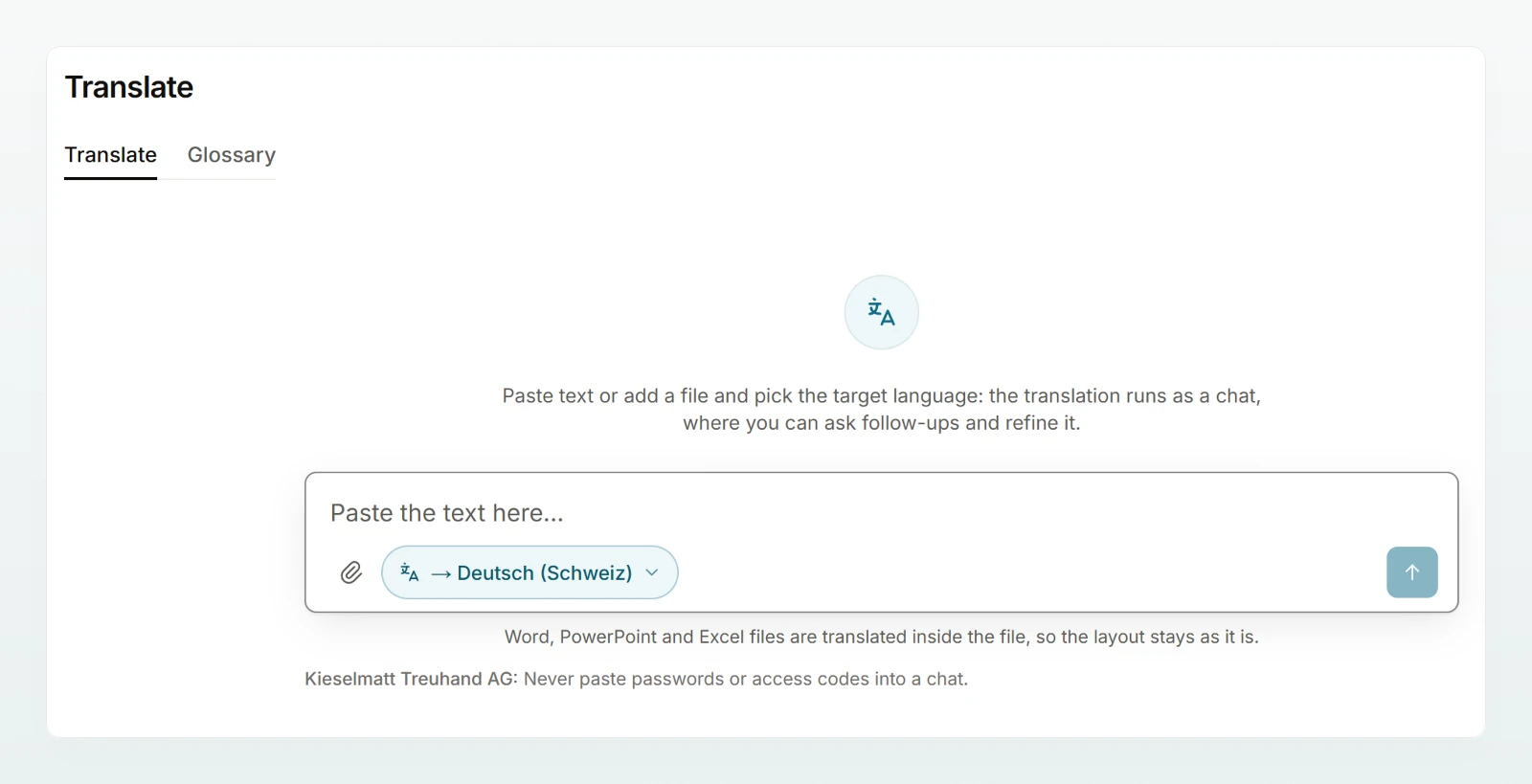
Open Translate, click the language shown in the message box and choose the Target language. It is preselected on your next visit.
Add text or a file
Paste the text, or attach a file with Attach file. Custodos detects the source language itself.
Translate
Click Translate. A chat with the Translator opens; a translated Office file appears in it as a file to download.
In the chat you can then ask for changes ("more formal, please"), send more texts or choose another target language in the message box. Translation chats start without a brain and are private until you share them.
Target languages
| Target language | Good to know |
|---|---|
| Deutsch (Schweiz) | Swiss spelling with "ss" and terms such as Offerte or Traktandum. |
| Deutsch (Deutschland/Österreich) | With the sharp s (Eszett) where the official spelling has it. |
| Français, Italiano | For a recognisably Swiss text the translator writes for Switzerland, such as AVS for AHV. |
| English, Español, Português, Nederlands, Polski |
Unless told otherwise, Custodos translates in the formal register. Figures, amounts, dates and names stay as they are, unless the glossary says otherwise.
Files
| File | What happens |
|---|---|
| Word, PowerPoint, Excel | Translated inside the file, including tables, headers and footers and speaker notes. Formulas and figures stay. |
| The translation appears in the chat, and Custodos offers a Word version. The PDF's layout is lost. | |
| Other formats | The translation appears in the chat. |
Text in charts, SmartArt and images is not translated; the reply names such places.
The glossary
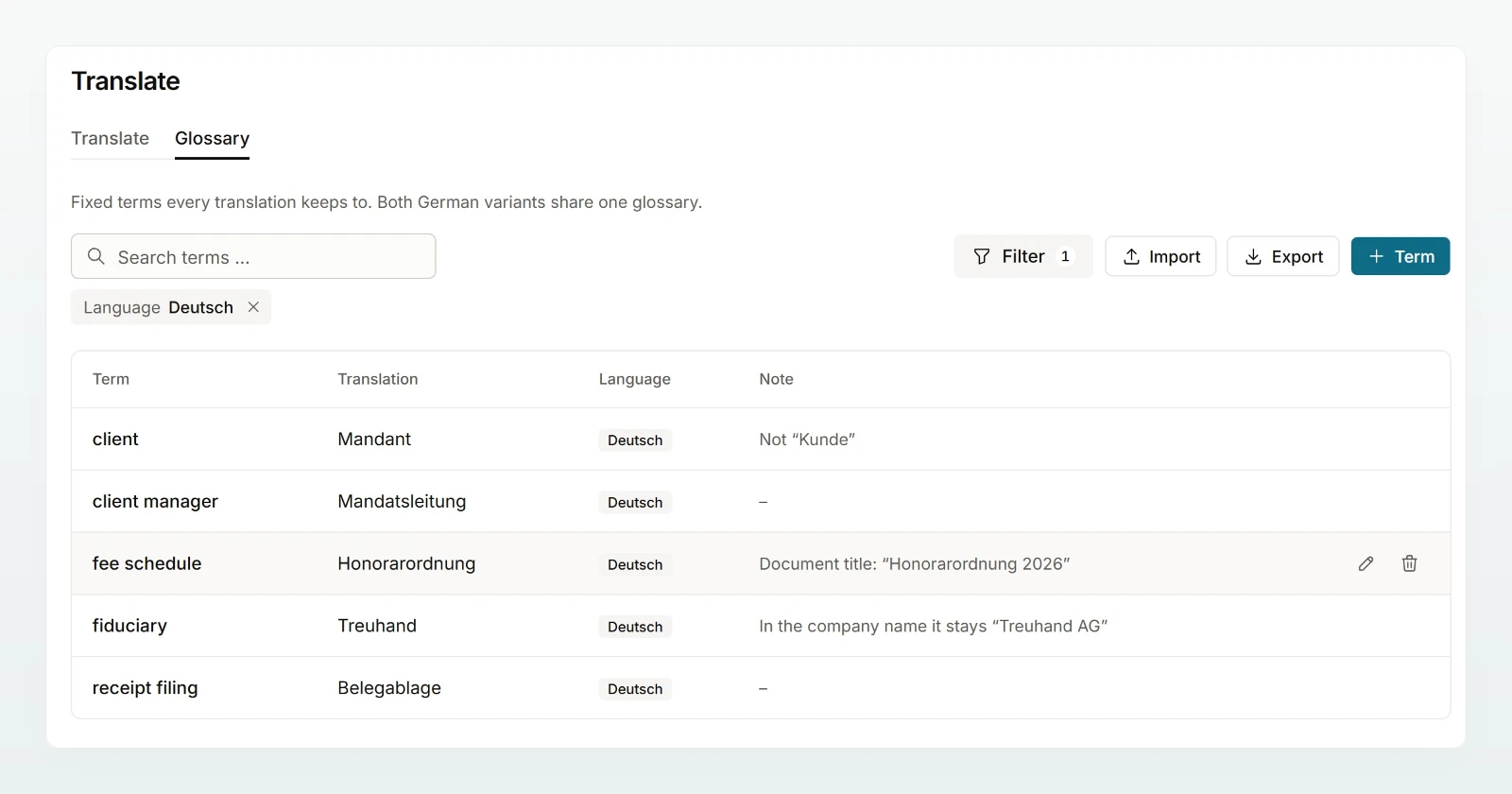
The Glossary tab says how technical terms are translated, for example "Honorarordnung" as "barème d'honoraires". There is one glossary per language for the whole workspace; both German variants share one. Every member sees it and can download it as CSV with Export. Only admins maintain it, and changes apply from the next message.
Maintain terms (admins)
Add a term
On the Glossary tab, click Term, enter the Term, the Translation and the Language, and if needed a Note, then click Save.
Import many terms
Click Import and choose a CSV file with the columns term, translation, language code and note, as the export writes them. Existing terms are replaced. The message lists skipped rows by number.
Best practices
- An admin adds the ten or twenty most important terms of your field before the team starts translating.
- Attach the original rather than retyping it. Only then do layout and tables survive.
- Proofread contracts and client letters, especially figures and deadlines.
Frequently asked questions
Check that the term is entered for exactly this target language; an entry for French does not apply to Italian. Then ask in the chat for the translation to be redone with the glossary term.
Yes. If new chats in your workspace start in security mode, so do translations, and Office files are still translated inside the file. As in any chat, your data protection applies to text and files.