
Keeping a brain up to date
Replace outdated documents, refresh imports from their source, edit texts and originals, and tidy up so that answers stay correct.
An answer that quotes last year's fee schedule with a citation looks checked and is still wrong. A brain only stays reliable if old versions are retired and changes are brought in. This page shows how.
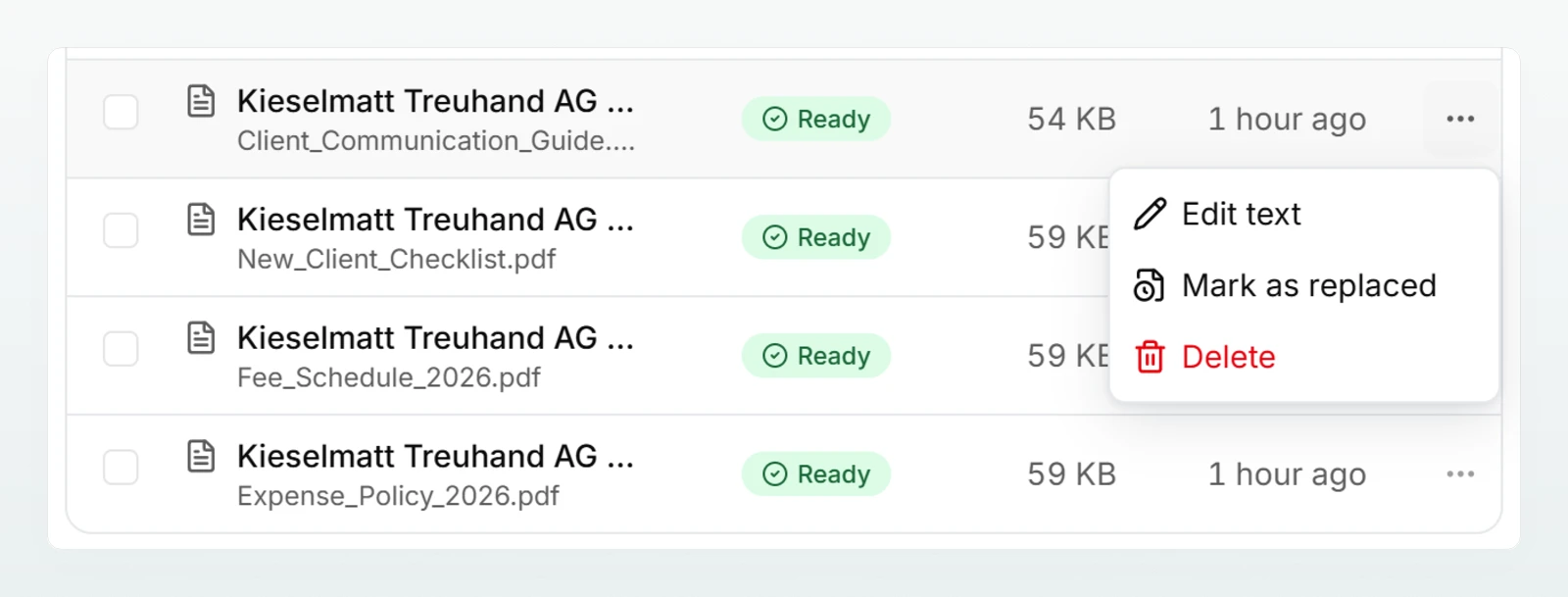
Replace a document with a newer version
Same file name: automatic
Upload the new version under the same file name, for example "Fee Schedule.pdf" again. As soon as the new file is Ready, the older one is marked Replaced. It stays readable but is no longer used for answers or in the overview. If the content is identical, the file is not stored a second time at all.
Different file name: by hand
Choose the old document
In the row of the old document, for example "Fee Schedule 2025", open the Actions menu and choose Mark as replaced.
Choose the new version
In the window Replace with a newer version, choose the current document, here "Fee Schedule 2026", and click Mark.
Only documents that are Ready and not replaced themselves can be chosen.
Refresh from the source
Documents from Google Drive, Microsoft 365 and web pages are a snapshot. Refresh from source fetches the current state:
| Result | What happens |
|---|---|
| Unchanged | "The source is unchanged." It costs nothing. |
| Changed | The document is processed again with the new text. |
| Source unreachable or deleted | The previous version is kept. |
| Connection missing | The connection to the cloud storage has to be set up again on your account page. The previous version is kept. |
| New version contains blocked data | In a strict brain the previous version is kept. |
- Custodos also checks these sources regularly in the background. Only what has changed is processed again; in large brains the check is spread over several days.
- The source is always fetched with the connection of the person who imported the document, even when you refresh it yourself. If that person has disconnected or lost access, the previous version is kept.
- Emails from Outlook do not change and are therefore not refreshed.
Edit text
For uploaded files and pasted texts you can correct the stored text directly, for example a misread table. Choose Edit text, change the title or text and click Save. The document is then processed again; title, summary and search are updated.
- Not possible while the document is being processed, and not for documents from Google Drive, Microsoft 365, Outlook or web pages. You change those at the source.
- For Word and Excel files, editing discards the original, because from then on the text is what counts. Download original and Edit in chat are no longer available afterwards.
Download the original and edit in chat
Word files (.docx) and Excel files (.xlsx) up to 4 MB that were uploaded directly keep their original. You can download it with Download original or have it changed in a chat without losing layout, formulas or formatting.
Open it in a chat
In the document's Actions menu, choose Edit in chat. A new chat of your own opens with the file attached.
Describe the change
Describe what should change, for example: "In the New Client Checklist, add after item 3: obtain a power of attorney for the tax administration." The answer delivers the changed file.
Save it back to the brain
Next to the file, click Save to brain.
In the chat, the workspace's protection mode applies to the file. PDFs, PowerPoint files and imported documents have no original in the brain; upload a new version or correct the text instead. More on editing files in chat under Creating and editing documents.
Fix errors
If a document shows Error, hover over the status to see the reason. Fix the cause and choose Process again. The most common messages are explained in Adding sources. If the message reads "This document cannot be processed again. Delete it and import it anew.", delete the document and add it again.
Rebuild the overview
When documents change, Custodos rebuilds the Overview once everything is processed. To do it by hand, use the icon with the circular arrows in the Overview card, or Rebuild overview in the More actions menu (three dots at the top right). Up to 40 documents, the overview is a list with summaries. With more documents a model condenses it, which costs credits.
Delete documents and brains
Documents: select one or more documents with the checkboxes and click the button above the list that shows the count (for example "Delete 3"), or choose Delete in a row's menu. Confirm under Delete documents?.
Brain: in the More actions menu, choose Delete brain, type the brain's name to confirm and click Delete permanently. Only the person who created the brain and admins with access may do this.
Best practices
- One person is responsible. Whoever maintains a brain reviews it at fixed intervals, for example once a quarter.
- Same file names for new versions. Then Custodos replaces the old version by itself. If the name carries a year, mark the old version by hand.
- Delete outdated material nobody needs any more. Replaced is for versions people should still be able to look up.
- Test after changes. Ask a typical question in the brain page's search field and check that the new version is found.
Frequently asked questions
The entry only appears for documents from Google Drive, Microsoft 365 and web pages, and only when they are Ready. Uploaded files are replaced with a new version.
The entry exists only for Word and Excel files up to 4 MB that were uploaded directly and whose text has not been edited by hand, and not while they are being processed.
Only if the source has changed. The document is then processed again, as when it was first added. An unchanged source costs nothing.
No. They stay readable in the brain until you delete them. They no longer feed into answers or the overview.
Next steps
Data protection in a brain
Every brain has its own data protection level (Open, Pseudonymise or Strict), independent of the workspace's protection mode.
Agents overview
An agent bundles instructions, knowledge and conversation starters for a recurring task, so everyone on your team handles it equally well.