
Integrations overview
Connect Google Drive, Microsoft 365 or Outlook to your account to use files and emails in chat and in Company Brain.
Integrations bring files and emails from your own accounts into Custodos. You attach them to a chat, import them into a brain, or let the model search them itself. Every connection belongs to you personally and only uses your own access rights.
Use and import files you pick in Google's file dialog.
Microsoft 365Browse OneDrive and SharePoint and import documents.
OutlookSummarise emails, draft replies, prepare meetings.
What each integration can do
| Google Drive | Microsoft 365 | Outlook (mail & calendar) | |
|---|---|---|---|
| Attach in chat (+ menu) | files from Google's file dialog | files from OneDrive and SharePoint | the text of an email or an attachment |
| What the model can do itself | search and read files you have picked before | search OneDrive and SharePoint and read files | search and read emails, read the calendar, save drafts, create or propose meetings |
| Import into a brain | files | files | emails and attachments |
| Access | read-only, picked files only | read-only, whatever your account can already open | read, create drafts and events, invitations only after you confirm |
Making a connection
Open your account
Click your name at the bottom of the sidebar, then Account settings.
Find connected accounts
In the Connected accounts section, each provider shows Not connected or Connected.
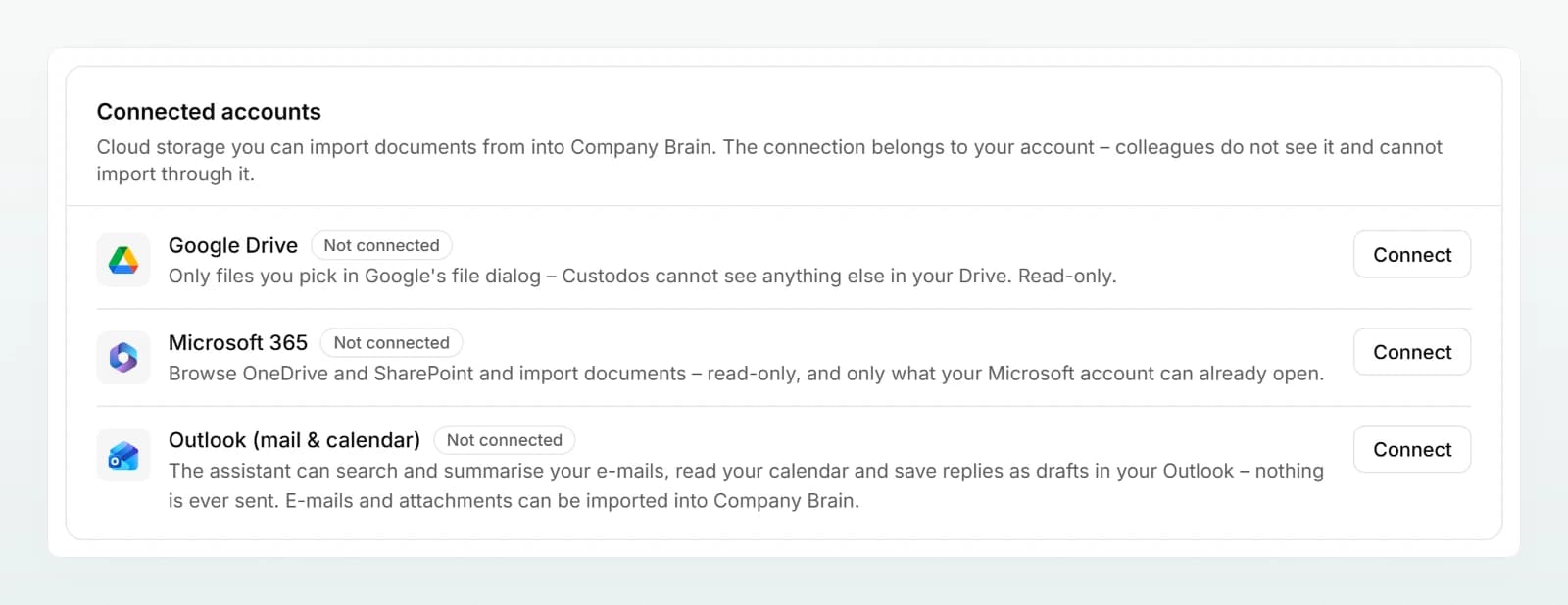
Connect
Click Connect next to the provider you want. You are taken to Google or Microsoft. Sign in there and confirm the access.
Check the connection
Back in Custodos you see a confirmation such as "Google Drive is now connected." Below the provider it says which account you are connected with.
Your connection, not the workspace's
- The connection belongs to your account. Colleagues do not see it and cannot access anything through it.
- It applies in every workspace you belong to.
- The model only reaches your own files and your own mailbox, with exactly your rights.
- Whatever you import into a brain can be seen by everyone with access to that brain. If you share a chat, others also read the replies that are based on your files or emails.
Data protection with integrations
- Documents come across as text. The original file stays with Google or Microsoft. This is why the model cannot edit a Word or Excel file from the cloud directly. If you want that, upload the file yourself (see Creating and editing documents).
- What the model reads is checked like an attachment. File contents, emails and calendar entries go through your workspace's protection mode before they reach a model: pseudonymised or, in Block mode, withheld. More in Protecting personal data in chat.
- You can see when the model accesses them. During the reply, status lines such as Searching cloud files… or Checking Outlook… appear, and afterwards Cloud files searched or Outlook consulted below the reply.
When the model does not use integrations
The model does not search or read your accounts itself when:
- the chat runs in security mode,
- the workspace's credits for this month are used up,
- the chosen model does not support tools. The model info then says No web or brain search, and it creates no files.
You can still attach files through the + menu in these cases.
Frequently asked questions
If a connection started in the chat fails, no message appears there. In that case, connect through Account settings. That page shows what went wrong, for example a missing approval from your Microsoft 365 administrator.
No. Connected accounts only appear in your own account settings, and nobody else can reach files or emails through your connection.
Click Disconnect in your account settings. The model can then no longer access that account. Anything you have already attached or imported stays. Imported brain documents, however, are no longer refreshed from the source until you connect again.
The stored connection has expired or was revoked at the provider. Connect the provider again in your account settings.