
Configuring an agent
On the Configure tab you set an agent's icon, name, instructions, conversation starters, knowledge, web search, model and sharing.
Under Configure you see all of an agent's fields on one page. This is where you check what the Create chat proposed and set what only you can decide: knowledge, web search, model and sharing.
To open the fields, click the pencil (Edit) next to the agent in the list under Agents. A saved agent opens straight on Configure. For a new agent, switch from Create to Configure at the top left.
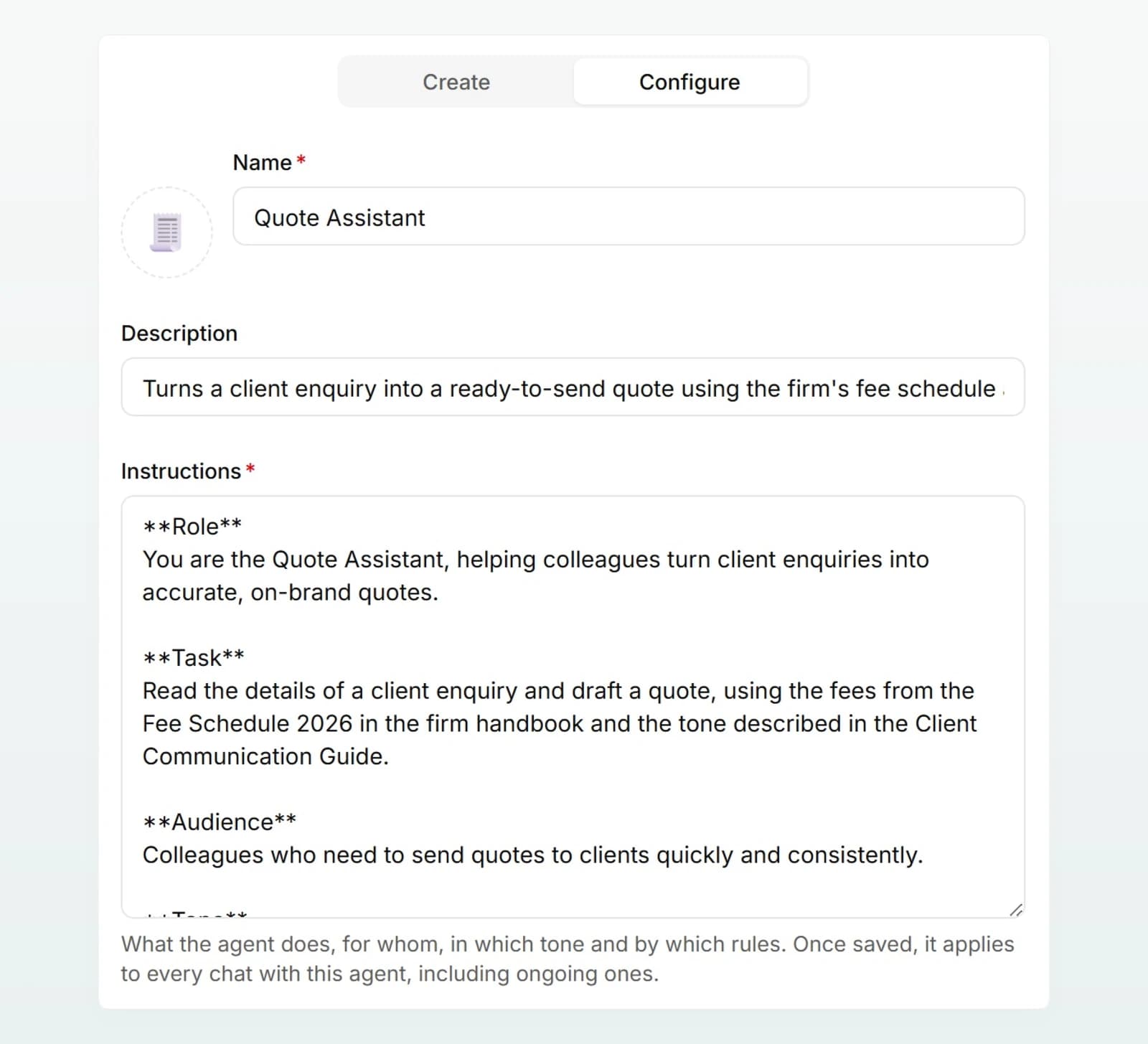
Icon, name and description
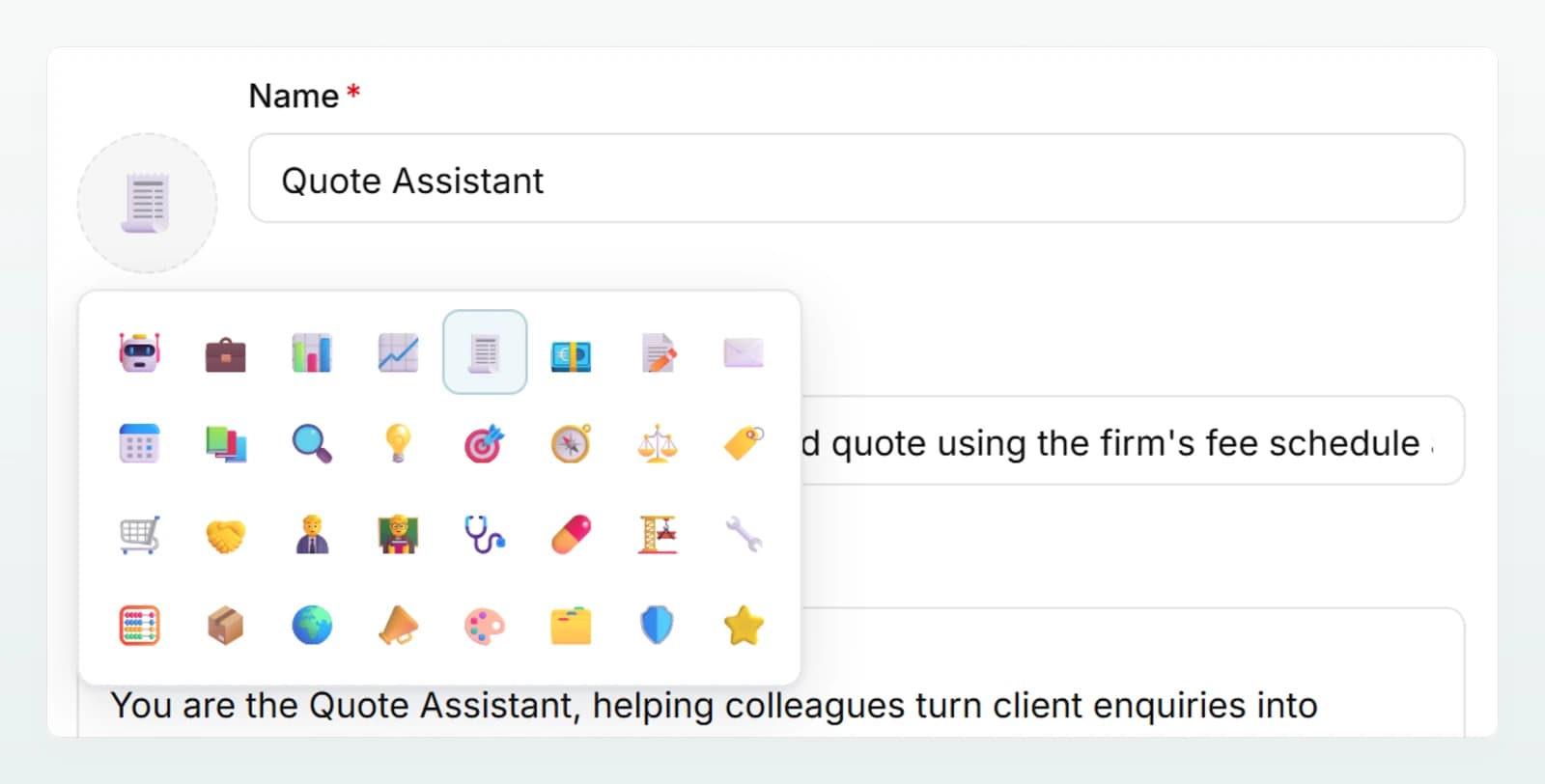
- Icon: click the round button to the left of the name and choose one of 32 icons. It appears in the list, in the sidebar and in the chat.
- Name (required): short and named after the task, for example "Quote Agent".
- Description: one sentence on what the agent does. It is shown in the list and under the name in an empty chat.
Instructions
The instructions (required) tell the agent what it does, for whom, in which tone and by which rules. They are the most important part of the agent. Once saved, they apply to every chat with this agent, including ongoing ones.
A proven structure has six sections: role, task, audience, tone, rules (including what the agent refuses or passes on to a person) and output format. How to write each of them is covered in Building good agents.
Conversation starters
Conversation starters are suggestions shown under the input field in an empty chat. One click sends the text straight away, as if the person had typed it.
- Add starter creates a new one; the cross beside it (Remove starter) deletes it.
- Empty starters are dropped when you save.
Knowledge
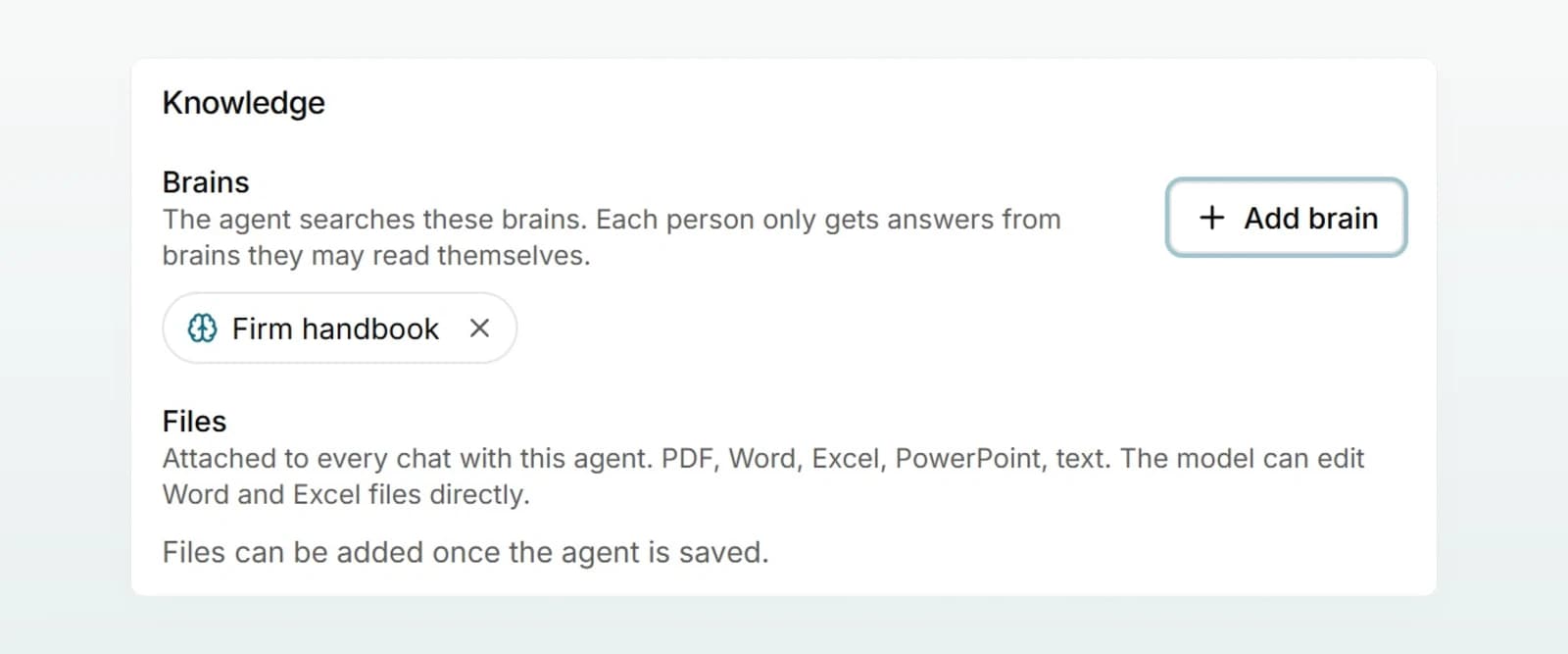
Brains
With Add brain you choose the brains the agent searches. The list shows only brains you are allowed to read yourself. The cross on a brain removes it again.
- Each person sees only what they are allowed to. Whoever chats with the agent gets answers only from brains they are allowed to read themselves. More in Sharing and using agents.
- Not every model can search. Once a brain is added, Model lets you choose only models that can search it.
- Default brains are added. Brains set to Active in new chats by default are also active in a chat with the agent, as long as the person is allowed to read them.
If you have no brain yet, this section reads "No brains yet. Create one under Company Brain." See Creating a brain.
Files
Files are attached to every chat that starts with the agent, for example a quote template or a short price list. You can add them once the agent has been saved.
- Click Add file and choose one or more files.
- The file uploads straight away. You do not need to save for this.
- The cross in the row (Remove file) removes a file again.
What you should know:
- Formats: PDF, Word, Excel, PowerPoint, and text, data and code files. Images are not possible.
- Editable: the model can edit Word and Excel files up to 4 MB directly in the chat, for example to fill in a template. Letterhead and layout are kept. See Creating and editing documents.
- Visible in the chat: the files appear in the chat as attachments in the input field. The person chatting can remove them for that chat.
- Sent with every message: a file's text goes to the model with every message. Large reference works belong in a brain instead.
- Data protection: files are checked on upload like any attachment in the chat. In block mode, a file containing protected data is refused.
- Removing applies going forward: chats that already contain a file keep their copy.
Capabilities: web search
The Web search switch decides whether the agent may look up current information on the web. It is on for new agents.
- When it is off, the agent never searches the web, even if the person in the chat would like it to. Once saved, the switch also applies to ongoing chats.
- The Capabilities section appears only when web search is available in your workspace. An admin decides that; see Managing web search.
- In security mode chats, web search is always off.
For agents that should work only with your own documents (quotes, HR questions), switch web search off.
Model
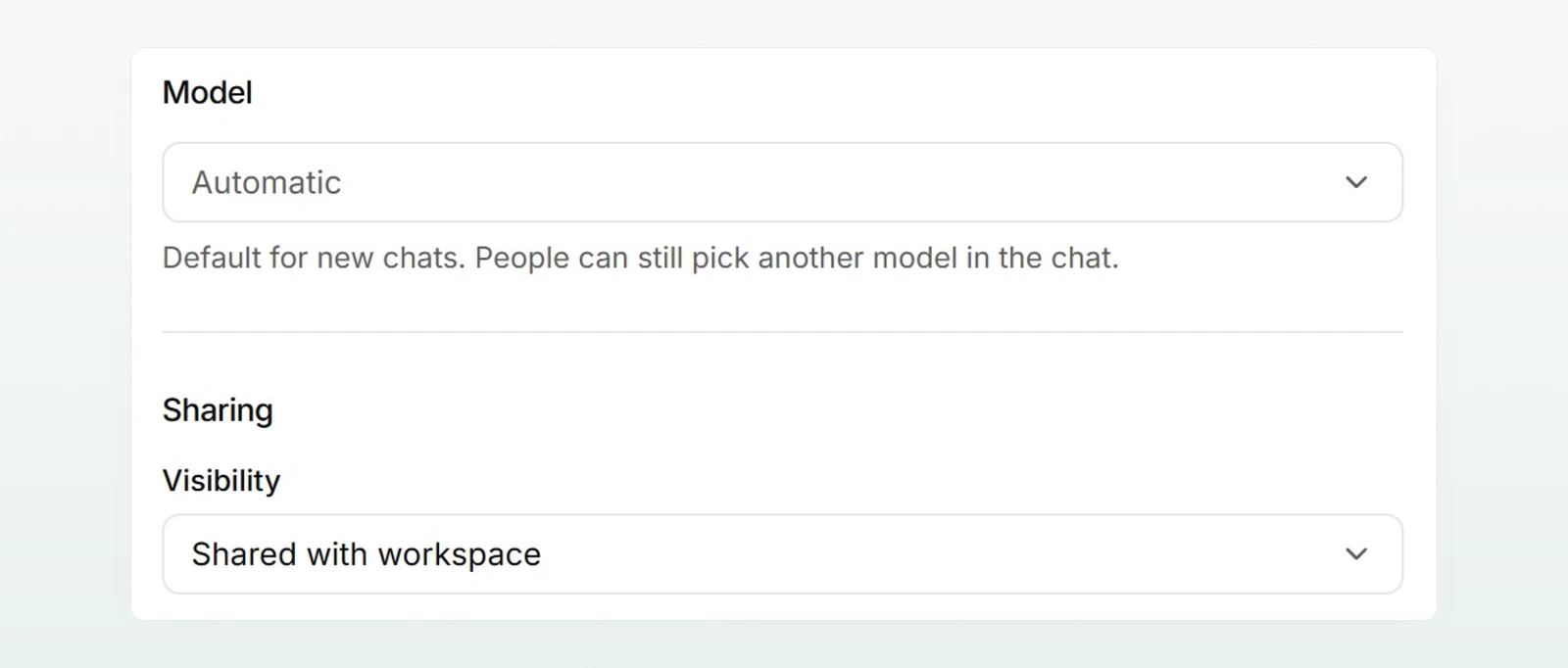
Under Model you choose the default model for new chats with the agent, or Automatic, which means the workspace's usual choice applies.
- People can still pick another model in the chat.
- The model is copied when a chat starts. If you change it later, that applies to new chats.
- If a chosen model is no longer enabled in the workspace, the field shows Automatic again.
Which model suits which job is explained in Choosing the right model.
Sharing
Under Sharing you choose the Visibility: Private (only me), Selected people or Shared with workspace. With Selected people you search by name or email under People with access. What each level means is explained in Sharing and using agents.
Saving and what applies when
Click Save at the top right. While something is unsaved, Unsaved is shown beside the name. If a required field is empty, the editor switches to Configure and points at the empty field.
| Change | Applies to |
|---|---|
| Instructions, web search | All chats with the agent, including ongoing ones, from the next message |
| Icon, name, description, conversation starters | The list, the sidebar and chats the next time they are opened |
| Model, brains, files | Newly started chats |
Best practices
- Knowledge in a brain, the way of working in the instructions. Prices and regulations change; in a brain you maintain them in one place.
- Use files sparingly. A template that gets filled in is ideal. A 200-page handbook belongs in a brain.
- Decide on web search deliberately. Where only your own documents count, switch it off.
- Test before you save. The preview shows what your team gets once you save.
Frequently asked questions
The agent has a brain, and this model cannot search it. Choose another model or Automatic. The note under the field reads "With brains, only models that can search them."
For a new agent the section reads "Files can be added once the agent is saved." Click Create first. If a file is refused, the message gives the reason: too large, too many files, too much text, an image or protected data.
You are not allowed to read that brain, so it does not appear for you. It stays on the agent all the same, even when you save.
Web search is not available in your workspace, for example because an admin switched it off or the workspace processes only in Switzerland. The agent's setting is kept and applies as soon as search is available.