
Your account
In your account you set your name, language and appearance, see your workspace's data rules and, if needed, delete chats or the account.
Your account holds your personal settings. They apply in every workspace you belong to. This is also where you see how your workspace handles your data, which accounts you have connected, and which workspaces you are a member of.
To open the page, click your name at the bottom of the sidebar, then Account settings.
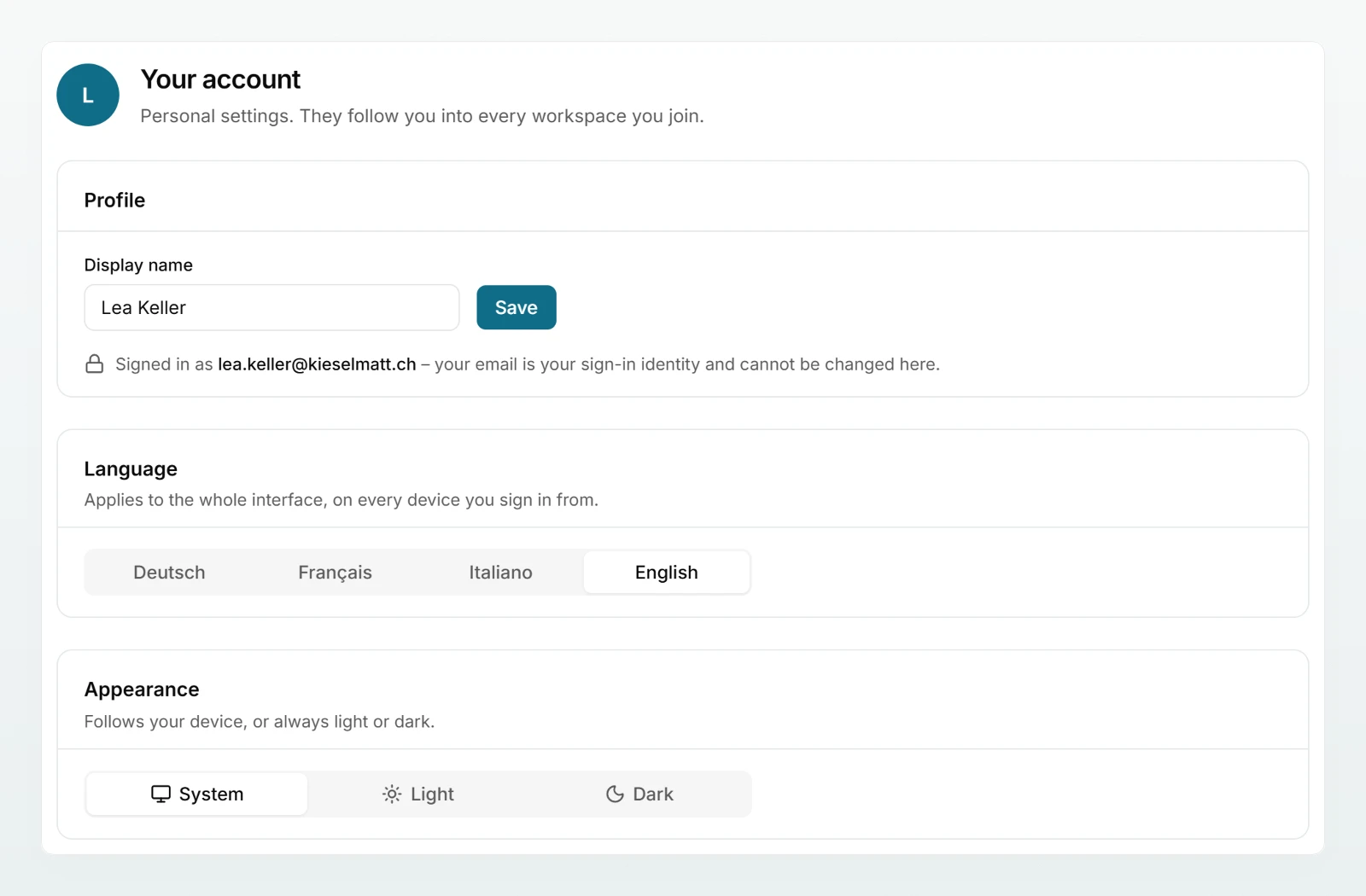
Profile
Under Display name you set how colleagues see you, for example "Lea Keller". The name can be up to 80 characters long. Click Save.
Your email address is shown below it. It is your sign-in identity and cannot be changed here.
Language and appearance
| Setting | Options | Applies to |
|---|---|---|
| Language | Deutsch, Français, Italiano, English | the whole interface, on every device you sign in from |
| Appearance | System, Light, Dark | the browser you set it in |
You can also switch the language in the menu that opens when you click your name. System follows your device's setting.
How your data is handled here
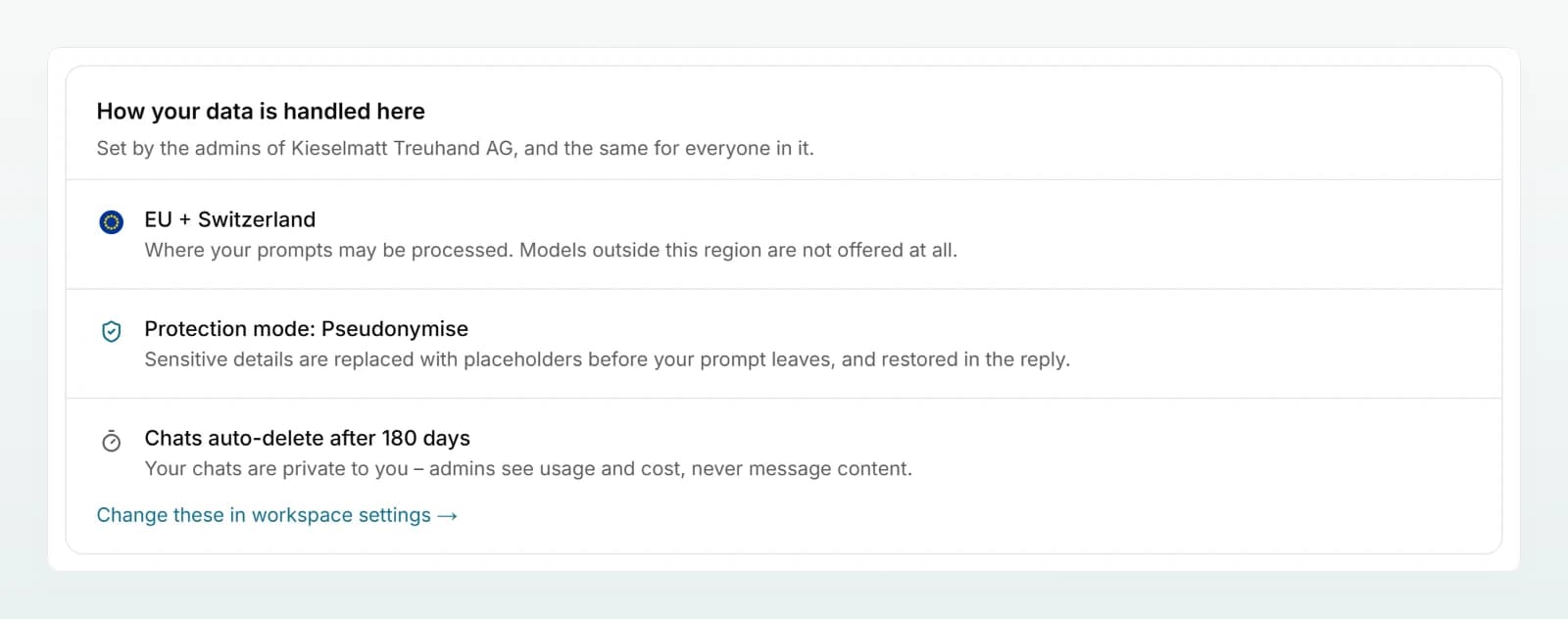
This section shows what your workspace admins have set. The rules are the same for all members, and you cannot change them here.
| Item | Meaning |
|---|---|
| Region, for example Switzerland or EU + Switzerland | Where your prompts may be processed. Models outside this region are not offered at all. More in Where your data lives. |
| Protection mode: Pseudonymise, Block or Off | What happens to sensitive details in your messages. More in Protecting personal data in chat. |
| Retention | Either Chats are kept until you delete them or automatic deletion after a fixed number of days. |
Below that, a line reminds you that your chats are private to you: admins see usage and cost, never message content. If you are an admin yourself, a link takes you straight to the workspace settings.
Connected accounts
This is where you connect and disconnect Google Drive, Microsoft 365 and Outlook. The connections belong to you alone. Everything else is covered in Integrations overview.
Workspaces
The list shows every workspace your account is a member of, with your role (Admin or Member). The open workspace is marked current. Click another name to switch to that workspace.
Danger zone
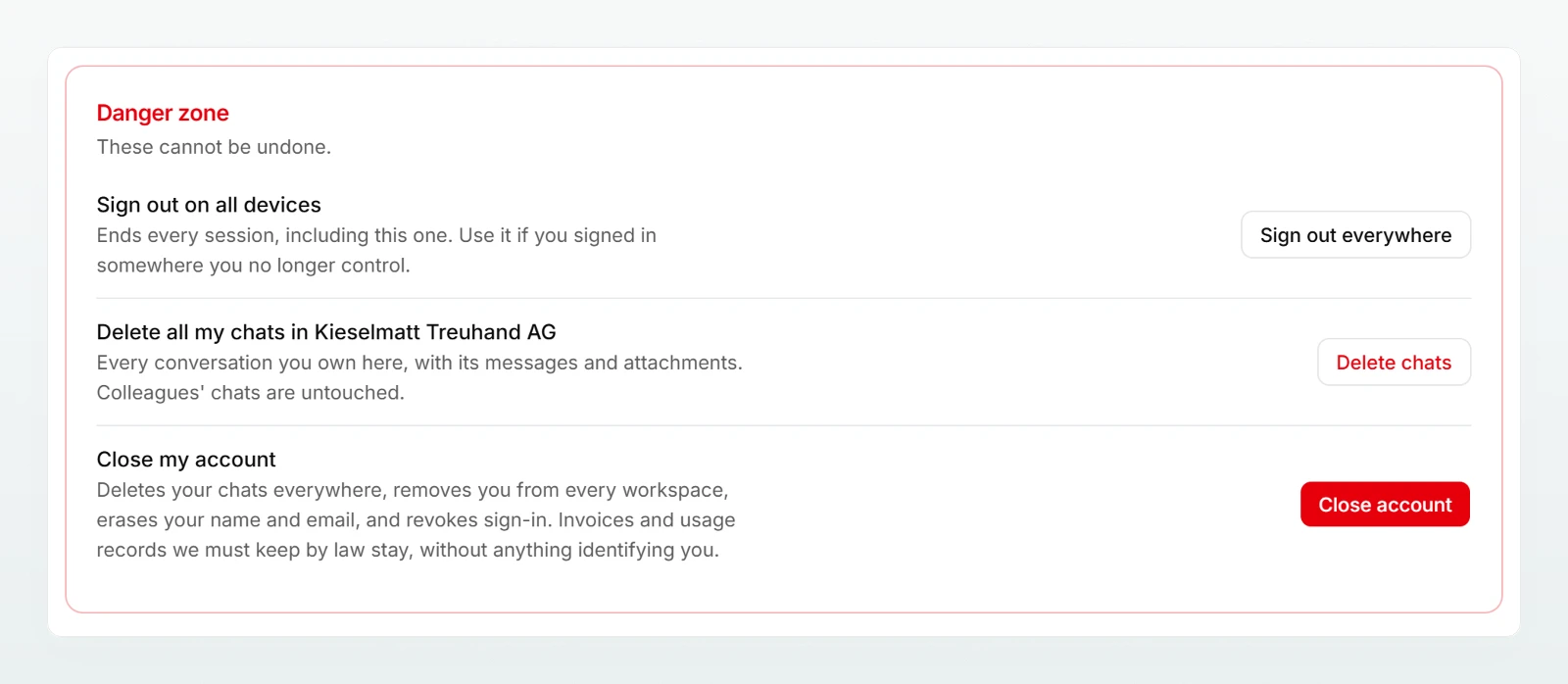
The actions in the Danger zone cannot be undone. Each one asks for confirmation.
| Action | What happens | Confirmation |
|---|---|---|
| Sign out everywhere | Ends every session on every device, including the current one. You sign in again afterwards. | none |
| Delete chats | Deletes every chat you own in the current workspace, with its messages and attachments. Colleagues' chats are untouched. | dialog with Delete all chats |
| Delete workspace | Deletes the workspace with all its chats, documents and settings. | typing the workspace identifier shown |
| Close account | Deletes your chats everywhere, removes you from every workspace, erases your name and email address and revokes sign-in. | typing your email address |
Frequently asked questions
No. Your email address is your sign-in identity. If you need a different address, an admin can invite it to the workspace. That is then a new account: chats from the previous account do not move across.
You are the only admin of a workspace. The message names the workspace. Make someone else an admin there, or contact support to close the workspace.
The option appears only for admins when the workspace has no other members, no subscription and no invoices. You cannot delete other workspaces yourself. In that case, get in touch with us.
No. Admins see usage and cost, but no message content. A chat can be read only by the people you share it with. More in Sharing and finding chats.