
Sharing and using agents
Make an agent available to selected people or the whole workspace. Each person uses it with their own permissions on brains.
A new agent is private. Once it works reliably, you share it with the people who do the task. This page explains who sees an agent, how your team uses it, and what applies after you save.
Sharing an agent
Open the agent
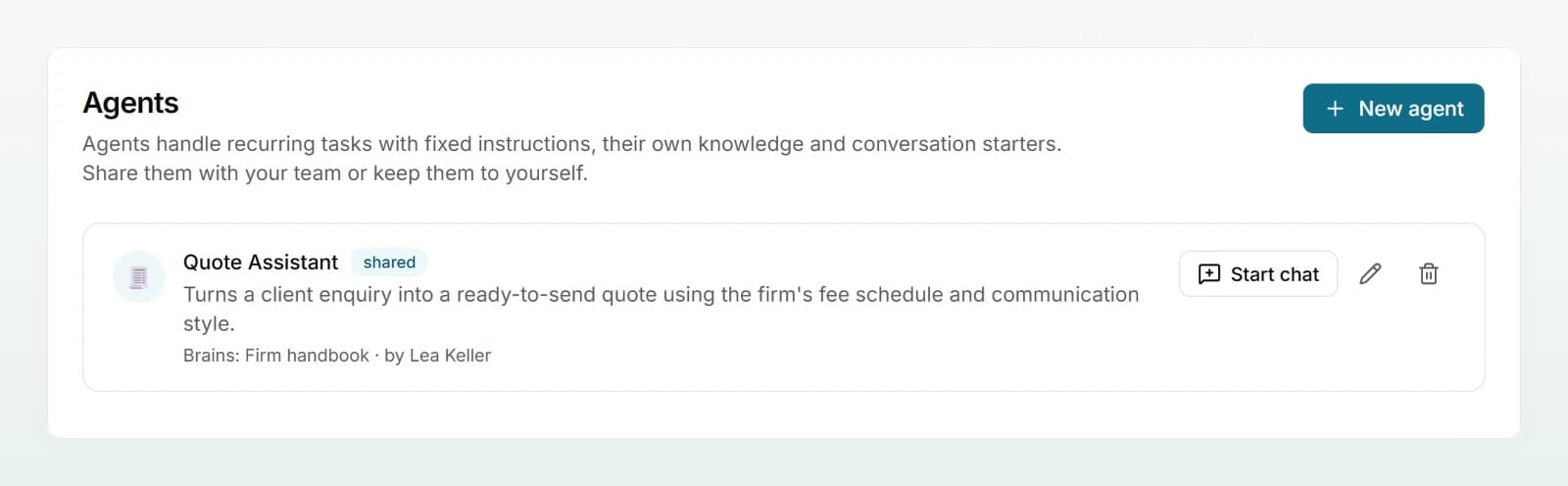
Under Agents, click the pencil (Edit) next to the agent. The editor opens on Configure.
Choose the visibility
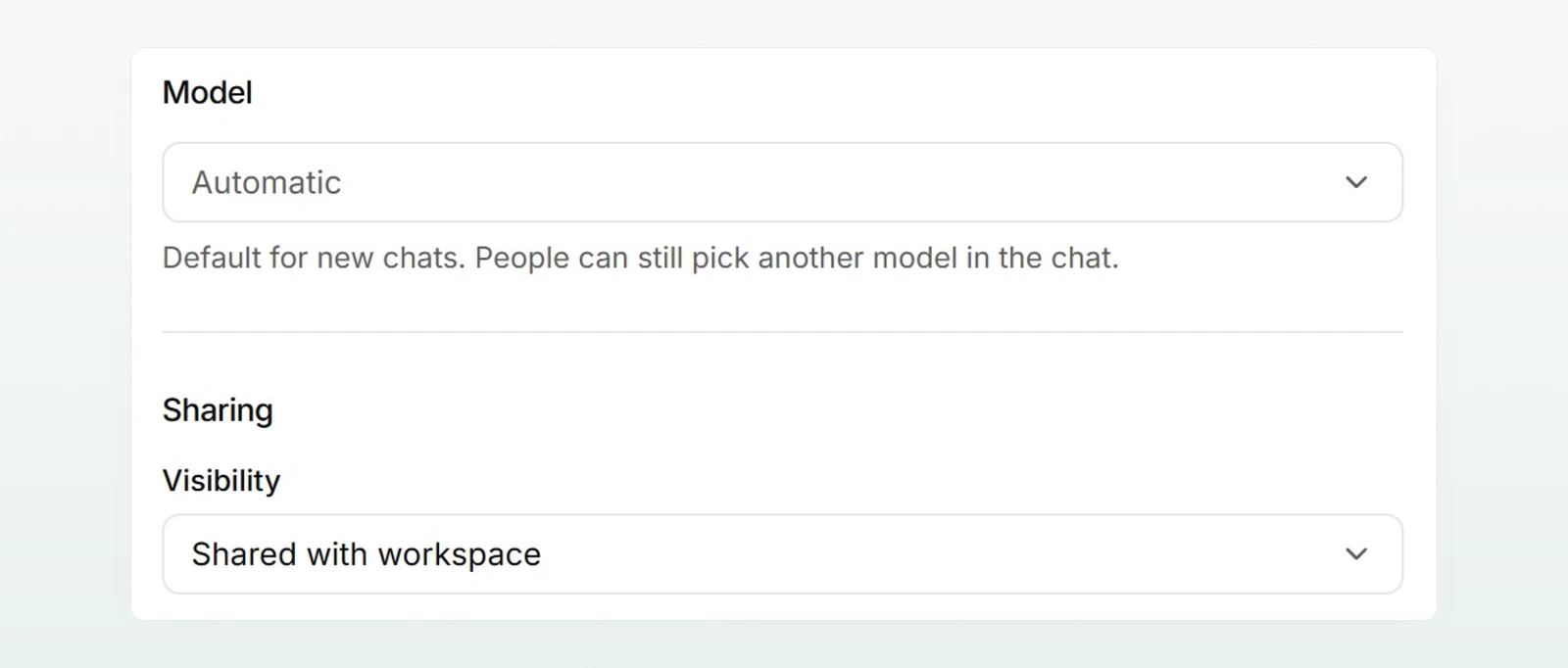
Scroll down to Sharing and pick one of the three levels under Visibility (see the table below).
Add people
With Selected people, search by name or email under People with access and add the people. You and the admins always have access and do not need to be on the list.
Save
Click Save at the top right. The people now see the agent in their list under Agents.
| Visibility | Who sees and uses the agent |
|---|---|
| Private (only me) | Only you. Admins do not see it either. |
| Selected people | You, the selected people and all admins |
| Shared with workspace | All members of the workspace |
In the list, a label shows the level: "private", "shared" or, for selected people, how many there are. People who cannot edit the agent see "Selected people" there instead.
Using an agent
There are two ways to start a chat with an agent:
- From the list: under Agents, click the name or Start chat.
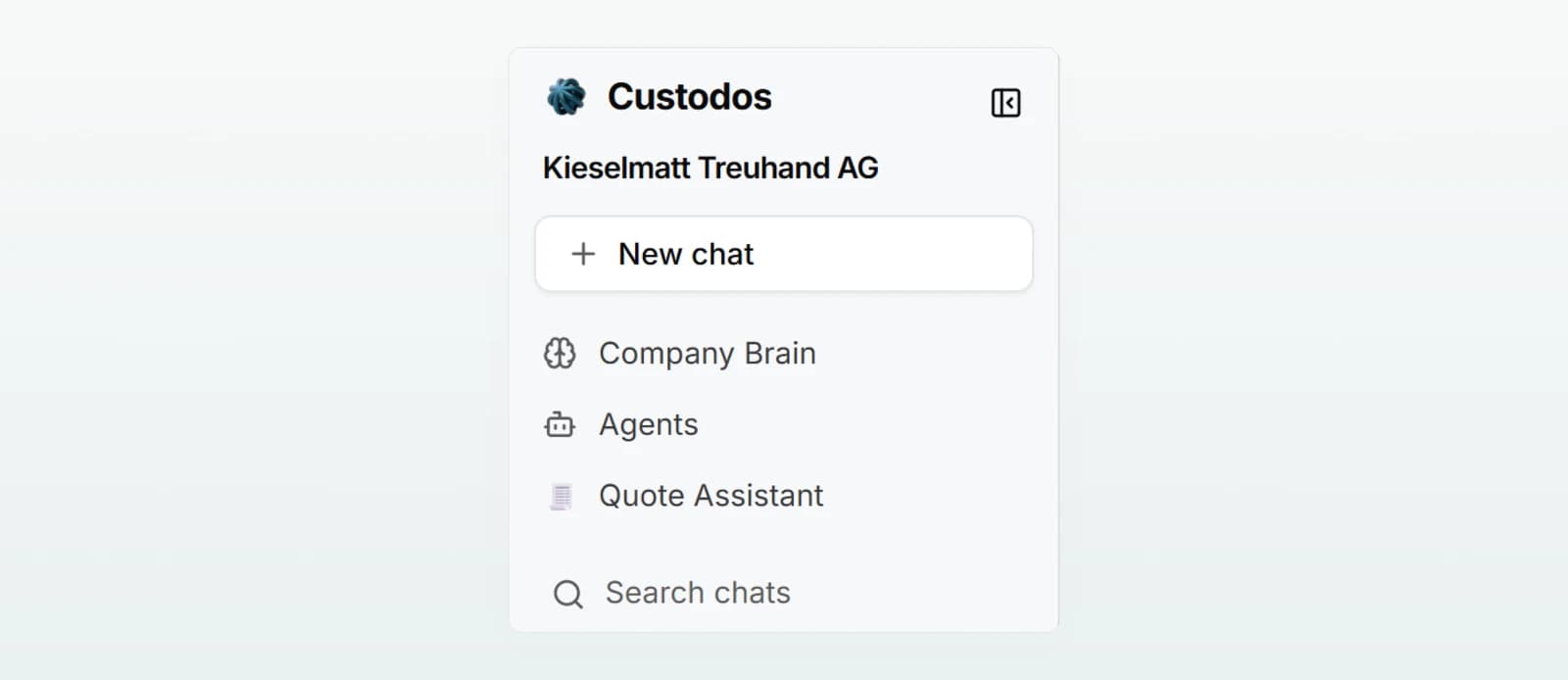
- From the sidebar: under Agents you see the three agents you chatted with most recently. One click starts a chat.
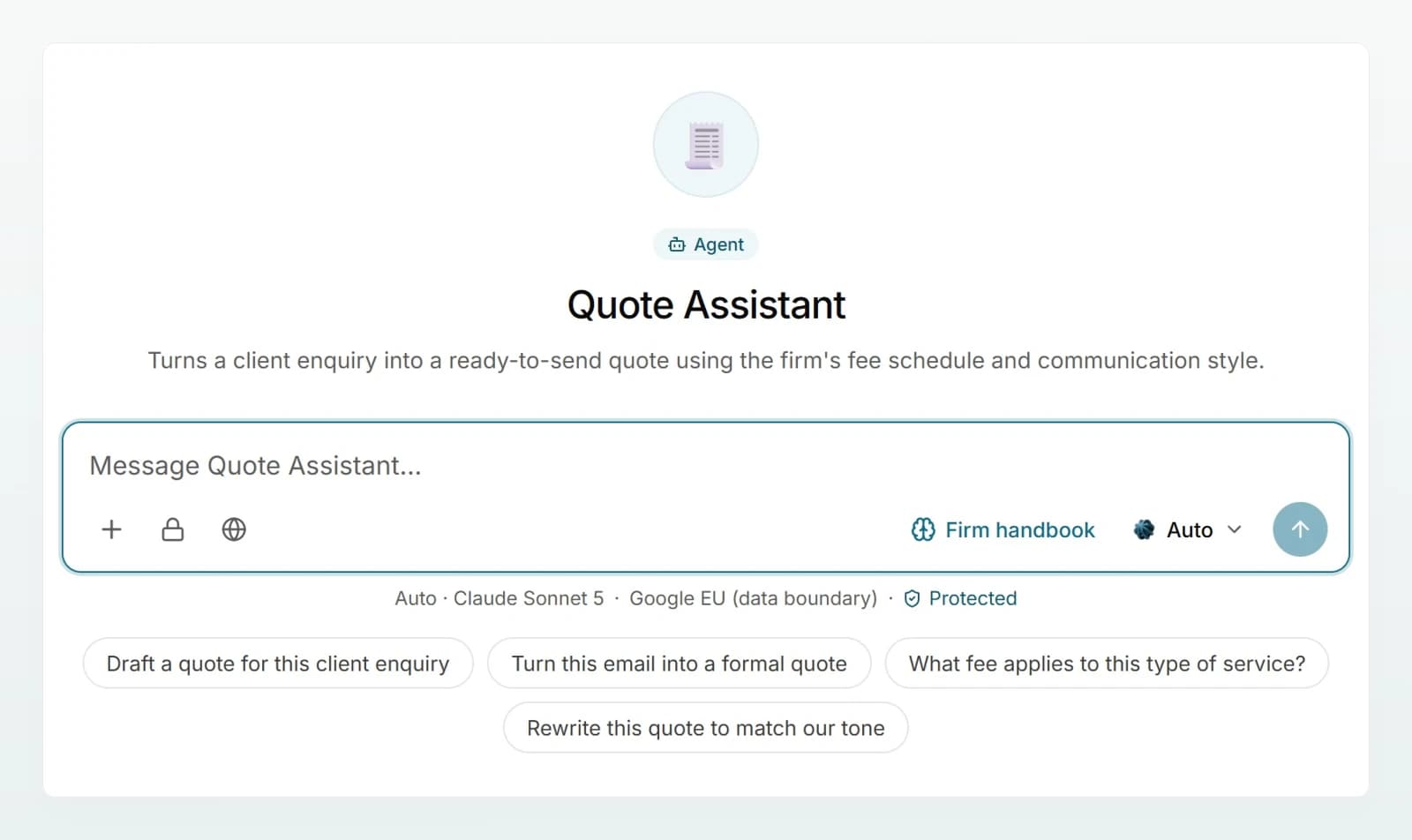
In the new chat you recognise the agent straight away: "Agent" and its name at the top, its icon, name and description in the middle, and "Message" followed by the agent's name in the input field. The conversation starters sit below. If the agent has files, they are already attached in the input field.
Good to know:
- No pile of empty chats. If you already have an empty, unused chat with the agent, Custodos opens that one instead of a new one.
- Your chat stays yours. The person who created the agent does not see your chats with it. You can share such a chat like any other; see Sharing and finding chats.
- You stay in control. You can change the model and brains in the chat as usual, and remove an attached file for that chat.
- Security mode. If your workspace starts new chats in security mode, that also applies to chats with an agent. The security mode model then answers and web search is off. See Security mode.
What applies after saving
Chats with an agent follow the saved agent. When someone improves the instructions or changes the web search switch, it applies from the next message in all chats, including ongoing ones. Model, brains and files are copied when a chat starts; changes to them apply to newly started chats.
If an agent is deleted or you lose access, your chats are kept. They carry on as normal chats with the instructions that applied when they started.
Agents never widen access to brains
An agent is never a back door to knowledge someone is not allowed to read:
- Each person gets answers only from brains they are allowed to read themselves. If an agent shared with the whole workspace has a brain with restricted access, that brain stays silent for everyone without access.
- The names stay hidden too. The list names only the brains the person viewing it is allowed to read.
- The same applies when editing. You can add only brains you are allowed to read yourself.
So before sharing, check that your target group is allowed to read the agent's brains. See Access and sharing.
Editing and deleting
The person who created the agent and the admins can edit and delete it. Admins can do so only for agents they can see, so not for someone else's private agent. People an agent has merely been shared with can use it but not change it.
To delete, click the bin (Delete agent) in the list or in the editor and confirm. Chats started with the agent are kept.
| Action | Creator | Admins | People with access |
|---|---|---|---|
| Start a chat with the agent | Yes | Yes, except other people's private agents | Yes |
| Change fields, files and sharing | Yes | Yes, except other people's private agents | No |
| Delete the agent | Yes | Yes, except other people's private agents | No |
| Read other people's chats with the agent | No | No | No |
Best practices
- Start small. Share a new agent with two or three people first, and only then with the whole workspace.
- Name an owner. The person who created the agent maintains it and collects feedback.
- Test changes first, then save. Saved instructions reach all ongoing chats straight away.
- Tell the team what it is for. Name and description should state the task, not the blueprint.
Frequently asked questions
The agent is private or shared only with selected people. Ask the person who created it to add you or to share it with the workspace.
You are probably not allowed to read one of its brains. Ask the person responsible for the brain for access.
Someone saved new instructions, and they also apply to ongoing chats. In addition, when the month's credits are used up, a cheaper model answers and web search pauses. See Credits and usage.
No. Chats with an agent belong to the person having them. They become visible only if you share a chat yourself.