
Creating an agent
Describe in your own words what the agent should do. The fields fill in automatically, and you check the result before you save.
You do not have to write instructions from scratch. In the editor, under Create, you describe in a short chat what the agent should do. Custodos proposes a complete draft straight away: icon, name, description, instructions and conversation starters. You refine it in the conversation, check it and save.
Building an agent with the Create chat
Open the editor
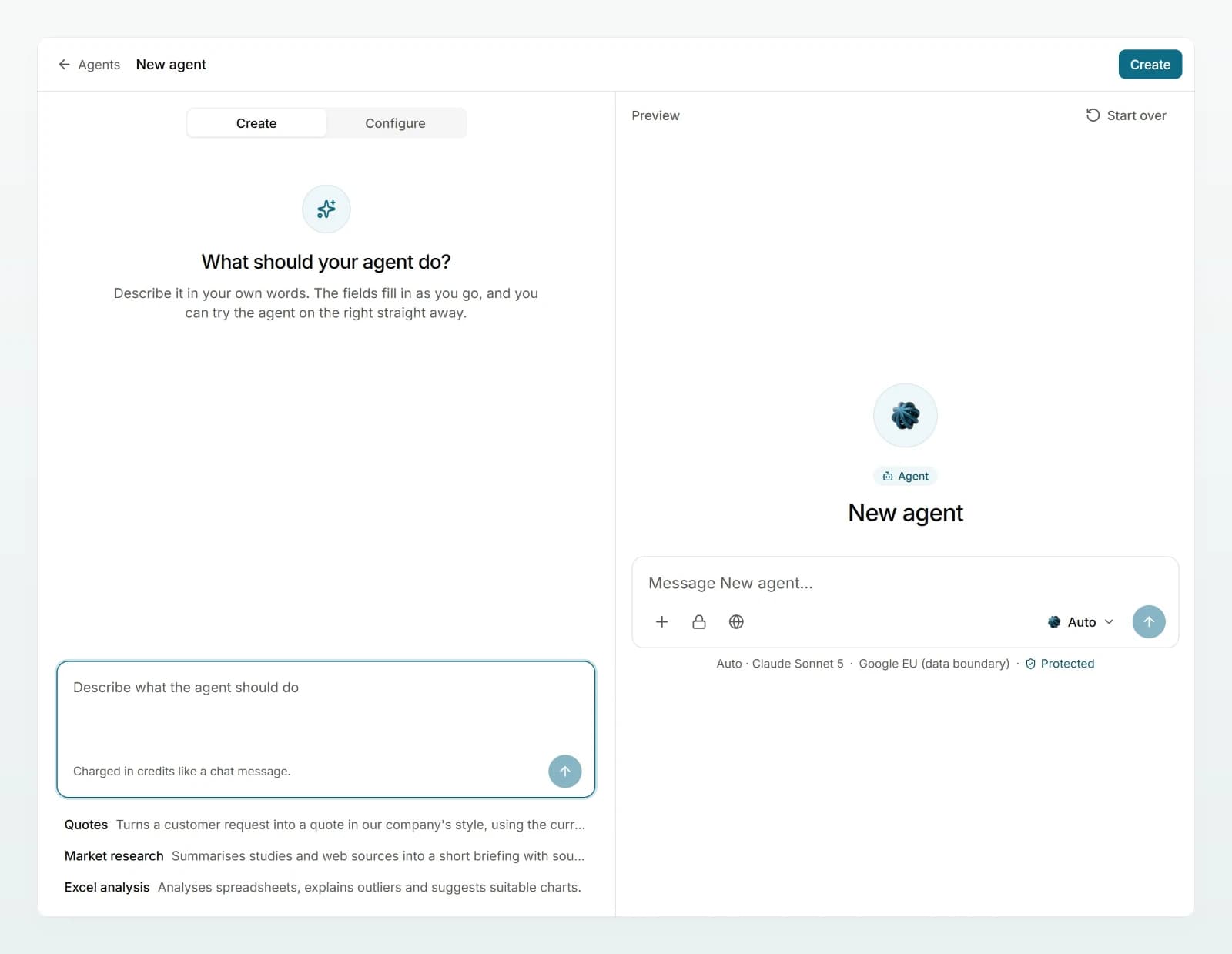
In the sidebar, click Agents and then New agent. The editor opens on Create: on the left the chat you describe the agent in, on the right the Preview. On narrow screens the preview is a third tab.
Describe the task
In the Describe what the agent should do field, write which task the agent takes on and press Enter to send (Shift + Enter adds a new line). Or click one of the examples under the field.
A moment later the first draft is in the fields. Under the reply you see what changed, for example "Updated: Icon, Name, Description, Instructions, Conversation starters". The icon and name appear at the top, with Unsaved beside them.
Refine it in the conversation
Answer the follow-up question, or type what should change in Ask for changes: a stricter tone, an extra rule, a different output format. In each round the chat asks at most one follow-up question and changes only the fields concerned.
Check and complete the fields
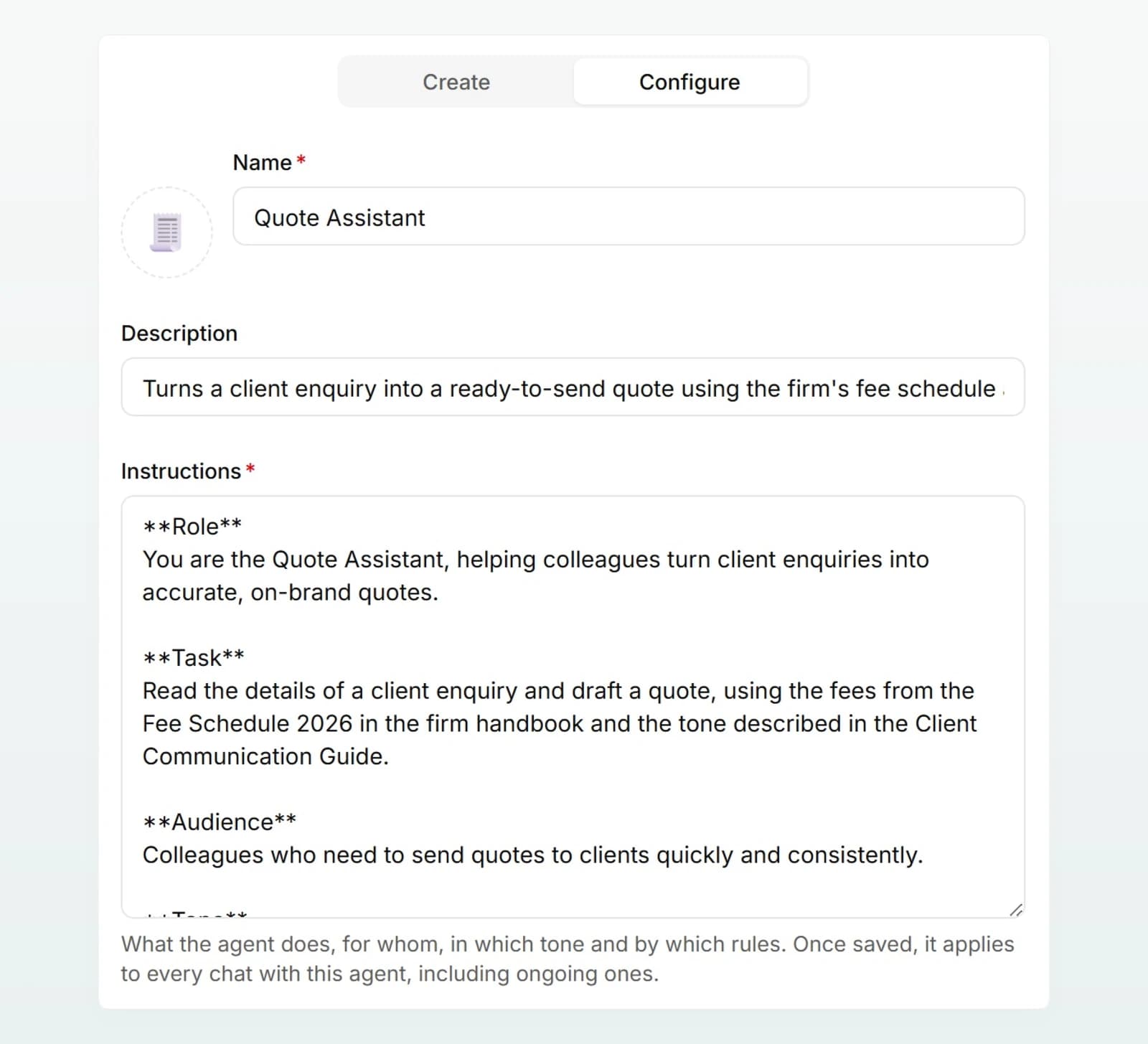
Switch to Configure and read the instructions once in full. Fix anything that is wrong directly in the field. If you write under Create again afterwards, the chat builds on your changes. This is also where you add brains, set web search and the model, and choose who can see the agent (Configuring an agent).
Test and create
Try the agent in the preview on the right with a real case (Testing an agent). Then click Create at the top right. Your test conversation is kept.
A good first description
The more your first message contains, the more useful the first draft. Name the result, who it is for, where the facts come from, the tone, and what the agent must not do.
Too brief:
Write quotes.
Better:
An agent that turns a client enquiry into a quote for bookkeeping, payroll and tax. Fees from the Fee Schedule 2026 in the firm handbook brain, tone from our Client Communication Guide. It never invents prices and asks when the number of employees or bookings is missing. Result: quote text with a table of services.
Mention brains and documents by name so the instructions refer to them. You still need to add the brain under Configure.
What the Create chat changes and what it does not
| The chat changes | You set yourself |
|---|---|
| Icon, name, description | Brains and files under Knowledge |
| Instructions | Web search under Capabilities |
| Conversation starters (up to 4) | Model and Sharing |
Good to know:
- A draft straight away. The chat does not start with questions; it proposes a complete agent first. Only then does it ask specifically about audience, tone, rules or format.
- Structured instructions. The instructions are organised in sections (role, task, audience, tone, rules, output format), written in your language and at most about 350 words long. German instructions tell the agent to use the formal "Sie".
- Nothing invented. The chat does not invent your company's prices, products or people, and it does not insert placeholders such as "[company name]". If something is missing, it asks.
- Existing agents. If you open a saved agent and write under Create, the chat changes only what you ask for and leaves the rest word for word.
- Nothing is saved automatically. Only Create (for a new agent) or Save keeps the fields. If you leave the page with unsaved changes, your browser asks first.
Cost and data protection
Every message in the Create chat is charged in credits like a chat message. It runs on your workspace's default model, the one "Auto" uses in the chat. Filling in the fields under Configure yourself costs no credits.
Your workspace's data protection mode applies to your description as it does in the chat: with pseudonymisation, personal data is replaced before sending and restored in the fields; with blocking, a message with protected data is not sent. More in Protecting personal data in chat.
Best practices
- Start with a real, recurring task. An agent for "everything to do with customers" gets vague. One for "replies to complaints" gets good.
- State the limits straight away. Say in the first description what the agent should refuse or pass on to a person.
- Always read the instructions yourself. Your colleagues will later work under exactly this text.
- Test after every larger change. One extra sentence in the instructions can change answers noticeably.
In depth: Building good agents.
Frequently asked questions
The model's reply did not arrive or could not be used. Send the message again. If it keeps happening after a long conversation, save the agent and reload the page. The Create chat then starts afresh and continues from the saved fields.
You sent more than 10 messages within a minute. Wait a moment and send again.
Without an enabled model, the Create chat cannot reply. An admin enables models under Models, see Models and regions.
Yes. Go straight to Configure and fill in at least Name and Instructions. That costs no credits.
During a limited trial, Company Brain and agents are not available yet. Your admin can arrange a plan with us; see Seats and billing.
Next steps
Agents overview
An agent bundles instructions, knowledge and conversation starters for a recurring task, so everyone on your team handles it equally well.
Configuring an agent
On the Configure tab you set an agent's icon, name, instructions, conversation starters, knowledge, web search, model and sharing.