Groups (on request)
With groups you give individual teams extra models, features and connectors and, where needed, hold them to stricter protection.
With groups you treat teams differently: the engagement leads get a top model, the apprentices work only with models in Switzerland. We enable groups on request; afterwards Settings › Workspace has the entry Groups.
How groups work
- Everyone is the baseline for every member. Groups add access but never take anything away; someone in several groups gets everything each one gives.
- For protection, the strictest of the workspace and all of a person's groups always applies.
- A group only gets what is switched on for the workspace under Models, Features and Connectors.
- A new model or connector starts out available to nobody.
Creating a group
Create the group
Under Groups, click New group, enter a Name and, if you like, What it is for, and click Create group.
Add members
Click Add members and choose people under Pick people or paste a list under Paste addresses. Only people already in the workspace can join a group.
Switch on access
Under Models, Features and Connectors, switch on what the group gets on top of Everyone.
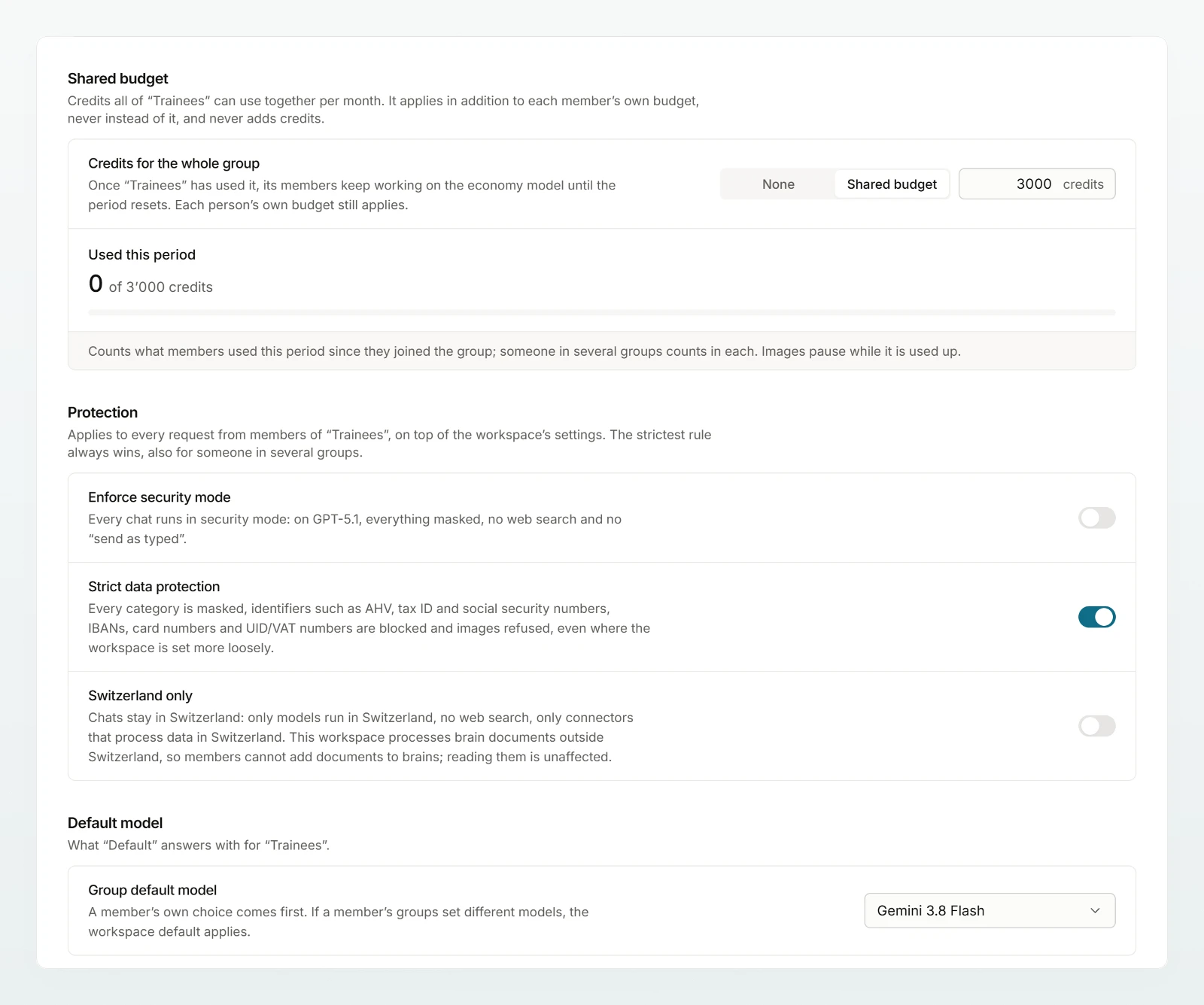
Choose protection and default model
Under Protection, set what the group is held to, and under Default model, what “Default” answers with for them.
You can also grant access on the Models, Features and Connectors pages: each entry has a picker with Everyone, Selected groups and Nobody, which tells you before saving how many members gain or lose access. Open chats on a model someone loses continue with the default model.
Protection
| Switch | What it does |
|---|---|
| Enforce security mode | Every chat runs in security mode: no connectors, no web search, no images. This needs Offer security mode switched on under Data protection. |
| Strict data protection | All categories are masked, the six hard identifiers blocked and images refused, even if the workspace is set more loosely |
| Switzerland only | Only models and connectors that process in Switzerland, no web search |
What a group's protection takes away is noted on its page, such as “outside Switzerland: not for this group”. In the pickers on the Models, Features and Connectors pages, such groups carry the mark Switzerland only or Security mode, with the number of members affected. Custodos refuses a protection that would leave a member without any model. A chat that enforced security mode protected stays protected.
Default model, audience and checking access
- Group default model: it answers when a member has chosen “Default”. A member's own choice comes first; if several of a person's groups set different models, the workspace default applies.
- Audience: trainings, agents and brains can be shared with groups. Today's members count: whoever joins gets what is shared at once, whoever leaves loses it. Chats cannot be shared with groups.
- Checking access: under Members, See access shows a person's groups, their monthly limit and what they lack; what their protection takes away appears as “Blocked by” with the protection.
Deleting a group
Choose Delete group in the group's menu. Members keep what Everyone and their other groups give them; anyone who reached trainings, agents or brains only through this group loses that access. Anything only this group had is then available to nobody. Delete a group from directory sync only once the directory has released it.
Frequently asked questions
With groups, a new model starts out available to nobody. Choose who gets it under Models.
Then everyone gets what the workspace allows. Grants to groups become grants to the people who are in the groups at that moment.