
Members and roles
Invite your team by email, assign roles and seats, and set a monthly budget per person where you need one.
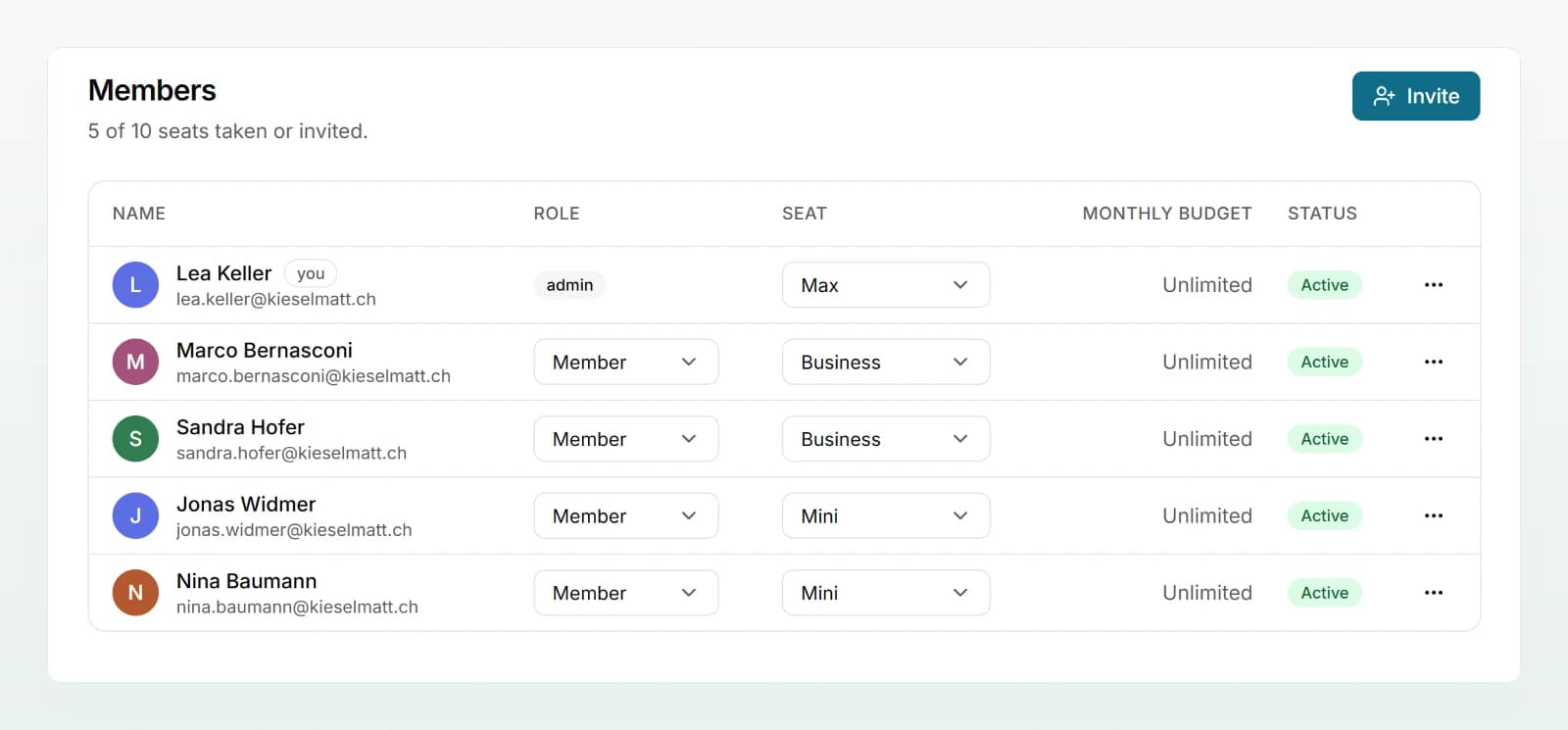
On the Members page you manage who belongs to the workspace. Each person has a role (Admin or Member), a seat (Mini, Business or Max) and, optionally, a monthly budget. Open invitations are listed in the same table.
Inviting someone
Open Members
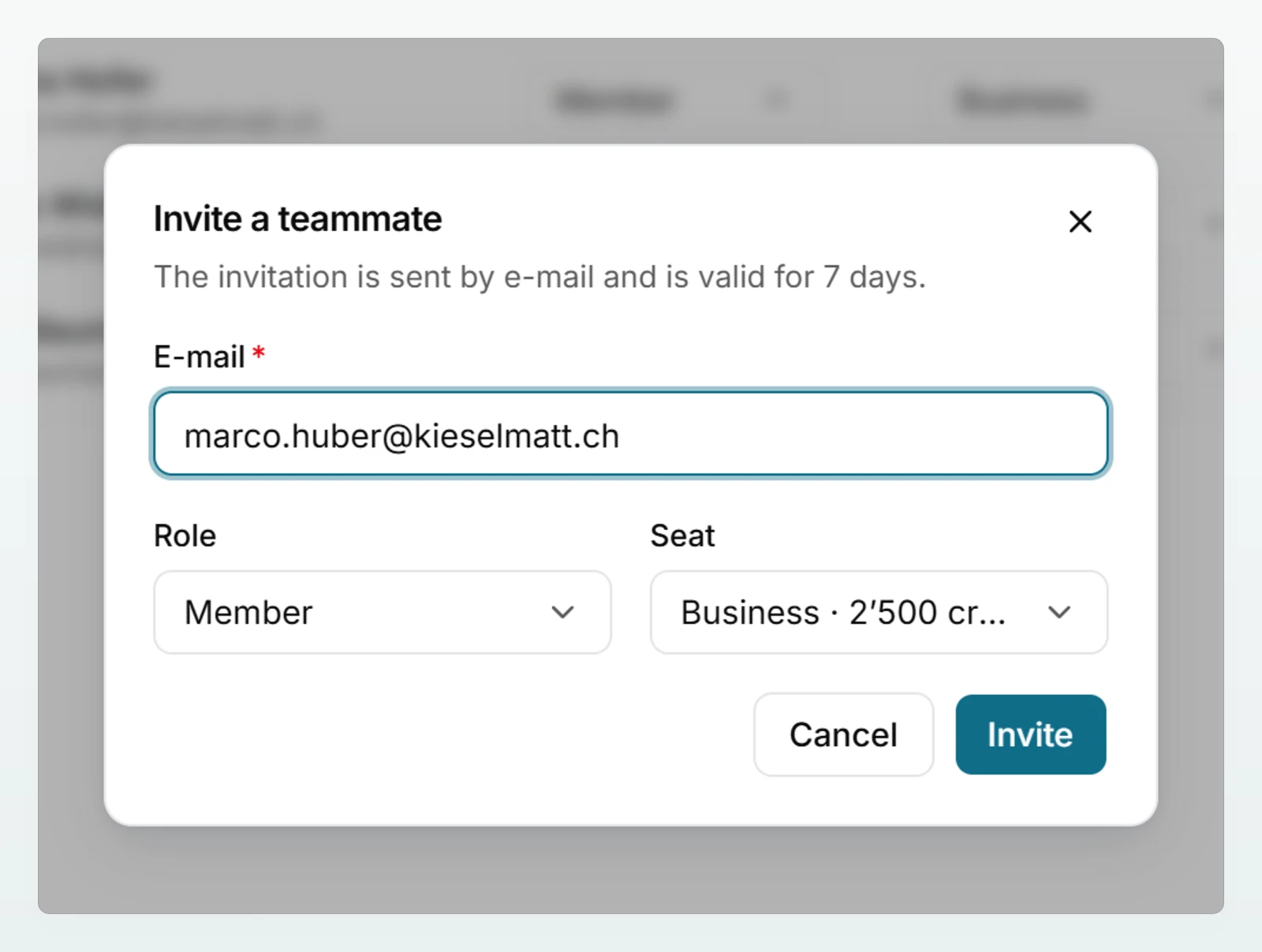
In the sidebar under Workspace, click Members, then Invite at the top right.
Fill in the invitation
In the Invite a teammate window, enter the E-mail, for example [email protected]. Choose the Role and the Seat.
Send the invitation
Click Invite. The person receives an email with a link. The invitation is valid for 7 days.
Wait for it to be accepted
Until it is accepted, the invitation is listed with the status Pending and its expiry date. The person signs in with the invited address and clicks Accept invitation.
Roles
| Role | What the person can do |
|---|---|
| Member | Chat, use and create brains and agents, create projects |
| Admin | Everything a member can do, plus the Members, Usage, Billing, Models and Settings pages |
Change a role directly in the Role column. The change applies immediately. Two rules keep a workspace from ending up without an admin:
- A workspace always has at least one admin. For the only admin, the role is locked: make someone else an admin first.
- You cannot remove yourself. Another admin does that.
Seats
Every person occupies a seat. The tier decides how many credits the seat adds to the shared pool and what it costs. Seats and billing describes the tiers and their credits, and the prices are on the pricing page.
Change a person's seat in the Seat column. In a paid plan, a higher tier applies immediately. If no free seat is available for it, a window shows the pro rata amount, and nothing is saved until you confirm. A lower tier lowers the invoice from the next billing date at the earliest, with no refund, and a message shows the date. During the trial nothing is charged. All the rules are under What applies when.
Monthly budget per person
A monthly budget limits how many credits one person can use each month.
Open the person's menu
In the person's row, click the three-dot menu on the right and choose Set monthly budget.
Enter the budget
Enter a number of credits, for example 3000, and click Save. Leave the field empty for Unlimited.
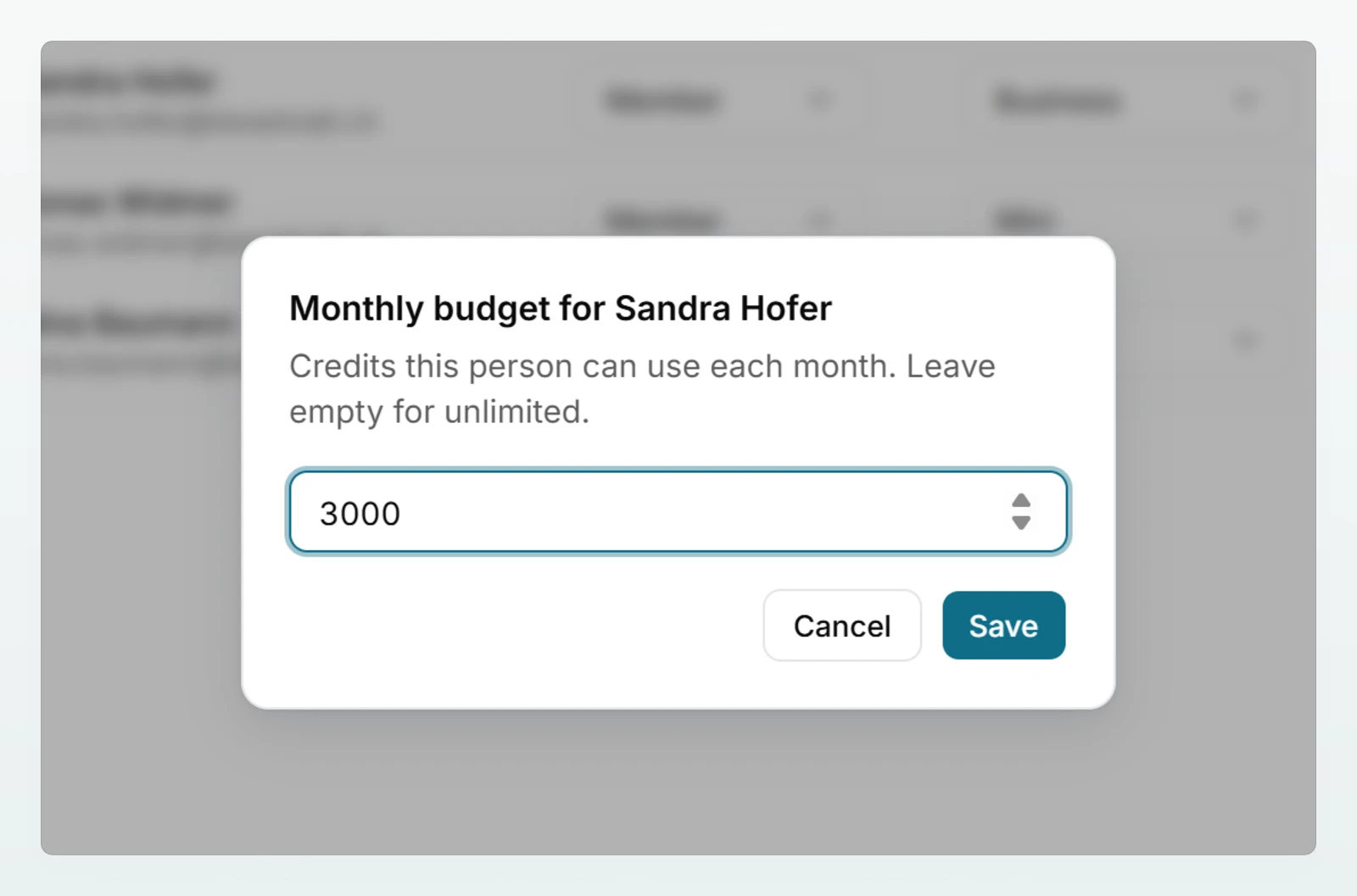
The budget counts from your workspace's billing date, up to a maximum of 1,000,000 credits. When it is used up, the person sees the message "Your personal monthly budget is used up. Ask a workspace admin to raise it." Unlike an empty pool, they do not carry on with a cheaper model: they can only write again once you raise the budget or the next month starts. How much each person has used is shown on the Usage page.
Managing invitations
- Withdraw: open the invitation's menu, choose Withdraw and confirm. The link stops working.
- Resend: withdraw the open invitation and invite the person again. While the old invitation is open, a second one is refused.
- Expired: expired invitations disappear from the list. Invite the person again.
- Cost: an open invitation costs nothing. A seat is only added once the person accepts and no matching free seat is available.
Removing someone
Open the person's menu, choose Remove and confirm. Then:
- Access: ends immediately.
- Seat: if your workspace pays for a fixed number of seats, the seat stays paid and free for someone else. The invoice only goes down when you reduce seats under Billing. No credits are taken out of the pool.
- Shares: the person's access to brains, shared chats and agents is deleted. If invited again later, they start without these shares.
- Brains: if the person created a brain nobody else may edit, and Admins have access to every brain is off, it passes to the admins. The activity log records this.
- Chats: they are not deleted and not handed to anyone. Not even an admin can open private chats. Chats the person had shared stay readable for the people they were shared with.
Best practices
- Appoint at least two admins, so that holidays or a departure do not block administration.
- Start with the tier that matches how people work, and after a month check under Usage who needs more or less.
- Set monthly budgets selectively, for example for interns or external staff. The shared pool is enough for the whole team.
- Remove people on their last working day and give the freed seat to someone else rather than buying another one.
Frequently asked questions
The link has expired, was already used, or the person is signed in with a different email address from the invited one. Ask them to sign out and sign in with the invited address. If that does not help, withdraw the invitation and send a new one.
You are the only admin. Make someone else an admin first, then your role can be changed.
Your workspace has a fixed number of seats, for example during a free pilot. Open invitations count too. Withdraw invitations you no longer need, or write to us at [email protected] to unlock more seats.
No. Only the person who started a private chat can open it. The Usage page only shows the credits each person used.
Next steps
Require SSO and restrict invitations to your domain.
Seats and billingAdd and reduce seats, and what it costs.
Credits and usageKeep an eye on the pool and the budgets.
Sharing and brain accessWhat admins see in brains and whether chats may be shared.
Share the Quickstart with new members.
Administration overview
As an admin you manage the team, billing and the rules of your workspace. You do not see your team's private chats.
Sign-in and access
Your team signs in with an email link, with Google or with Microsoft. You can require Google or Microsoft and restrict invitations to your domain.