
Your own connectors (MCP and API)
Add your own MCP server or HTTP API as a connector, choose its tools and have write actions confirmed.
With your own connectors the assistant works with your own systems: an MCP server, an HTTP API or Abacus. Only admins set them up, under Settings › AI › Connectors in the section Your own connectors.
Notion, Confluence and Jira
Under Quick add, click Notion or Confluence & Jira and, if needed, Turn on. Each member then connects their own account. For Atlassian, an admin of your Atlassian account must first allow Custodos in the Rovo MCP settings.
Abacus
The assistant reads in your Abacus instance with the rights of a service user, read-only and the same for all members. Under Quick add, click Abacus, fill in Address of your Abacus instance, Mandant, Client ID and Client secret and click Check and save. What members do with it is described in bexio and Abacus.
Adding an MCP server or an API
Choose the kind
Click Add connector and choose MCP server or HTTP API.
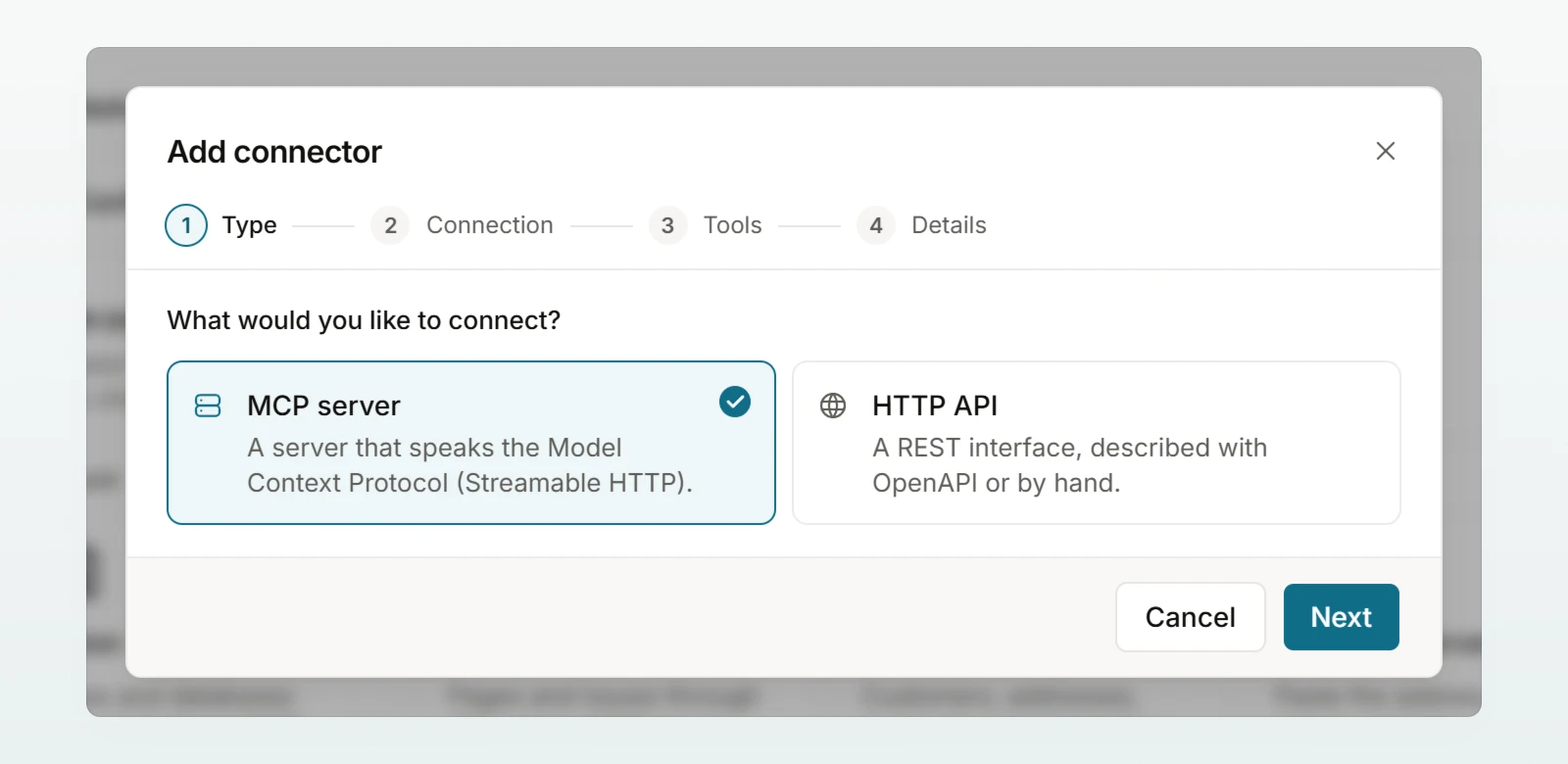
Enter the connection
For an MCP server, enter the MCP server address and click Check. Custodos detects which sign-in the server needs. For an API, give an OpenAPI address, choose Paste OpenAPI or describe the endpoints By hand.
Choose the tools
Under Which tools may the assistant use? switch each tool on individually. Each one is marked Reads or Writes.
Describe and create
Under What is this connector for? describe which data it provides. The model uses this to decide when to use it. Click Create connector.
An address without https:// is completed by Custodos. Addresses with http:// and servers that are not publicly reachable are refused, for an API already when you save. If the server needs a Sign-in per person, sign in once yourself with Sign in now so that the tools appear.
| Sign-in | Who is signed in |
|---|---|
| No sign-in | Nobody |
| Sign-in per person | Each member with their own account (MCP only) |
| API key or Token | One key for all members |
| Client access | Client ID and secret for all members (API only) |
Keys are stored encrypted and never shown again. If you change the address, enter the key again.
Confirming write actions
Write tools appear in the chat as a card and run only once the person confirms. Per tool you can switch off Needs confirmation, for tools that only write harmlessly to your own service. Members then see how many tools change data without asking. Tools the server marks as deleting, and delete calls of an API, always need a confirmation.
Location, upkeep, removal
If your server processes in Switzerland, tick Hosted in Switzerland. Only then can groups set to Switzerland only use it (groups, on request). In security mode and when the budget is used up, your own connectors are off.
In the list This workspace's connectors you switch each connector on or off for everyone. Reload reads the tools again and keeps your choice. Remove deletes the connector and all sign-ins to it.
Frequently asked questions
Custodos connects only to servers that can be reached from the internet over https. A server on an internal network cannot be connected.
With a sign-in per person they appear only after someone signs in. Sign in yourself with Sign in now.