
Sign-in and access
Your team signs in with an email link, with Google or with Microsoft. You can require Google or Microsoft and restrict invitations to your domain.
Custodos has no passwords. People sign in with a link sent by email, or with their Google or Microsoft account. As an admin, you decide under Settings in the Access section whether email links stay allowed and which addresses can be invited.
How people sign in
| Method | How it works |
|---|---|
| Email link | Enter the Work email and click Continue with email. Custodos sends a sign-in link that works only once. |
| Click Continue with Google and sign in with your Google account. | |
| Microsoft | Click Continue with Microsoft and sign in with your Microsoft work account. |
An invitation can only be accepted with the invited email address, whichever method the person signs in with.
Requiring SSO
With Require SSO on, all members must sign in with Google or Microsoft. Email links then no longer work for this workspace.
Sign in with Google or Microsoft yourself
Sign in at least once with Continue with Google or Continue with Microsoft. Until you have, the setting cannot be switched on, so that you do not lock yourself out.
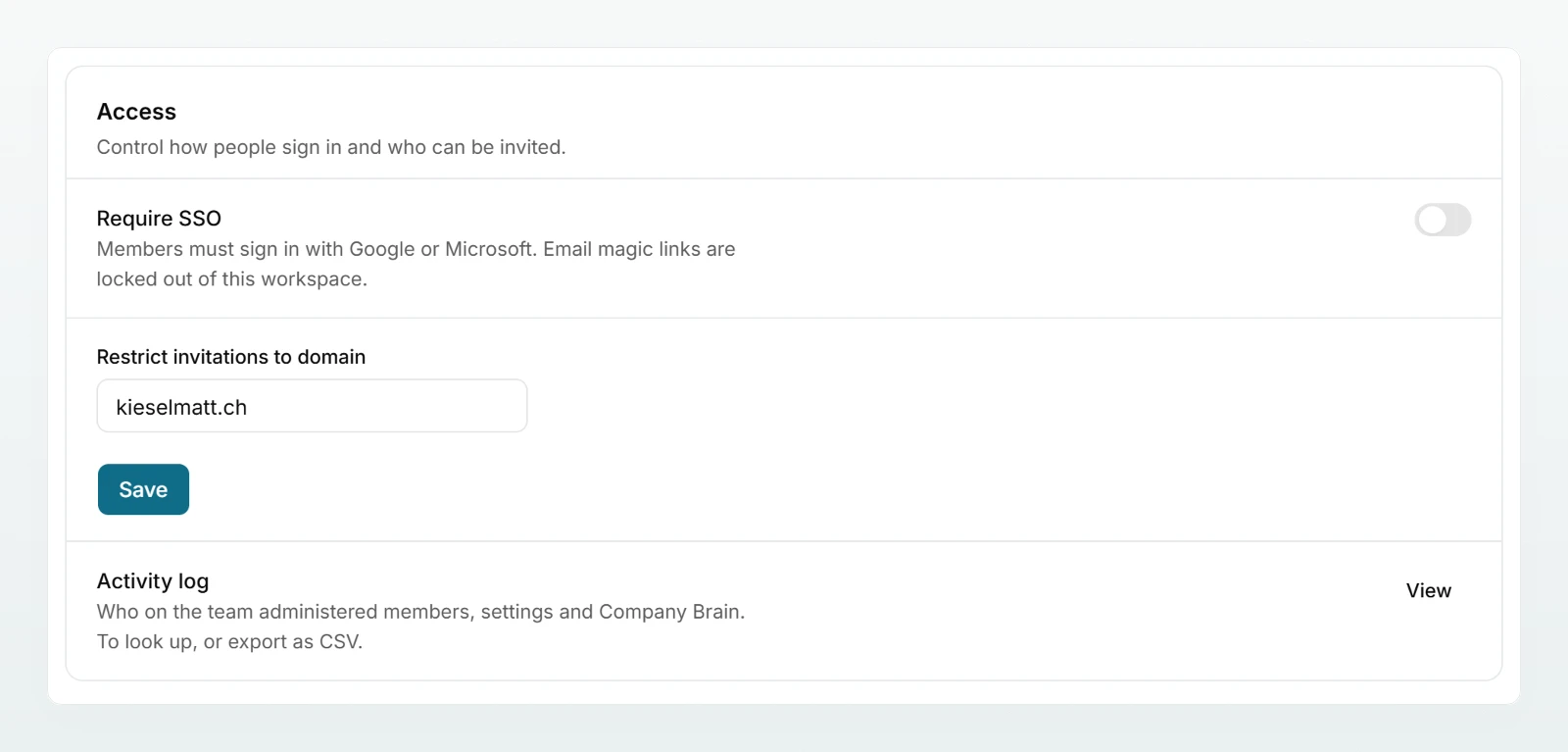
Open Access
In the sidebar under Workspace, click Settings and scroll to the Access section.
Turn the switch on
Turn Require SSO on. The switch saves immediately.
What your team sees afterwards:
- People who sign in with Google or Microsoft work as usual.
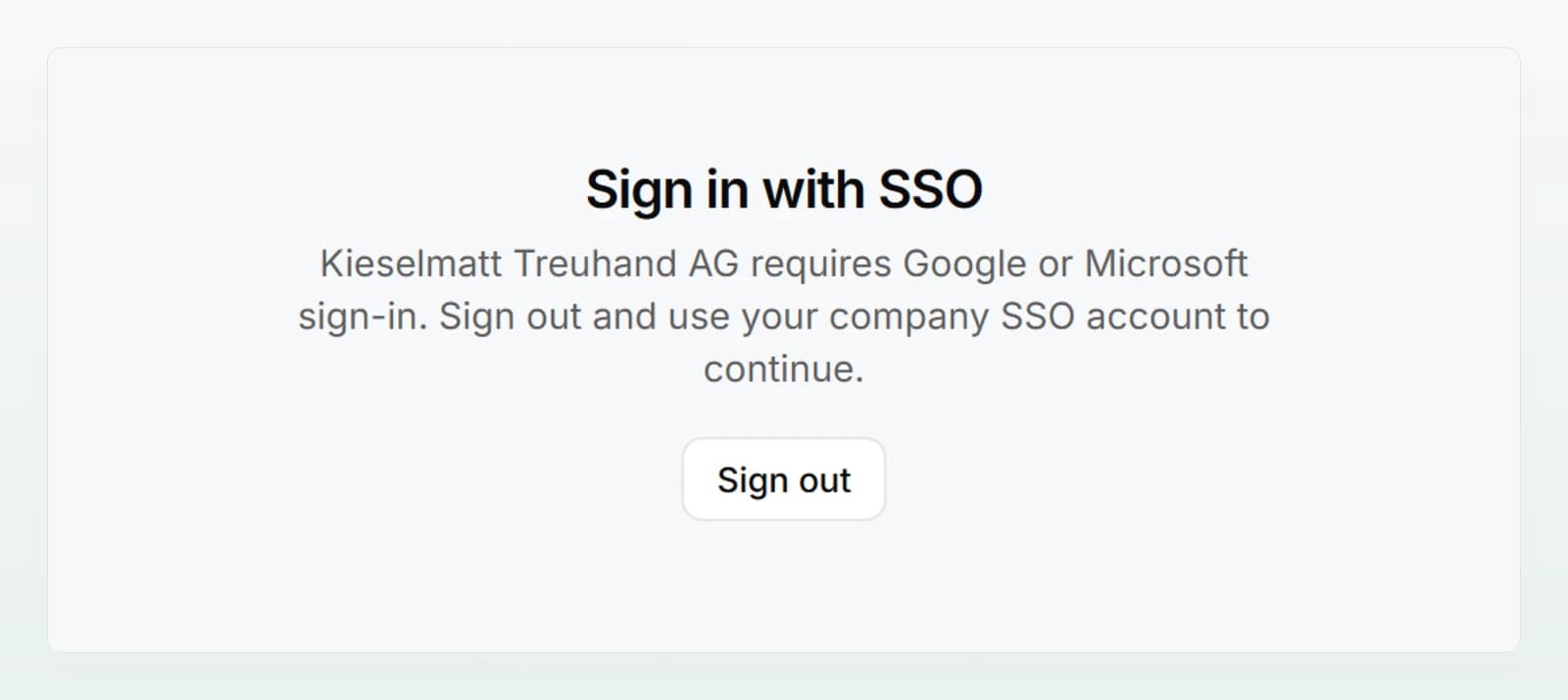
- People who have only used email links so far see the notice Sign in with SSO and the Sign out button when they open the workspace. After signing out, they sign in again with Google or Microsoft.
- Anyone trying to accept an invitation with an email link is told to sign in with Google or Microsoft first. The invitation link remains valid.
If you turn Require SSO off again, email links work again straight away.
Restricting invitations to your domain
Enter the domain
In the Access section, enter your domain without the @ in the field Restrict invitations to domain, for example kieselmatt-treuhand.ch.
Save
Click Save.
From now on, only addresses ending in @kieselmatt-treuhand.ch can be invited. For any other address, the invitation form reports that invites are restricted to this domain.
Both settings appear in the activity log as "Access changed".
Best practices
- If your company uses Google Workspace or Microsoft 365, require SSO. Announce it first and ask everyone to sign in once with Google or Microsoft.
- Enter the domain before you invite the team, so that no invitation goes to a private address.
- Keep at least two admins who sign in with Google or Microsoft.
- Remove people who leave the company under Members. Blocking their company account alone does not automatically end an existing Custodos sign-in.
Frequently asked questions
Your workspace requires Google or Microsoft, but the person is signed in with an email link. They click Sign out and sign in again with the Google or Microsoft account for the same address.
You have never signed in with Google or Microsoft yourself. Sign out, sign in again with Continue with Google or Continue with Microsoft, and try again.
Check the spam folder. A sign-in link works only once: if it has been used or has expired, enter the email address again and request a new one. More cases are under Troubleshooting.
Clear the field, send the invitation, then enter the domain again. The restriction is only checked at the moment you invite.
Next steps
Invite, assign roles and remove people.
Activity logLook up who changed access.
Access, retention and deletionWho can see what and how long data is kept.
TroubleshootingLook up messages shown at sign-in.
The Quickstart shows members how to sign in for the first time. Share the link with your team.