
Setting up security mode
Offer a switch for sensitive conversations that enforces the model you chose, pseudonymisation without exception and no web search.
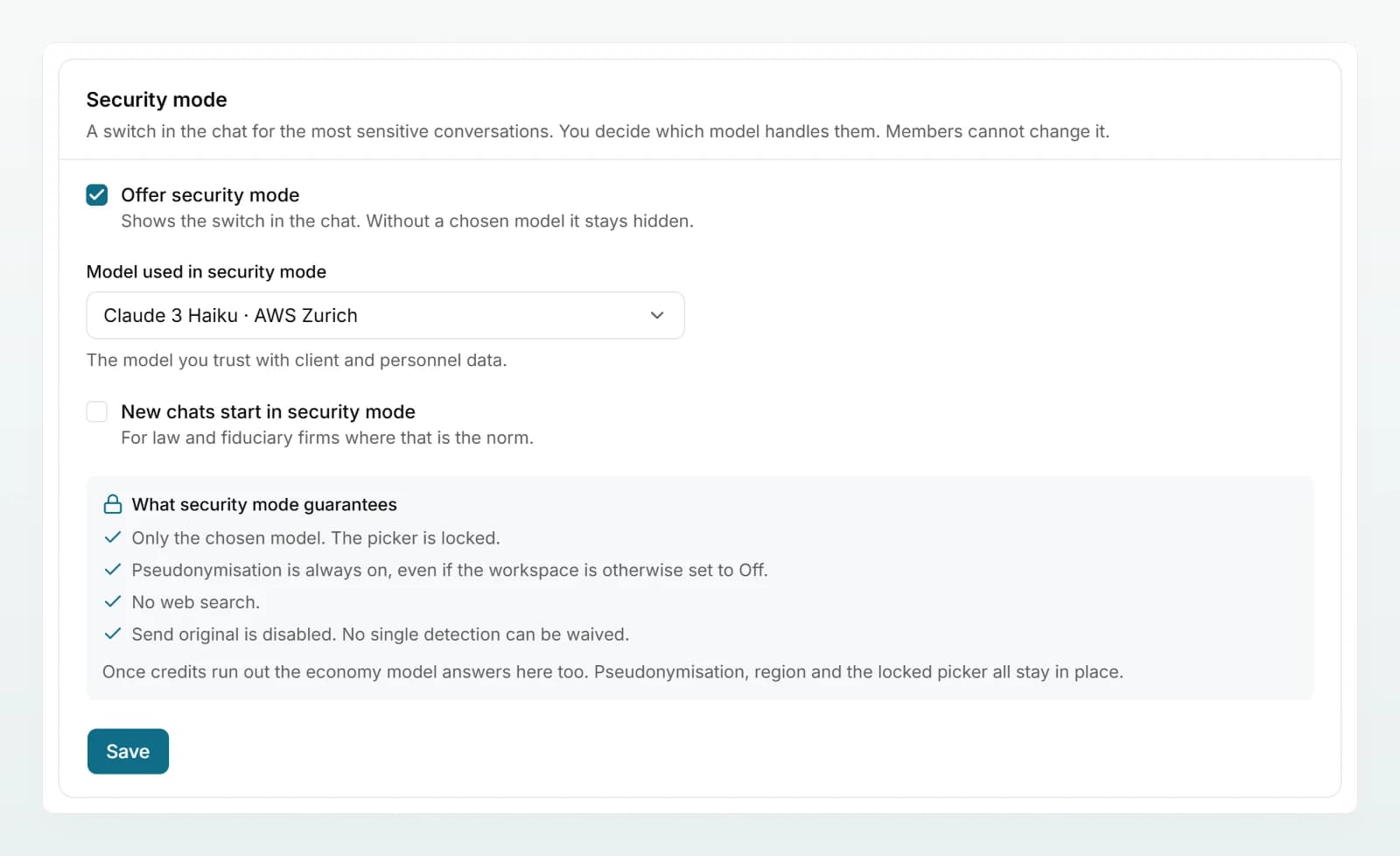
Security mode is a switch in the chat for especially sensitive conversations, such as client or personnel data. You decide which model does the work. Members cannot change it, and the rules of the mode are enforced in the chat itself, not only on the screen.
Offer security mode
Open the section
Open Settings in the sidebar. The Security mode section sits directly below Data protection.
Choose the model
Under Model used in security mode, choose the model you trust with client and personnel data. Each entry shows where the model runs next to its name.
Offer the switch
Tick Offer security mode. If every new chat should start in security mode, also tick New chats start in security mode.
Save
Click Save. From now on members see the switch in the chat.
If you tick the box without choosing a model, "Choose a model for security mode first." appears and nothing is saved.
What security mode guarantees
Under What security mode guarantees the section lists four commitments:
- Only the chosen model. The picker is locked.
- Pseudonymisation is always on, even if the workspace is otherwise set to Off.
- No web search.
- Send original is disabled. No single detection can be waived.
In addition:
- Every category is pseudonymised, including those you switched off under Data protection.
- Excerpts from brains are always pseudonymised in the chat, even from open brains.
- Images can be neither attached nor generated. Documents can be attached; their text is pseudonymised.
- Connected accounts such as Google Drive, Microsoft 365 and Outlook are not available to the model in that chat.
- The context cache is limited to the Standard duration at most.
Choose a suitable model
- Region: choose a model whose processing location fits your obligations. On the Models page the region mark shows where a model runs, and Details shows its residency. More under Models and regions.
- Capability: real work happens in security mode. A model that is too weak makes the team avoid the mode.
- Cost: the model answers every message in security mode. The credits per exchange are shown on the model card.
Only allowed models inside the processing region are offered.
Start new chats in security mode
With New chats start in security mode, every new chat begins in the mode, including a chat with an agent. This suits law and fiduciary firms where sensitive data is the norm. A member can switch the mode off before the first message. Once the chat contains messages it can no longer be switched off; after that, only a new chat helps. Switching it on works at any time.
Change it later
| Change | New chats | Existing chats in security mode |
|---|---|---|
| Untick Offer security mode | The switch is no longer offered. | Keep every guarantee and the chosen model. |
| Choose and save another model | Use the new model. | Answer with the new model from the next message. |
| Model blocked or outside the region | The mode is switched off. | Messages are not sent until you choose a model again. |
In the last case, members see "The model for security mode is not available. Ask an admin to set one under Settings." when they send. Custodos does not fall back to an ordinary model.
When credits run out
Once the monthly credits are used up, the economy model answers in security mode too. Pseudonymisation, region and the locked picker all stay in place. More under Credits and usage.
Best practices
- Write down in your internal rules when security mode is required, for example for client files, payroll data and personnel records.
- If you mostly work with client data, switch on New chats start in security mode. Members switch it off before the first message for general questions.
- After setting it up, test the mode yourself with a fictional client, for example Kieselmatt Treuhand AG with client number KD-482113.
- Add custom rules for your number formats under Configuring data protection. They apply in security mode too.
- Tell the team that images, including screenshots, cannot be attached in security mode.
Frequently asked questions
The mode is not offered, or the model choice was cleared because the model was blocked or no longer lies inside the region. Check the Security mode section and save again.
Only before the first message. After that the chat stays in security mode. For a question without protection, the member opens a new chat.
Yes. The model receives excerpts from brains the person may read, always pseudonymised.
Next steps
Protection mode, categories and custom rules.
Models and regionsCheck the region and residency of models.
Security mode in chatHow members use the switch.
Data protection in daily workWhen security mode makes sense.
Share the Security mode page with your team.