
Custom branding
Show your team your own name and logo instead of Custodos. The feature is available once we have enabled it for your workspace.
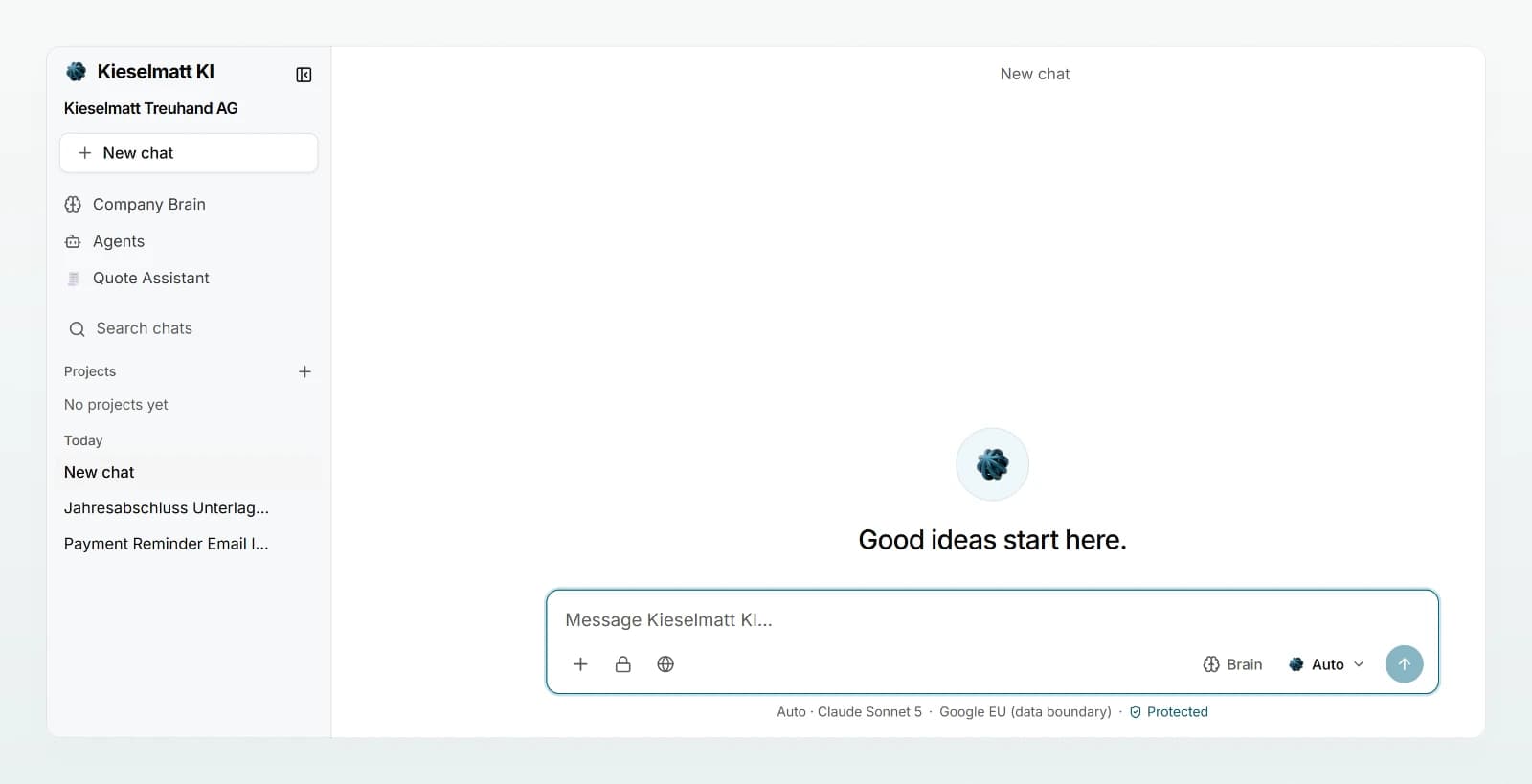
With custom branding, your team sees your name and logo where Custodos would otherwise appear: in the sidebar, the chat, the browser tab and invitations. Custodos then looks like your own tool, for example "Kieselmatt KI".
Setting a name and logo
Open Appearance
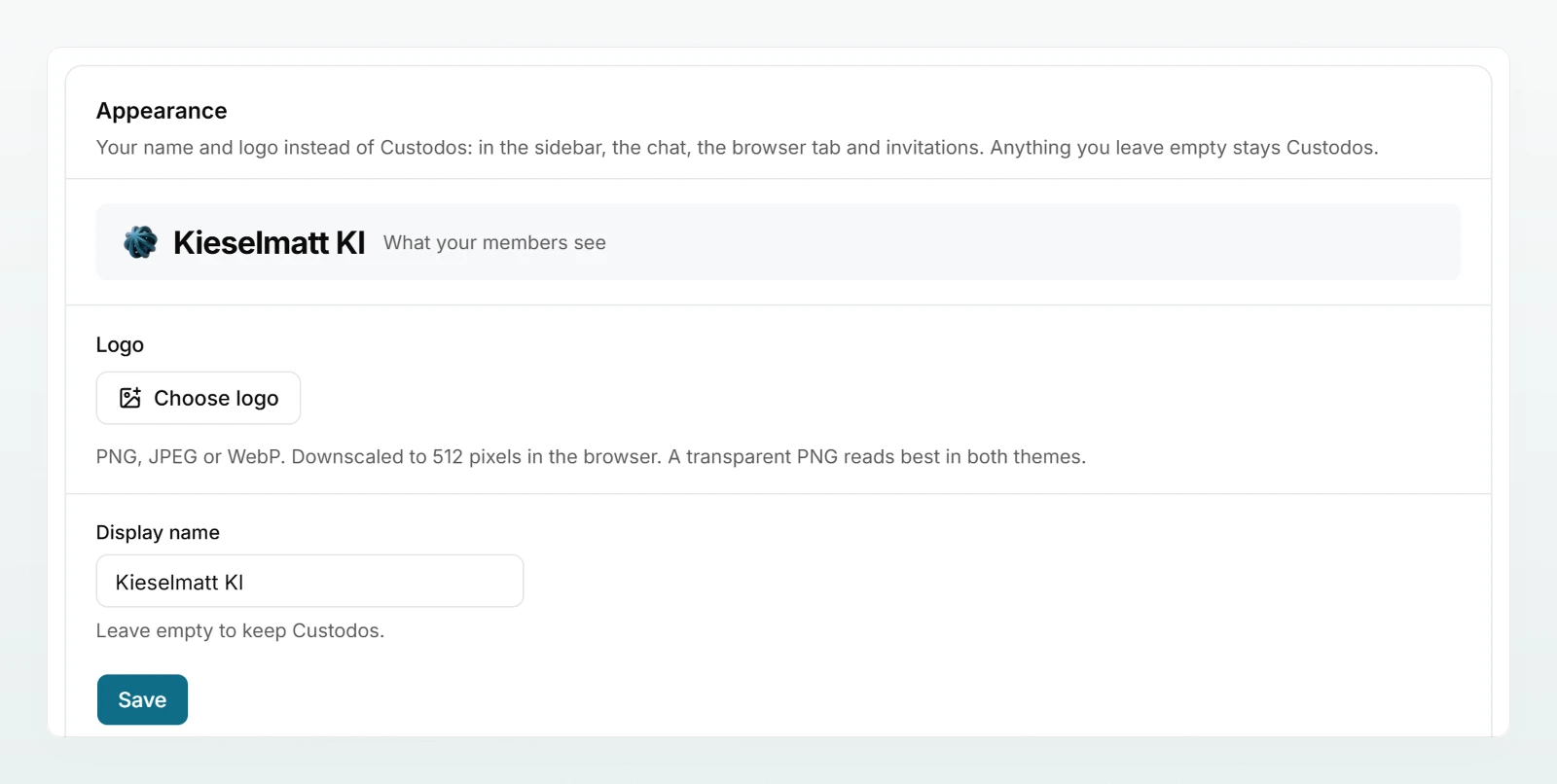
In the sidebar under Workspace, click Settings and scroll all the way down to the Appearance section. The preview What your members see shows the current state.
Upload a logo
Click Choose logo, pick the file and click Upload. Swap an existing logo with Replace logo; Remove logo brings back the Custodos mark.
Enter the name
Under Display name, enter the name your team should see and click Save. An empty field keeps Custodos.
Check the preview
The preview shows the logo and name as they appear at the top of the sidebar.
Name and logo are independent. If you set only a name, the Custodos mark stays beside it. If you set only a logo, the name stays Custodos.
Where your team sees it
| Place | What appears |
|---|---|
| Sidebar and the header bar on a phone | Logo and name |
| Chat | The name in the message field, your logo on the Auto entry of the model picker |
| Browser tab | The name as the title, the logo as the icon |
| Invitations | The invitation page and the invitation email |
| Sign-in page | Your logo, when someone arrives through your sign-in link |
| Print view of a chat | The name in the header |
| Model replies | If someone asks where the model runs, it gives your name instead of Custodos |
The legal pages (legal notice, privacy, terms) stay Custodos, as do the lines on the Billing page that name us as the contracting party.
Your sign-in link
The Your sign-in link section shows your workspace's address, for example https://app.custodos.com/w/kieselmatt-treuhand-ag. Anyone arriving through this link sees your logo on the sign-in page already. If the person is already a member, the email with the sign-in link carries your branding too.
Put the link on your intranet or in the welcome email for new staff. The part after /w/ comes from the workspace's name and cannot be changed.
Best practices
- Choose a logo that is at most about three times as wide as it is tall. Wider logos are shrunk in the sidebar.
- Keep the name short so it stays fully visible in the sidebar.
- Announce the new name to your team and share the sign-in link at the same time.
- Changes to name and logo appear in the activity log.
Frequently asked questions
Custom branding has not been enabled for your workspace yet. Write to us at [email protected].
PNG, JPEG and WebP are allowed. If the page says the file is still over 512 KB after downscaling, export a smaller file, for example with fewer colours or less detail.
No. Your team reaches the workspace through app.custodos.com, and your sign-in link shows your logo.
Next steps
Invite the team; the invitation carries your name.
Sign-in and accessDecide how your team signs in.
Send your team the sign-in link together with the Quickstart.