
Activity log
The activity log shows who on the team administered members, settings, brains and shares. Chat content is never in it.
The activity log records who administered what in your workspace: invitations, roles and seats, settings, brains and shared chats. You look things up there when something changed unexpectedly, or export it for your records. Only admins can open it.
Opening the log
Open Settings
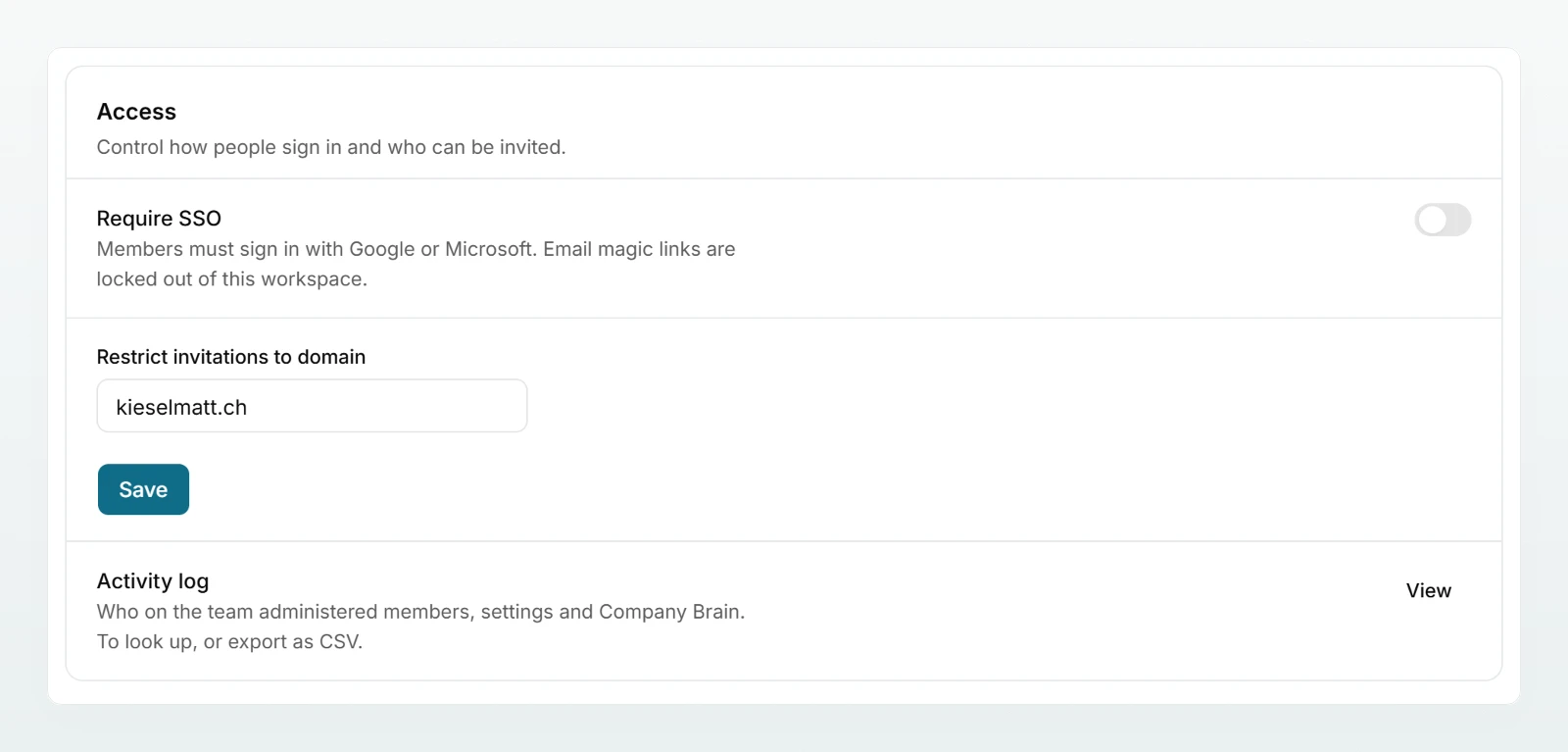
In the sidebar under Workspace, click Settings and scroll to the Access section.
View the log
In the Activity log row, click View.
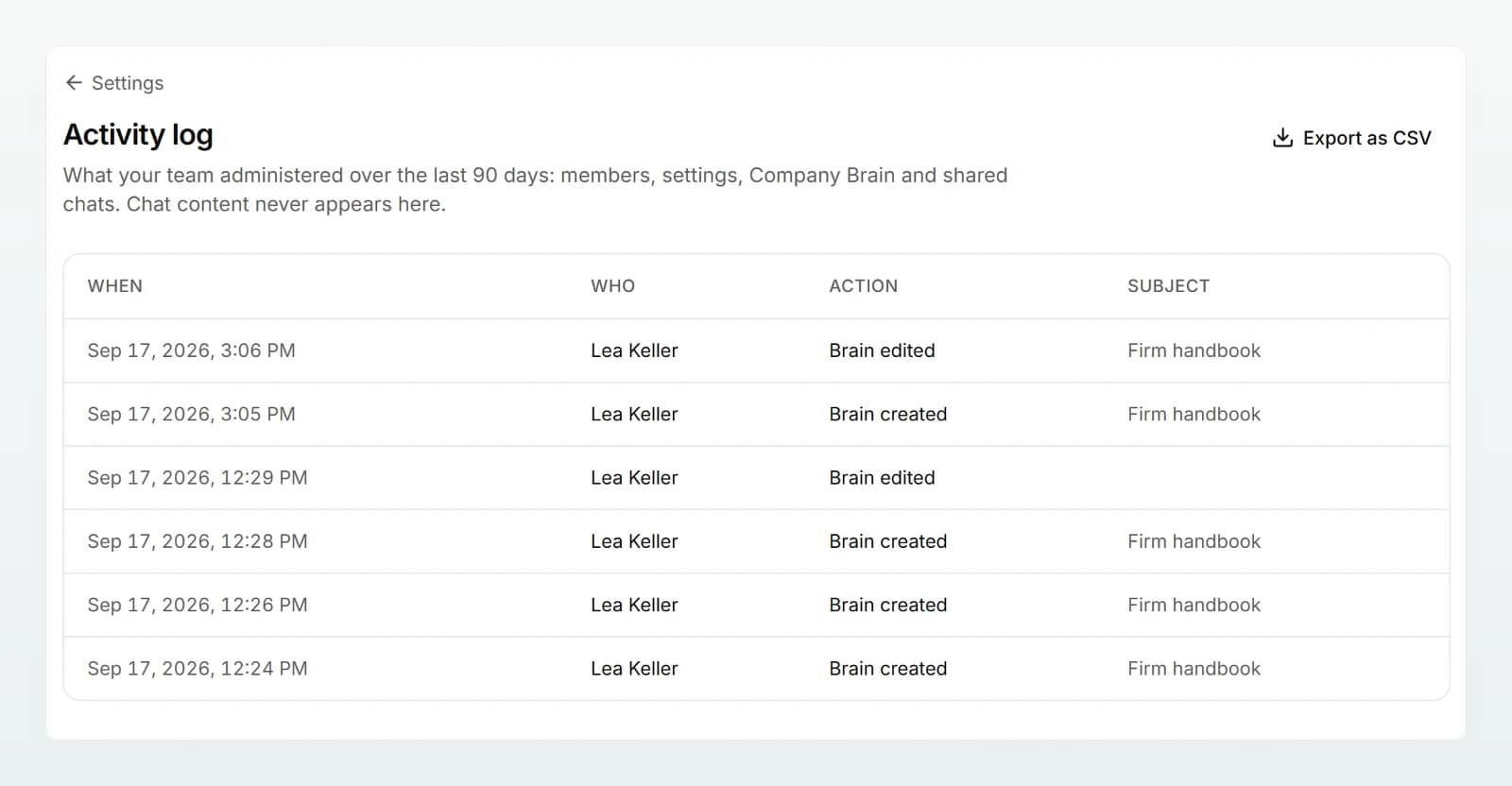
The table shows the last 90 days (at most 300 entries), newest first, with the columns When, Who, Action and Subject. Subject says who or what the change concerned, such as a person, a brain or a model. People who have since left the workspace stay in the log by name.
What is recorded
| Area | Entries (selection) |
|---|---|
| Members | Member invited, Invitation withdrawn, Joined the workspace, Member removed, Role changed, Seat changed, Monthly budget changed |
| Plan and billing | Plan changed, Seats changed, Billing account changed, Larger pool requested |
| Data protection | Data protection mode changed, Detected categories changed, Custom rule added, Custom rule deleted |
| Settings | Security mode changed, Web search changed, Cache duration changed, Retention changed, Access changed, Chat sharing changed, Admin access to brains changed |
| Models | Processing region changed, Model selection changed, Default model changed, Model preset applied |
| Appearance | Display name changed, Logo uploaded, Logo removed |
| Company Brain | Brain created, Brain edited, Brain sharing changed, Brain access changed, Brain deleted, Documents deleted, Document edited, Document saved from a chat, Brain passed to the admins |
| Chats | Chat shared, Shared chat copied |
What is not in it
- No chat content: no messages, no replies, no file content. For a shared chat, only the fact that it was shared is recorded.
- No sign-ins and no ordinary use such as individual chats or replies. How many credits someone used is shown on the Usage page.
- No editing: entries can be neither changed nor deleted.
Exporting as CSV
Click Export as CSV at the top right. The file covers the last 12 months, so more than the table shows. It contains the columns When, Who, Action, Subject and Details. Details holds the technical information about the change, such as the old and new value. Times are given in Coordinated Universal Time (UTC). Excel opens the file with accented characters intact.
Best practices
- Export the log regularly, for example every quarter, and file it with your records. The table only shows 90 days, the export 12 months.
- If a setting changed unexpectedly, look here first to see who changed it and when.
- Tell your team openly that administrative steps are logged. That applies to admins too: whoever turns on admin access to brains, for example, appears in the log.
Frequently asked questions
The table shows the last 90 days. The CSV export covers the last 12 months.
No. The log never contains chat content, only administrative steps.
No. The activity log and the export are only available to admins.