
Seats and billing
You pay per seat. More seats apply immediately and are charged pro rata, fewer seats apply from the next billing date, with no refund.
Custodos is billed per seat. Every person on the team occupies a seat, and every paid seat adds its credits to the shared pool. The plan, seats, billing details and invoices are on the Billing page, in the sidebar under Workspace.
The three tiers
| Tier | Meant for | Credits per seat per month |
|---|---|---|
| Mini | Occasional use: emails, texts, quick questions | 1,000 |
| Business | Everyday work with documents | 2,500 |
| Max | Heavy use and long documents | 10,000 |
Every tier includes all models, Company Brain, agents and the data protection modes. You can mix tiers, for example 6 Business seats and 2 Max seats. The prices are on the pricing page. With an individual agreement, credits and prices can differ: what the Billing page shows is what counts.
The trial
A newly created workspace starts with a 7-day trial:
- The whole team shares 300 credits. Inviting more people adds no credits.
- Chat is available. Company Brain and agents come with your first plan.
- A notice at the top of the workspace shows the days left, and admins see Choose a plan next to it.
- The Billing page currently says Online payment is not available yet. Your workspace keeps working until then.
After the trial ends, your team receives no new credits from the next billing date until a plan is set up, so get in touch in good time.
Your plan at a glance
While a plan is running, the Your plan card shows:
| Row | Meaning |
|---|---|
| Seats | The paid seats per tier, for example 6 × Business, 2 × Max |
| Credits per month | The credits of all paid seats together |
| Monthly or Yearly | The amount excluding VAT, after your discount |
| Next billing date | The next day you are billed |
| Payment method | Card, or invoice at 30 days net |
| Discount | Only if agreed, with the percentage and an end date where there is one |
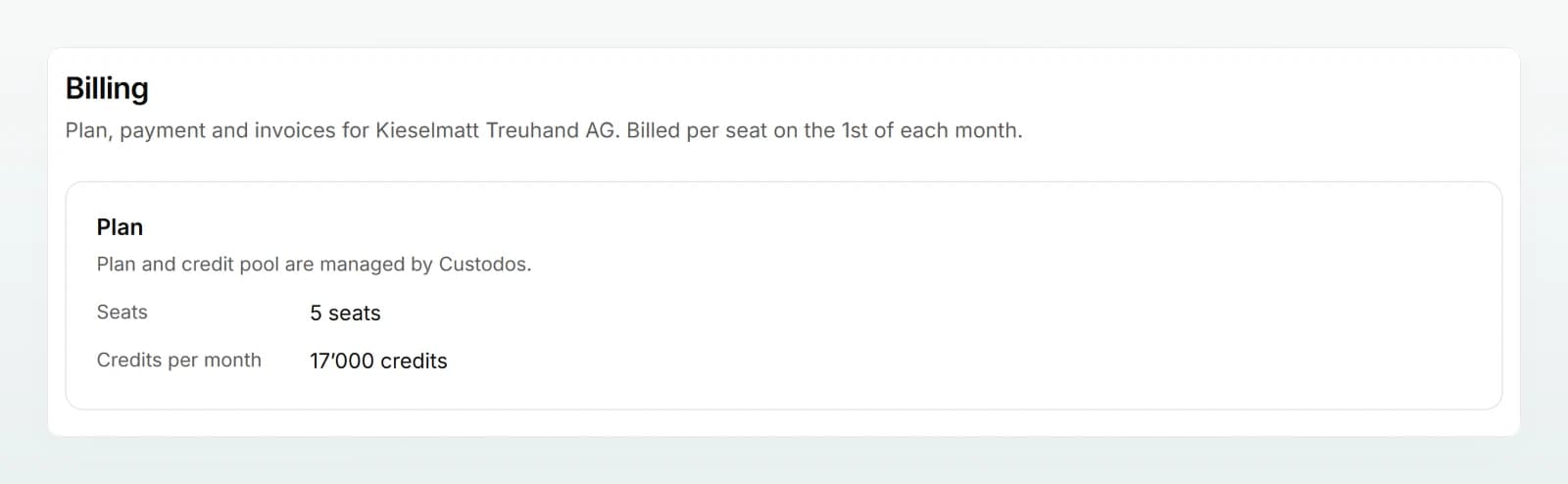
You are billed on the same day every month, usually the day your workspace started. If a month does not have that day, the last day of the month applies. All prices on the Billing and Members pages already include your discount.
Adding or reducing seats
Open the Seats section
On the Billing page, scroll to the Seats section. For each tier the table shows Per seat per month, how many seats are In use and the booked Seats.
Change the number
Change the number with minus and plus. You cannot go below the seats in use: remove someone or move them to another tier first.
Review the change
Click Review change. The Change seats window shows the pro rata amount for this billing month, from when fewer seats apply, and the new monthly amount.
Confirm
Click Confirm.
What applies when
| Change | When it applies | What is charged |
|---|---|---|
| More seats | Immediately, and the credits go straight into the pool | Pro rata for the remaining days of the billing month, today included |
| Fewer seats | From the next billing date | No refund. Until then the seats stay paid and usable. |
| Person moved to a higher tier | Immediately | Without a free seat of that tier, the price difference, pro rata |
| Person moved to a lower tier | The invoice goes down from the next billing date at the earliest | No refund |
| Person removed | Access ends immediately | The seat stays paid and free until you reduce seats |
| Invitation accepted, no matching seat free | Immediately | A seat is added pro rata |
A seat nobody sits in is paid for and still adds its credits to the pool. There is only ever one scheduled change: a new one replaces the previous one. You move people between tiers under Members.
Billing details
In the Billing account section you set what appears on your invoices: Company, E-mail for invoices, address, Country and optionally the VAT number. Click Save billing details. Changes apply from the next invoice. If the details are missing when you pay by invoice, a notice at the top of the workspace reminds you.
Card or invoice
- Card: Manage payment & invoices opens the secure payment page, where you change the card and billing address and find all invoices.
- Invoice: payable within 30 days. Every invoice goes to the email address for invoices.
Switching between card and invoice is only possible with a new agreement. Write to us for that.
Invoices
As soon as an invoice has been issued online, the Invoices section appears with Invoice, Period, Total, Status and Due. Every invoice can be opened or downloaded as a PDF. Invoices you only receive by email do not appear here.
Best practices
- Start lean and check under Usage after a month whether the credits are enough.
- Decide on fewer seats before the billing date: the reduction only applies from then, and nothing is refunded.
- Give a freed seat to someone new before buying another one.
- Keep the email for invoices current, ideally an accounts address rather than a person.
Frequently asked questions
No. Fewer seats apply from the next billing date. Until then the seats stay paid, usable and in the pool.
More seats of that tier are in use. Remove someone first, or move a person to another tier under Members.
An invoice is overdue. Your team can view content but cannot keep working. Settle the payment with your accounts team or write to us.
Write to us at [email protected] or use Contact us on the Billing page.
Not online while online payment is paused. Write to us and we will add credits. More under Credits and usage.
Next steps
Sign-in and access
Your team signs in with an email link, with Google or with Microsoft. You can require Google or Microsoft and restrict invitations to your domain.
Credits and usage
All seats fill one shared credit pool that renews on the billing date. When it runs out, everyone carries on with a cheaper model, at no extra cost.