General
Here you set your workspace's name and logo and write notices and links that your whole team sees, but never a model.
On General you set the workspace's name and logo and the texts your team reads under the message field, when sharing and in the sidebar. Every admin can change everything here; only the display name is enabled by us on request. Every change appears in the activity log.
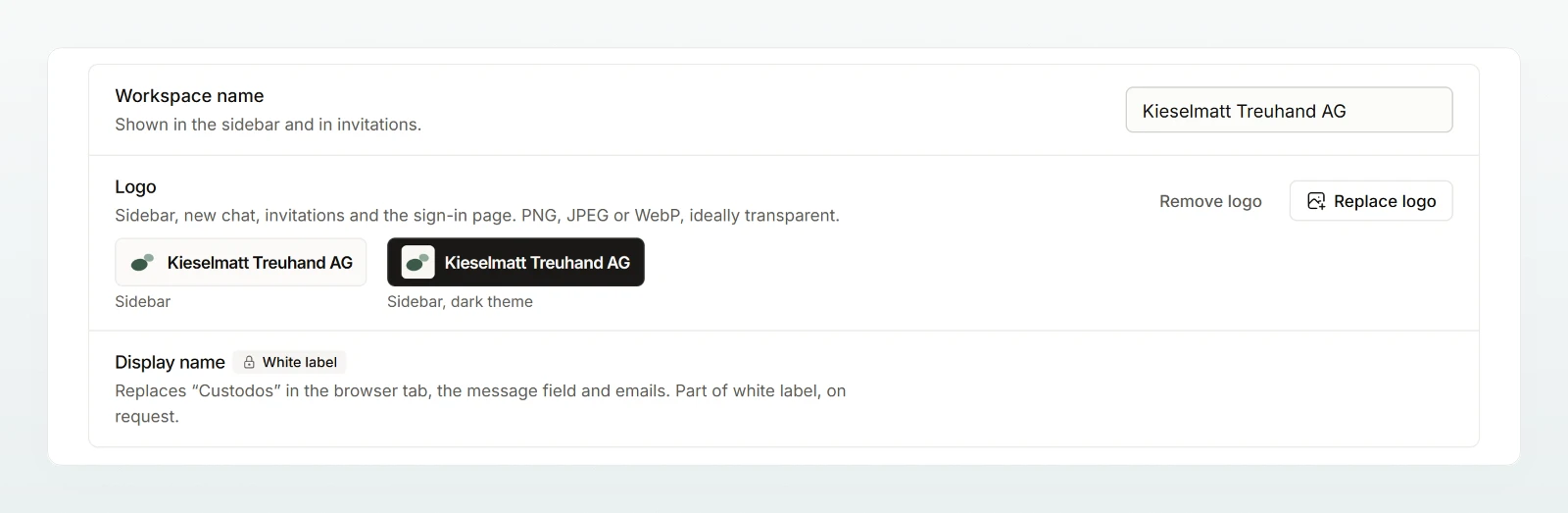
Workspace name
The Workspace name appears in the sidebar and in invitations. It has 2 to 80 characters and is saved when you leave the field.
Logo
Your logo replaces the Custodos mark in the sidebar, in a new chat, in invitations and on the sign-in page.
Choose a file
Click Choose logo next to Logo and pick a PNG, JPEG or WebP file, ideally with a transparent background.
Upload
Click Upload.
Check the preview
Custodos shows the logo under Sidebar and Sidebar, dark theme. A dark logo on a transparent background gets a light plate in the dark theme.
Only a roughly square logo also replaces the icon in the browser tab. Replace logo uploads a new file; Remove logo brings back the Custodos mark.
Display name
Display name replaces “Custodos” in the browser tab, the message field and emails. While the feature is not enabled, the row shows White label with a lock: Custom product name.
Notices and links
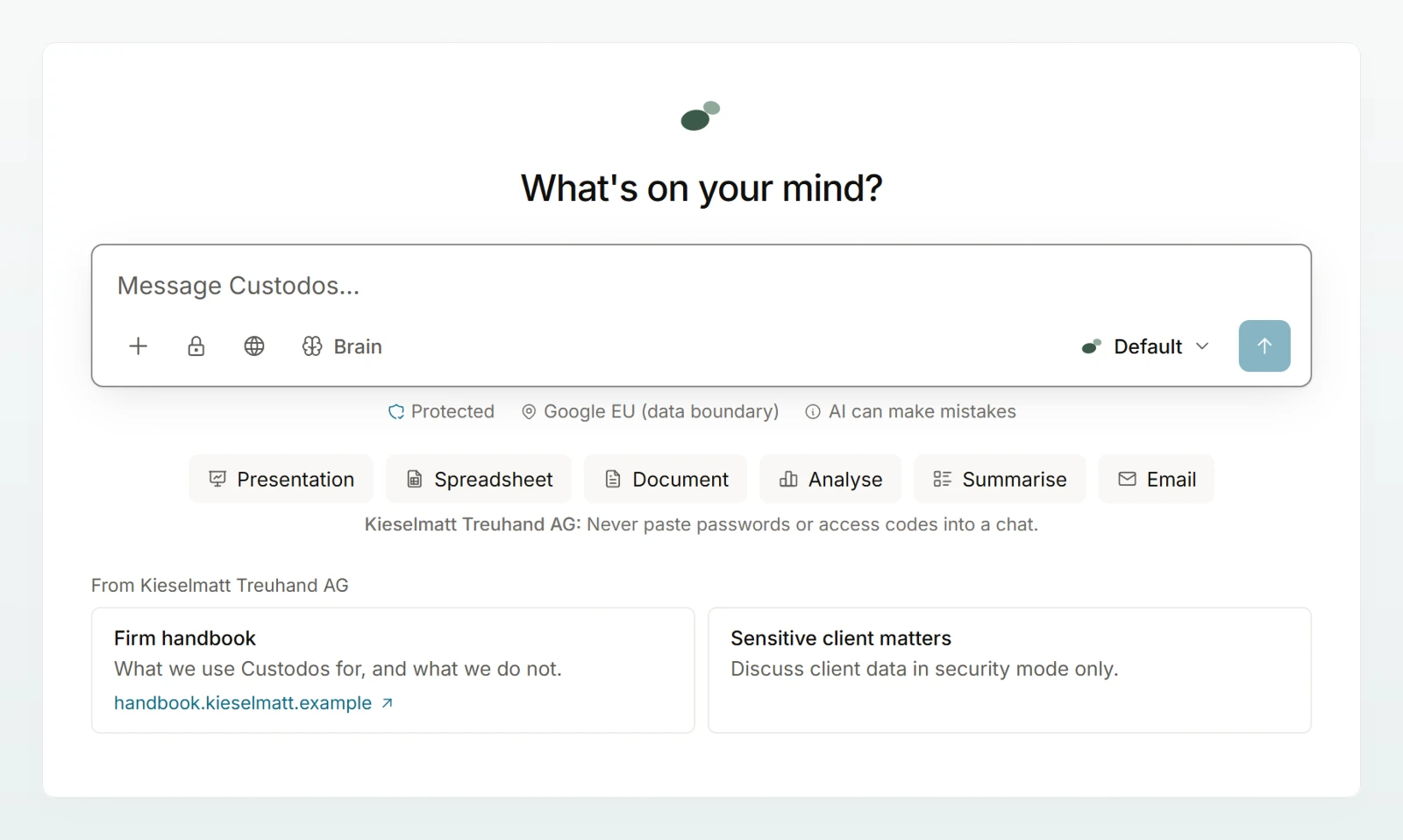
Under Notices and links you write texts for all members. They appear with your workspace's name and are never sent to a model. Instructions for answers belong in an agent.
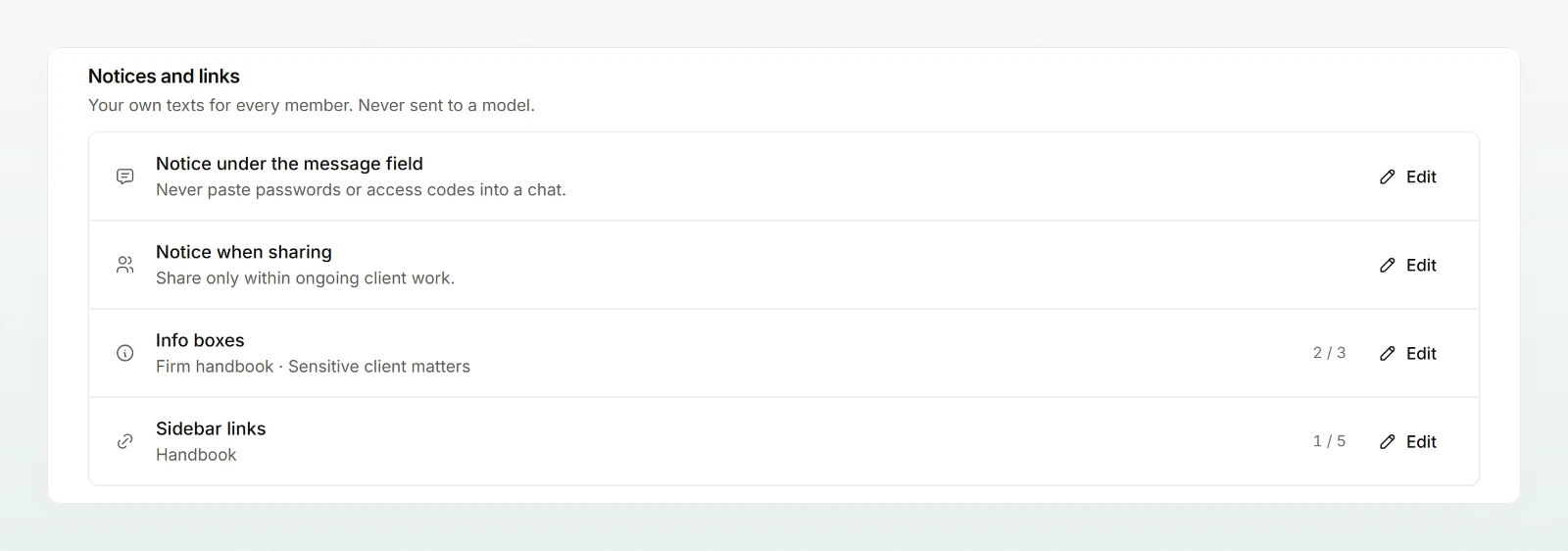
| Row | Where your team sees it | Limit |
|---|---|---|
| Notice under the message field | under the message field of every chat, after the fixed AI notice | 280 characters |
| Notice when sharing | when someone shares something in the workspace | 280 characters |
| Info boxes | cards under the message field of a new chat | up to 3; title 60, text 240 characters |
| Sidebar links | under “Links” in the sidebar, in a new tab | up to 5; label 40 characters |
Open the row
Click Add or Edit in the row.
Write the text
Write plain text. A link is written as [Text](https://…); addresses without https are not linked. Info boxes have Title, Text and Link (optional), sidebar links Label and Address.
Save
Check the Preview and click Save notices.
Danger zone
The Danger zone only appears when you may delete the workspace yourself: you are its only member and nothing was ever billed. Delete workspace takes you to your profile, where you confirm with the workspace's name.
In a personal workspace the page shows only the name and, where allowed, the danger zone.
Frequently asked questions
Only a roughly square logo replaces the tab icon. Upload, for example, just the symbol without the lettering.
Only a logo on a transparent background gets the light plate. Upload that version and check Sidebar, dark theme.