
Sharing and brain access
Decide whether members may share chats, and whether admins automatically have access to every brain or the brain's creator decides.
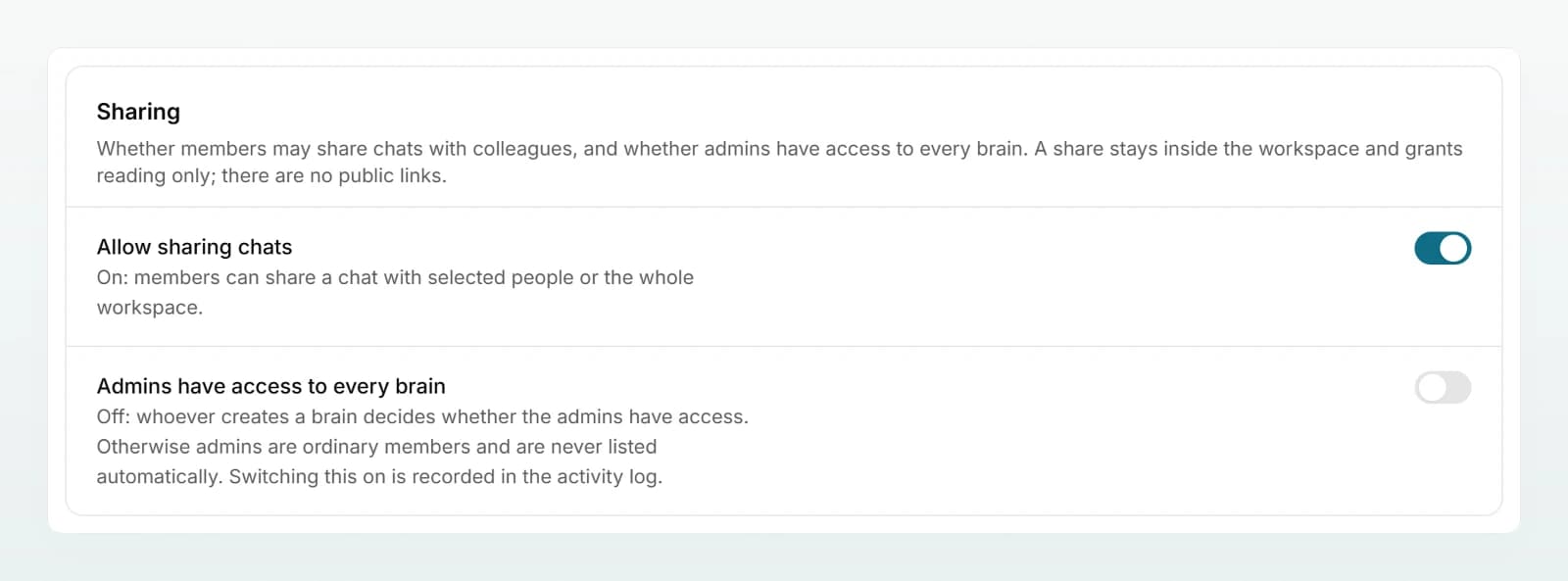
The Sharing section of the workspace settings has two switches: one for sharing chats and one for admins' access to brains. In Custodos a share always stays inside the workspace and grants reading only. There are no public links.
Flip the switches
Open Settings
Click Settings in the sidebar and scroll to the Sharing section.
Choose a switch
Flip Allow sharing chats or Admins have access to every brain. The text below the switch describes the new state. The change applies at once.
Both switches are recorded in the activity log, in both directions: as "Chat sharing changed" and "Admin access to brains changed".
Allow sharing chats
This switch is on in a new workspace.
On: members can use Share to share a chat with Selected people or Everyone in the workspace. The share is live: whoever has it also reads new messages. Attached files stay with the person who owns the chat; only their names are shown. Anyone who wants to carry on uses Copy and continue to get a chat of their own with the transcript and the generated files, but without the attached documents.
Off: the Share button disappears from chats, the Shared with me list stays empty, and existing shares stop resolving at once. They stay stored and apply again if you allow sharing later. Copies that were already made belong to the person who made them and are kept.
| Chat | Person who owns the chat | Person it is shared with | Admin without a share |
|---|---|---|---|
| Read | Yes | Yes, while sharing is allowed | No |
| Write in it | Yes | No, only in a copy of their own | No |
| Open attached files | Yes | No, only the name is shown | No |
| Change sharing, rename, delete | Yes | No | No |
Admins cannot read other members' private chats. They see usage and cost, never message content.
Admins have access to every brain
On: workspace admins can open, edit and share every brain, including brains with the access Selected people only.
Off: whoever creates a brain decides whether the admins have access. Otherwise admins are ordinary members. They use brains shared with Everyone in the workspace like everyone else, and see restricted brains only if they were added. The creator can include the admins as a group:
- when creating a brain with Selected people only, with the Include workspace admins switch,
- later in the brain's Share dialog, with the Workspace admins row.
This gives every current and future admin full access to that one brain.
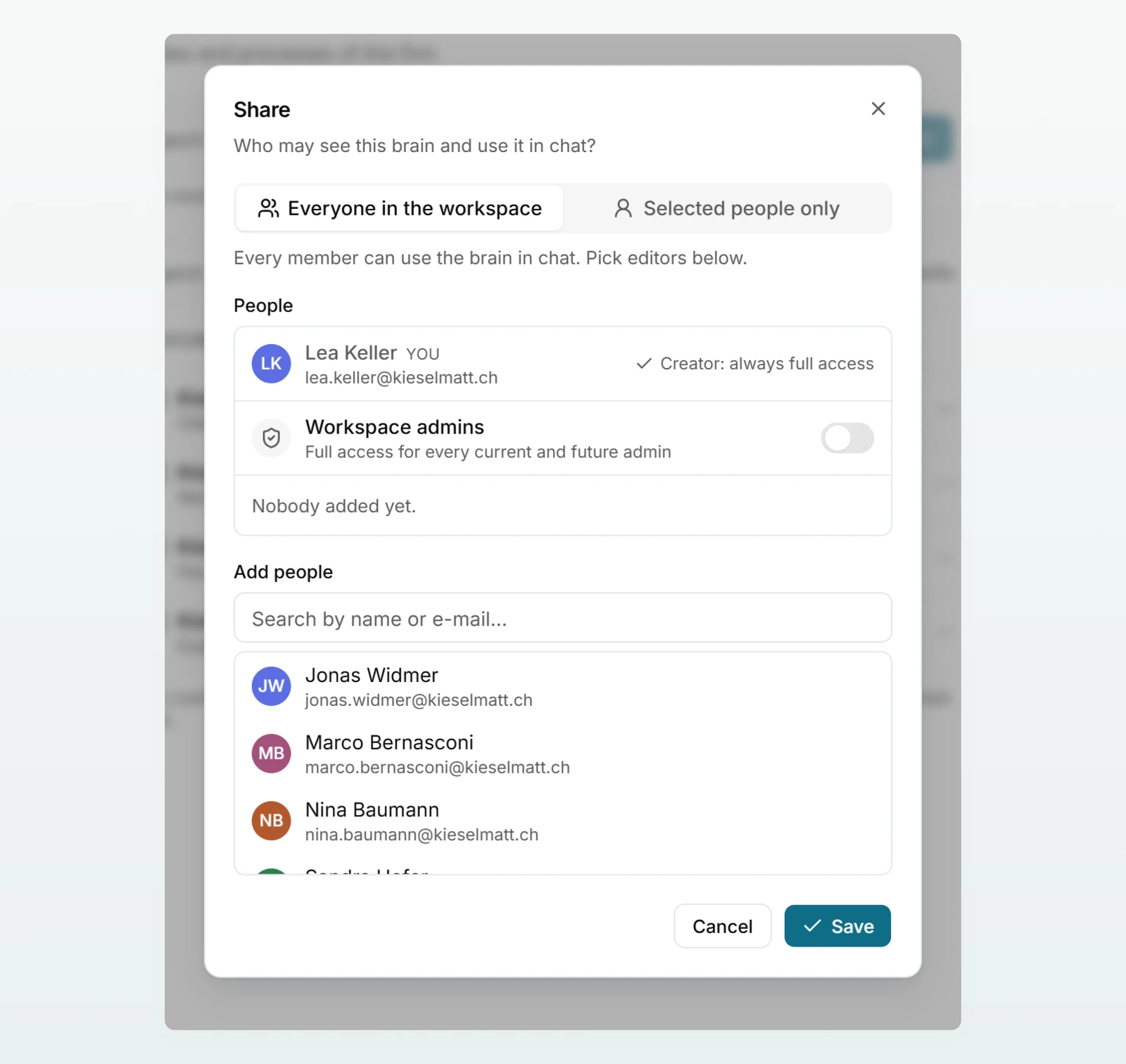
In new workspaces the switch is off. Workspaces that already existed before mid-September 2026 kept it switched on. If you switch it off, admins immediately lose access to every brain that was not shared with them.
| Brain | Switch on | Switch off |
|---|---|---|
| Created by yourself | Full access | Full access |
| Everyone in the workspace | Admins: full access | Admins: use it like everyone else, edit only if shared with them or included as a group |
| Selected people only | Admins: full access | Admins: do not see it unless added or included as a group |
How brains are shared and what editors and readers may do is explained under Access and sharing.
Best practices
- Before the first brains, agree whether admins should see into everything. For personnel records or management documents, "the creator decides" is usually the right choice.
- Give every important brain at least one more person with Can edit, so it does not depend on one person.
- Keep chat sharing on unless a client agreement rules it out. Shared chats save explanations.
- Tell the team that a share is live: later messages in the same chat can be read too.
Frequently asked questions
No. You can read another person's chat only if they share it with you or the whole workspace and sharing is allowed.
The Admins have access to every brain switch is off, and the creator has neither added you nor included the admins. Ask them to share it, or switch the setting on. Switching it on is recorded in the activity log.
No. They stop resolving and apply again as soon as you allow sharing again.
Next steps
How members share chats and carry on.
Access and sharingRoles and sharing for a brain.
Sharing and using agentsWho can see an agent.
Activity logLook up who changed what.
Share the Sharing and finding chats page with your team.