
Choosing the right model
Start with Auto, switch to a stronger model for difficult or long tasks and to an economical one for simple bulk work.
Custodos offers several language models, and your admin decides which of them your team may use. Most of the time you do not need to choose. This page helps with the cases where the choice makes a difference: in quality, in credits or in data protection. How the model menu works is in Choosing a model.
Start with Auto
Auto is not a model that picks the best one for each question. Auto is your workspace default, which an admin sets on the Models page under Defaults. In the model menu, the line next to Auto shows which model that currently is.
For everyday work that is the right choice: your admin has picked a model that suits your region, budget and typical tasks. If the admin changes the default, it applies from your next message. Only switch when you have a reason.
Reading the model menu
In the model menu, a card next to the list shows what the highlighted model can do and what it costs:
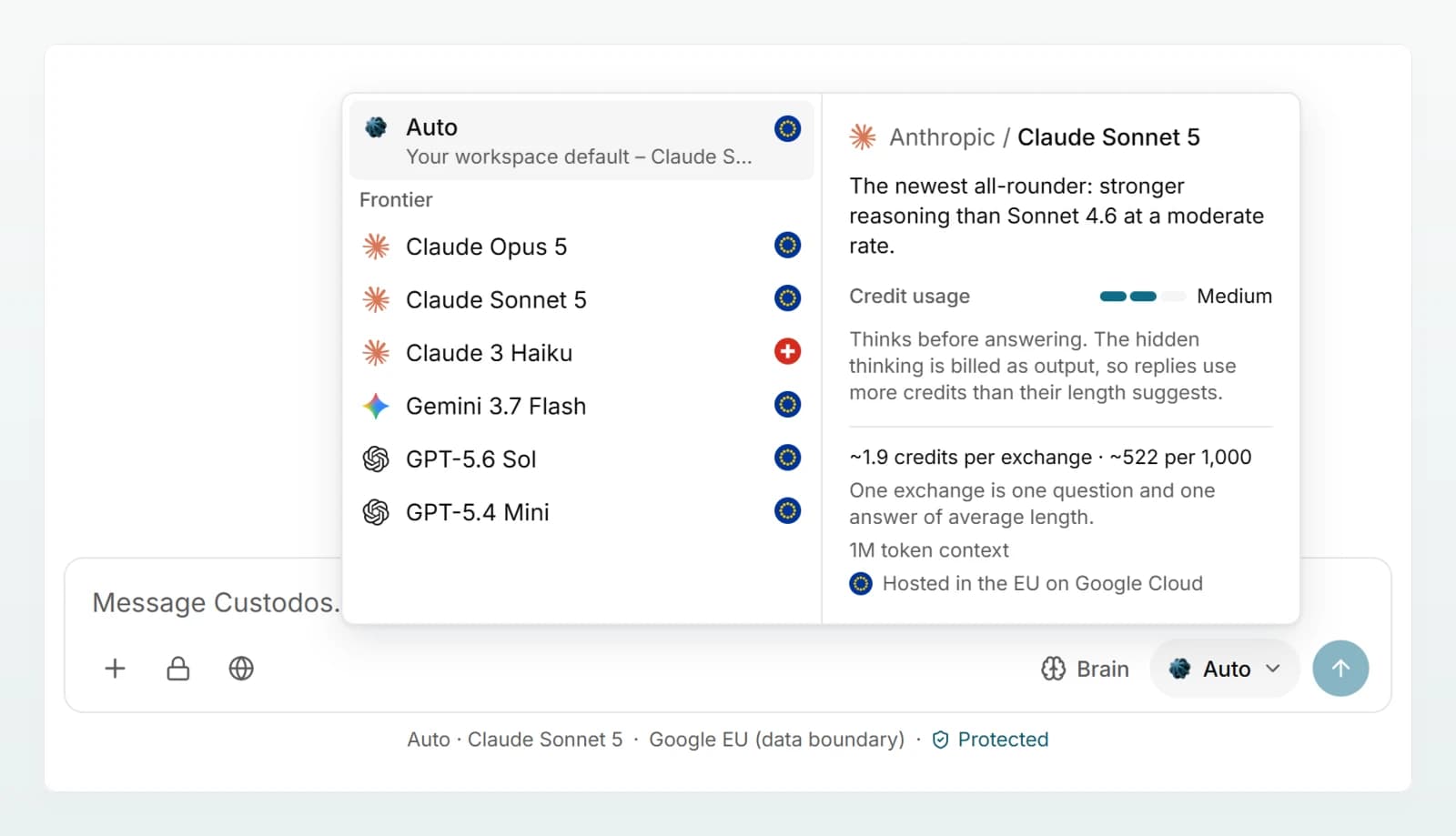
- Credit usage in three levels: Low, Medium, High. Below it, the approximate credits per exchange, counted as one question and one answer of average length.
- Context: how much text the model can process at once, in tokens. A token is roughly four characters of text.
- Hosting: the country or region where the model runs.
- Thinks before answering: such models reason out of sight before they reply. That improves difficult analysis but costs more credits than the length of the answer suggests.
- No web or brain search, and it creates no files. appears for models without tools. Those models cannot use web search, brain search or Outlook, and cannot create or edit files.
The list is grouped: Frontier (the major models such as Claude, GPT and Gemini, served from EU or Swiss data centres), Open models (open weights on European infrastructure), Private (on your own server) and Global (only visible when your workspace does not require a region).
Which task, which model
| Task | Choice | Why |
|---|---|---|
| Emails, short texts, quick questions | Auto | The default is enough and you save credits. |
| Sorting, translating or rewording many short texts | Credit usage Low | Simple tasks do not need a large model. |
| Reviewing a contract, multi-step analysis, delicate wording | Credit usage High, often with thinking | More care with details and instructions. |
| Very long documents or many attachments | A model with a large context | Otherwise not everything fits into one request. |
| Reading screenshots, photos, diagrams | A model that reads images | Other models only learn the file name. |
| Brain, web search, Outlook or files | A model with tools | Without tools these features are missing. |
| Client or personnel data | Security mode | Your admin sets the model, you do not choose. |
When a stronger model pays off
A more expensive model is worth it when a mistake would be costly or the default model is visibly reaching its limits. Typical signs:
- The answer overlooks exceptions, deadlines or conditions that are in the document.
- The model does not follow your format or length instructions, even though they are clear.
- A calculation or line of reasoning has several steps and goes wrong along the way.
- The text has to be very precise legally, technically or in tone.
How to test it: pick a stronger model in the model menu and regenerate the last answer with it. Compare both answers. If the difference matters for this kind of task, use the stronger model for it from now on. Otherwise stay with Auto.
Economical models for simple tasks
For rewording, translating short texts, categorising or first drafts, a model with low credit usage is usually enough. The difference in credits per exchange can be large, and across many small tasks it adds up. All credits come from the same workspace pool, so what you save stays available to the team.
Long documents
Every model can only process a certain amount of text at once. When a chat approaches that limit, Custodos shows a notice. Once it is exceeded, a message offers three ways out:
- remove an attached file you no longer need,
- start a new chat, perhaps with a short summary of the previous one,
- switch to a model with a larger context.
If you regularly work with many documents on the same topic, a brain is the better solution: it gives the model only the matching passages, not every document in full.
Images and screenshots
Not every model can read images. If you attach an image and the chosen model cannot see it, Custodos shows a notice. The image stays out of the request and the model only learns its file name. Switch model in that case.
Images cannot be pseudonymised. That is why you cannot attach any in security mode or in the Block protection mode. See Data protection in daily work.
Region and sensitive data
Your admin sets the Processing region under Models. Models outside that region do not appear in the menu at all. Where a model runs is shown on its card in the model menu.
For client and personnel data there is security mode. It fixes a model your admin has chosen for it, always pseudonymises and never searches the web. In such a chat you do not choose a model, and that is intentional.
When the credits are used up
When the workspace's monthly pool is empty, everyone keeps working on a more economical model until the credits reset. Until then the model menu is locked, web search and Outlook are unavailable and no images are generated. There is no extra charge. How the pool works is in Credits and usage.
Best practices
- Stay with Auto until you see a concrete reason to switch.
- Test a stronger model on a real task, not on a test question.
- For many small, simple tasks, deliberately use an economical model.
- For a brain, Outlook or files, choose a model with tools.
- For sensitive client matters, switch to security mode instead of looking for a model yourself.
Frequently asked questions
No. Auto is always the default model your admin has set for the workspace. Which one that is appears in the model menu next to Auto.
Either your admin has not allowed it, or it runs outside your workspace's processing region. Ask your admin. The settings are described in Models and regions.
The model probably thinks before answering. That hidden thinking is billed like text the model writes, even though you never see it. For simple questions a model without thinking is enough.
Either the workspace's credits for this month are used up and the menu is locked until they reset, or the chat runs in security mode, which fixes the model.