
Troubleshooting
Look up the message you see on screen. For each one you find what it means and what you can do.
This page is ordered by what you see on screen. Search with Ctrl + F (on a Mac Cmd + F) for a word from the message. Where a message inserts a name or a number, this page shows an example or a description in square brackets.
Sign-in and invitations
The sign-in link does not arrive
After Continue with email, Custodos shows "We sent you a sign-in link. You can close this window.", but nothing is in your inbox.
- Wait a minute and check your spam or junk folder. The email has the subject "Sign in to Custodos".
- Make sure the address was spelt correctly, then request a new link.
- If your company holds back emails from new senders, ask your IT.
- Or sign in with Continue with Google or Continue with Microsoft.
"We couldn't send your sign-in link"
The message goes on: "This is on us, not you. Please try again in a moment, or write to [email protected]." Sending failed on our side. Try again in a few minutes, or sign in with Google or Microsoft. If the error persists, write to [email protected].
"That sign-in link has expired or was already used"
A sign-in link is valid for 24 hours and works once. Enter your email address again and always open the newest link. If this happens even with a fresh link, a security filter at your company may be opening links in emails before you do. In that case sign in with Google or Microsoft, or talk to your IT.
"This account can't sign in"
Usually your workspace requires Google or Microsoft sign-in and you chose the email link. Use Continue with Google or Continue with Microsoft instead. The message also appears when an account has been closed. If you think this is a mistake, write to [email protected].
"This email is already registered with a different sign-in method"
This mostly appears with Continue with Microsoft when you previously signed in with the email link. For security reasons, Custodos does not link a Microsoft account to an existing account after the fact. Sign in with Continue with email. If your workspace requires Google or Microsoft sign-in, contact your admin or [email protected].
"Sign in with SSO"
The message reads: "[Workspace] requires Google or Microsoft sign-in. Sign out and use your company SSO account to continue." Your admin has switched on Require SSO. Click Sign out and sign back in with Continue with Google or Continue with Microsoft and your company account. More in Sign-in and access.
"Invitation not valid"
The message reads: "This invitation link is invalid, expired, already used, or was sent to a different email address than the one you signed in with."
- If you are signed in with a different address, sign out, sign back in with the invited address and open the link again.
- If the invitation is older than 7 days or has been used, ask your admin to resend it.
"Google or Microsoft sign-in required"
This message appears when you accept an invitation to a workspace that requires Google or Microsoft sign-in. Sign out, sign back in with your company account through Google or Microsoft, and open the invitation link again. It remains valid.
"Your company already uses Custodos"
This message appears when you try to create a workspace and your company already has one that restricts invitations to your email domain. Do not create a second one. Ask an admin of the named workspace for an invitation instead.
Credits and budget
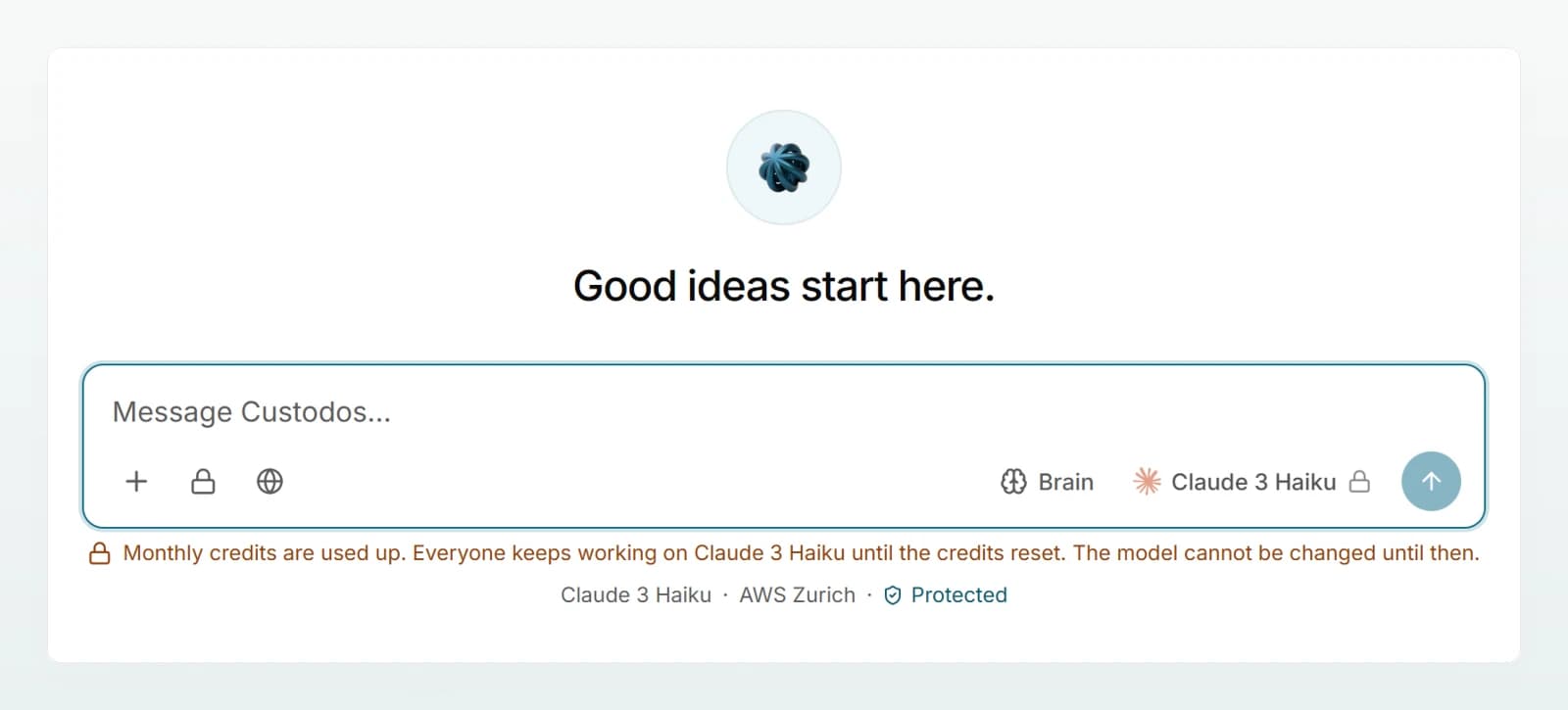
"Monthly credits are used up"
The message under the composer reads: "Monthly credits are used up. Everyone keeps working on [model] until the credits reset. The model cannot be changed until then."
What it means: Your workspace's shared pool is empty for this month. Nobody is locked out, and no extra invoice is created. Until the next billing day Custodos answers with an economical model, and the model picker shows "Model locked while the monthly credits are used up". Web search, image generation and access to Outlook and cloud files are paused.
What you can do: As a member, keep working and let your admin know if needed. Admins can see under Usage when the pool resets, add seats under Billing if the workspace has a plan, or write to [email protected]. More in Credits and usage.
"Image generation is paused until the monthly credits reset"
This month's credits are used up. There is no cheaper model for images, so image generation pauses while the chat keeps working. Wait for the next billing day or talk to your admin.
"Your personal monthly budget is used up"
An admin has set a monthly credit budget for you, and you have reached it. Ask your admin to raise it under Members with Set monthly budget. Otherwise your budget is available again next month.
"This workspace has used far more than its monthly credits"
Even the economical model has a ceiling: twice the monthly pool. Once it is reached, Custodos stops answering until the next billing day. The same message appears when the workspace has no pool at all this month, for example after the trial has ended. An admin writes to [email protected].
"This workspace has used all its credits for this month"
You mostly see this message while building an agent in the Create tab when the credits are used up. Unlike chat, this part does not fall back to a cheaper model. Fill in the fields under Configure by hand, or wait until the next billing day. The credit packs the message mentions are currently unavailable: if needed, an admin writes to [email protected].
Data protection
"Contains protected data"
The notice under the composer reads "Contains protected data ([identifier or rule])", followed by a note that your workspace blocks this message. Your workspace is set to Block, and your message contains an AHV, IBAN, card or UID number, or matches one of your company's rules. Click the notice and remove the highlighted values. More in Protecting personal data in chat.
"Your workspace is set to block"
The message reads: "This message contains [identifier, for example IBAN] data. Your workspace is set to block, so it is not sent to a model. Remove the detail, or ask a workspace admin to switch to pseudonymise." Nothing was sent. Remove the detail and send again. If your team needs such details regularly, an admin can change the protection mode: Configuring data protection.
"This message is blocked by the data-protection rule …"
The message matches one of your workspace's own rules, for customer numbers for example. Such rules cannot be overridden in chat. Remove the detail or contact your admin.
"This file contains protected data"
The message reads: "This file contains protected data ([identifier]) and was not imported." In Block mode the check covers attachments too. Remove the detail from the file and upload it again, or contact your admin.
"Pseudonymisation is not available right now, so nothing was sent"
Custodos could not run the check, so it did not send your message at all. Try again in a few minutes. If it persists, write to [email protected].
My message says NAME_1 instead of a name
This is not an error but pseudonymisation: the model received the placeholder <NAME_1>, and the reply shows the real value again. If a company or product name was replaced by mistake, click the notice under the composer before sending and untick the value. If this happens often, an admin can switch off the names category.
"Cannot be switched off in a chat that has started"
Security mode can only be switched off while the chat is still empty. The message goes on: "open a new chat." Click New chat. While the new chat is still empty, switch the mode on or off with the lock. More in Security mode.
"The model for security mode is not available"
No usable model is set for security mode. An admin chooses one under Settings › Security mode. Until then, work in a regular chat.
Files and images
"The file is larger than 20 MB"
A file in chat can be at most 20 MB. Compress a PDF, split the file, or save only the pages or sheets you need. More in Attaching files and images.
"This file type is not supported"
PDF, Word, Excel, PowerPoint, text, data and code files, and images as PNG, JPEG, WebP or GIF, all work. Save the file in one of these formats and upload it again.
".doc" files cannot be read
The same message appears for other document formats such as .rtf, .odt, .pages or .msg. For image formats such as .heic or .tiff it reads, for example, ".heic" images cannot be read. Save documents as PDF, Word, Excel or PowerPoint, and images as PNG or JPEG. Then upload the file again.
"could not be opened"
The message reads: "[file name] could not be opened. The file may be damaged or password-protected." Remove the password protection, save the file again and try once more.
"contains no readable text, probably a scan"
The PDF consists of images rather than text. Attach the pages as images so that a model with image recognition can read them, or paste the text straight into your message. In a brain with the data protection level Open, scanned pages are read automatically; see Adding sources.
"Images are blocked in this workspace"
Your workspace is set to Block. Images cannot be checked for personal data, so they are not accepted. An admin can switch to Pseudonymise under Settings › Data protection, after which images can be attached.
"Images cannot be attached in security mode"
Image content cannot be pseudonymised, so a chat in security mode does not accept images. Use a regular chat for images.
"This chat already holds 30 images"
A chat holds at most 30 images. Start a new chat for more.
"cannot read images"
The message names the selected model and says that attached pictures stay out of the request and the model is told only their file names. Choose a different model in the model picker. When the credits are used up, a fixed model answers, and it may not be able to read images.
"Too many uploads in a short time"
You have uploaded many files in a short time. Wait a moment and try again.
"The upload failed"
Check your internet connection and try again. If it keeps failing, reload the page.
Models and replies
"No model is enabled yet"
No chat model is allowed in your workspace yet. As a member, ask an admin to enable one under Models. As an admin, you see the Enable models link in the same place. More in Models and regions.
"This model is not available right now"
The selected model cannot answer at the moment, for example because it is no longer enabled. Choose another model or Auto and send again.
"This model is not usable right now"
The message goes on: "its provider connection needs attention. A workspace admin can pick another model in the meantime." Choose another model yourself. If it persists, an admin writes to [email protected].
The provider does not answer
One of these messages appears:
- "The model provider is temporarily unavailable. Please try again in a moment."
- "The model provider is rate-limiting us right now. Wait a moment and send it again."
- "The model took too long to answer. Please try again."
- "The model could not complete this reply. Please try again."
Wait a moment and click Send again. If that does not help, choose another model.
"This message did not get an answer"
The request broke off on the way. Click Send again under your question. Your question is not saved twice.
"The provider's safety filter refused this request"
The model provider refused the request under its own content rules. Rephrasing the question more neutrally usually helps. Otherwise try another model.
"This conversation is too long for …"
The message names the model, the approximate number of tokens and the limit. Before that, Custodos warns with "Approaching the context limit of [model]". If the provider reports the error, it reads "This conversation is too long for the selected model." In every case, the history and attachments no longer fit into what the model can read at once.
- Remove an attached file you no longer need.
- Ask for a summary of the chat so far and start a new chat with it.
- Or switch to a model with a larger context. The context size is shown in the model info in the model picker.
"This chat no longer exists"
The chat was deleted, by you or by your workspace's automatic deletion. Start a new chat.
"Something went wrong"
The page shows "The page could not be loaded. Your data is safe." Click Try again or reload the page. If it stays empty, write to [email protected] with the time and the page.
Integrations
"Your organisation requires a Microsoft 365 administrator to approve this connection"
Your Microsoft 365 organisation does not let members connect new applications themselves. Copy the Approval link for administrators under the message and send it to your IT. After approval, connect Microsoft 365 again. More in Microsoft 365.
"The connection was cancelled"
You cancelled at the provider or declined access. Nothing was stored. Click Connect again and confirm access.
"File access was not granted at the provider"
File access was not confirmed while connecting, and nothing can be imported without it. Connect again and confirm access to your files at the provider.
"The connection could not be confirmed"
The connection process expired, for example because too much time passed between starting and confirming it. Start again under Account settings › Connected accounts.
"The provider did not complete the connection"
Google or Microsoft did not complete the last step. Try again later.
"connect again"
The message reads, for example, "Please connect Outlook again." The connection to your account has expired or was revoked at the provider. Open Account settings › Connected accounts, disconnect, and connect again. More in Integrations overview.
"Google's file dialog could not be opened"
Reload the page and try again. If that does not help, disconnect Google Drive under Connected accounts and connect it again. More in Google Drive.
Access, trial and workspace
"You do not have access to this brain"
The brain is shared with selected people only and you are not one of them, or the sharing was changed. Ask the person who created the brain for access. More in Access and sharing.
"Page not found"
The message reads: "The page you were looking for does not exist, or you no longer have access to it." This happens, for example, when a shared chat is no longer shared with you or was deleted. Ask the person who sent you the link.
"This chat is not, or no longer, shared with you"
The owner of the chat has removed the share, or an admin has switched off chat sharing. In the second case you also see "Sharing chats is switched off in this workspace." Ask the person to share it again, or for a copy of the content. More in Sharing and finding chats.
"Company Brain comes with your first plan"
Your workspace is in its trial. Chat is available; Company Brain and agents ("Agents come with your first plan") come with the first plan. As a member, ask an admin to choose a plan. As an admin, write to [email protected], as online payment is not open yet.
"The trial has ended"
The message goes on: "Choose a plan so your team can keep working." An admin writes to [email protected], and we set the plan up for you.
"Contact us to add more"
When you invite someone, Custodos reports that all seats in your workspace are taken or already invited. Withdraw open invitations that are no longer needed, or write to [email protected].
"Invites are restricted to … addresses"
Your workspace only allows invitations to addresses on your own company domain. Invite the person with their company address. An admin can change the restriction under Settings › Access.
"Read-only"
An invoice for your workspace is overdue. Until it is paid you can read what exists, but you cannot send messages or change anything. Actions then report "[Workspace] is not active right now, so it cannot be changed." An admin pays the open invoice or writes to [email protected].
"Workspace suspended"
The workspace has been suspended. If you think this is a mistake, write to [email protected].
Nothing found?
Write to [email protected]. Include the exact wording of the message, the time and what you were doing. Do not send confidential content; a screenshot of the message is enough.